
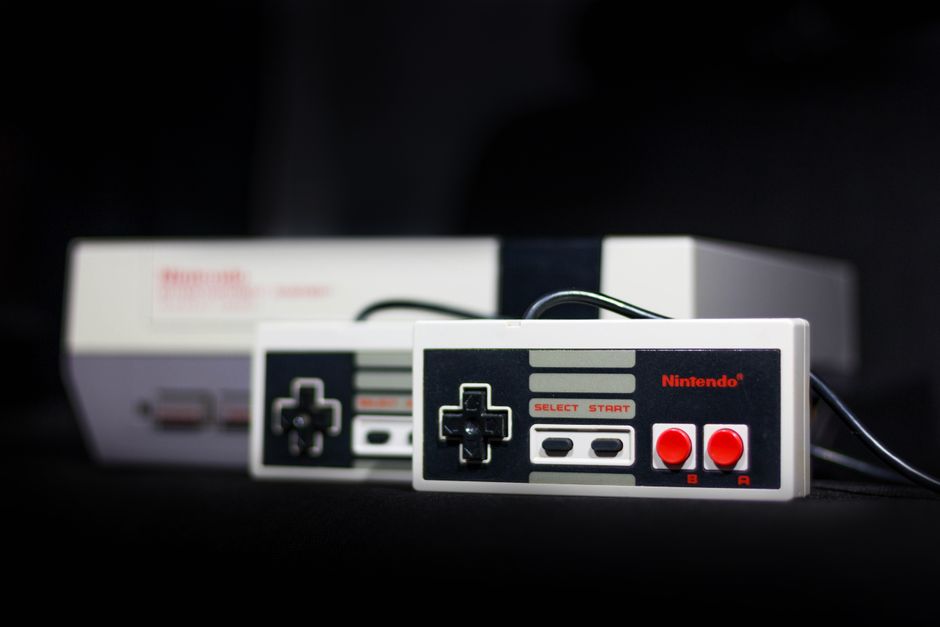
Conquering the Glitches: A Deep Dive into Troubleshooting Common Gaming Console Issues
Gaming consoles, those gateways to digital adventure, are marvels of modern technology. Yet, even the most sophisticated machines can encounter hiccups. This comprehensive guide will equip you with the knowledge and strategies to tackle common gaming console issues, ensuring your gaming sessions remain uninterrupted and enjoyable. We’ll delve into hardware malfunctions, software glitches, connectivity problems, and performance degradation, providing step-by-step solutions for PlayStation, Xbox, and Nintendo Switch.
1. The Black Screen of Despair: Display and Video Output Problems
One of the most frustrating issues is when your console powers on, but the screen remains stubbornly black. This can stem from a faulty connection, incorrect display settings, or even a hardware problem.
Troubleshooting Steps:
- Check Connections:
- HDMI Cable: Ensure the HDMI cable is securely plugged into both the console and the TV. Try a different HDMI port on your TV. If possible, swap the HDMI cable with a known working one. Damaged pins or a loose connection are common culprits.
- Power Cable: Verify the console’s power cable is firmly connected to both the console and the wall outlet.
- TV Input: Double-check that your TV is set to the correct HDMI input source that your console is connected to.
- Console Reboot: Perform a hard reboot of your console. For PlayStation, hold the power button for approximately 10 seconds until it beeps twice. For Xbox, hold the power button for 10 seconds. For Nintendo Switch, hold the power button for 12 seconds.
- Safe Mode (PlayStation/Xbox): If the black screen persists, try booting into Safe Mode. For PlayStation, turn off the console, then press and hold the power button until you hear a second beep. Connect your DualShock controller via USB and press the PS button. For Xbox, disconnect the power cable from the console, wait 30 seconds, then reconnect. Press and hold the power button and the eject button until you hear a second beep. Navigate to “Troubleshoot” and explore options like “Restart Console” or “Change Video Output.”
- Resolution/Refresh Rate: If you recently changed display settings or connected to a new TV, the console might be outputting a resolution or refresh rate your TV doesn’t support. Safe Mode often allows you to reset these settings.
- Overheating: While less likely to cause a complete black screen immediately, if the console has been running for an extended period in a poorly ventilated area, it might be overheating and shutting down video output as a protective measure. Ensure proper airflow.
- Hardware Failure: If none of the above steps resolve the issue, it’s possible there’s a hardware problem with the console’s internal video output components or the TV itself.
2. The Silent Treatment: Audio Issues
No sound from your games can be just as immersion-breaking as a black screen. This can be caused by incorrect audio settings, faulty cables, or software conflicts.
Troubleshooting Steps:
- Volume and Mute: The most basic checks: ensure your TV volume is up, and neither the console nor the TV is muted.
- Audio Output Settings:
- PlayStation: Navigate to Settings > Sound and Screen > Audio Output Settings. Ensure the correct output device is selected (e.g., HDMI Out, AV Amplifier). Check Bitstream (Dolby) or Linear PCM settings.
- Xbox: Navigate to Settings > General > Volume & audio output. Verify the correct output device and format are selected.
- Nintendo Switch: Access System Settings (gear icon on the HOME menu) > TV settings > TV audio. Ensure it’s set to Stereo or Surround Sound as appropriate.
- HDMI Audio: If using HDMI, the audio signal is transmitted through the same cable. A faulty HDMI cable can affect both video and audio.
- Headset/Controller Audio: If using a headset connected to the controller or console, ensure the headset is properly plugged in and functioning. Test with a different headset.
- Software Updates: Outdated console system software can sometimes cause audio bugs. Ensure your console is up-to-date.
- Game-Specific Issues: Some games might have their own audio settings or known bugs. Check the game’s specific forums or support pages.
- Hardware Failure: In rare cases, the console’s internal audio processing hardware could be faulty.
3. The Frozen Frame: Console Freezing and Crashing
When your game or console suddenly stops responding, it’s a sign of a software or hardware issue.
Troubleshooting Steps:
- Hard Reboot: As mentioned for black screens, a hard reboot is often the first step to clear temporary glitches.
- Close Applications: If the freeze occurs within a specific game, try closing the application. For PlayStation and Xbox, press the PS/Xbox button to access the quick menu and select “Close Application” or “Quit Game.”
- Clear Cache: Corrupted cache data can lead to freezing.
- PlayStation: Turn off the console. Hold the power button for 10 seconds until the second beep. Release the button. Press and hold the power button again for 10 seconds. Then, press and hold the power button and the eject button until you hear a third beep. Select “Rebuild Database” or “Clear System Storage” (use with caution, as this may delete saved data).
- Xbox: Turn off the console. Unplug the power cord from the wall and the console. Wait 30 seconds. Plug the power cord back in. Turn on the console.
- Uninstall and Reinstall Game: If the freezing is tied to a specific game, uninstalling and then reinstalling it can resolve corrupted game files.
- System Software Updates: Ensure your console’s system software is up-to-date.
- Check Storage Space: Insufficient free space on your console’s hard drive can lead to performance issues and crashes. Delete unnecessary games or applications.
- Overheating: Overheating can cause system instability and crashes. Ensure proper ventilation.
- Hardware Issues: Persistent freezing, especially after trying all software solutions, might indicate a failing hard drive, RAM, or other internal components.
4. The Lagging Labyrinth: Performance Issues and Slowdowns
Experiencing choppy frame rates, long loading times, or general sluggishness can significantly detract from the gaming experience.
Troubleshooting Steps:
- Close Background Applications: Ensure no other demanding applications are running in the background.
- System Software Updates: Keep your console’s operating system updated, as updates often include performance optimizations.
- Storage Management:
- Free Space: As with freezing, insufficient storage space can impact performance.
- Defragmentation (Not Applicable to SSDs): Modern consoles with SSDs don’t require defragmentation. However, if your console has a traditional HDD, ensure it’s not overly fragmented.
- Network Connection (Online Gaming):
- Wired Connection: For the most stable online experience, use a wired Ethernet connection instead of Wi-Fi.
- Router Reboot: Restart your router and modem.
- Check Internet Speed: Run an internet speed test to ensure your connection meets the recommended requirements for online gaming.
- Close Other Network-Intensive Devices: Other devices using your internet connection can impact gaming performance.
- Overheating: A hot console will throttle its performance to prevent damage, leading to slowdowns. Ensure good ventilation.
- Game-Specific Settings: Some games offer graphical settings that can be adjusted to improve performance, such as lowering resolution or disabling certain visual effects.
- Hard Drive Issues: A failing hard drive can lead to slow loading times and performance degradation.
5. The Connectivity Conundrum: Network and Online Issues
Inability to connect to online services, download updates, or play multiplayer games is a common frustration.
Troubleshooting Steps:
- Check Internet Connection:
- Console Network Settings: Navigate to your console’s network settings and run a connection test.
- Router/Modem Reboot: Power cycle your router and modem.
- Wired vs. Wireless: If using Wi-Fi, try a wired Ethernet connection for stability.
- ISP Issues: Check with your Internet Service Provider (ISP) for any reported outages in your area.
- DNS Settings: Sometimes, changing your DNS servers can improve connectivity. You can try using public DNS servers like Google DNS (8.8.8.8 and 8.8.4.4) or Cloudflare DNS (1.1.1.1 and 1.0.0.1).
- Firewall and Port Forwarding: Your router’s firewall or NAT type might be blocking necessary ports for online gaming. Consult your router’s manual or your ISP for assistance with port forwarding for your specific console.
- Account Issues: Ensure you are logged into the correct online account (e.g., PlayStation Network, Xbox Live, Nintendo Account). Check for any account suspensions or restrictions.
- Server Status: Many online games and console services have their own server status pages. Check these for any reported outages.
- System Software Updates: Ensure your