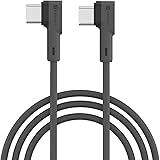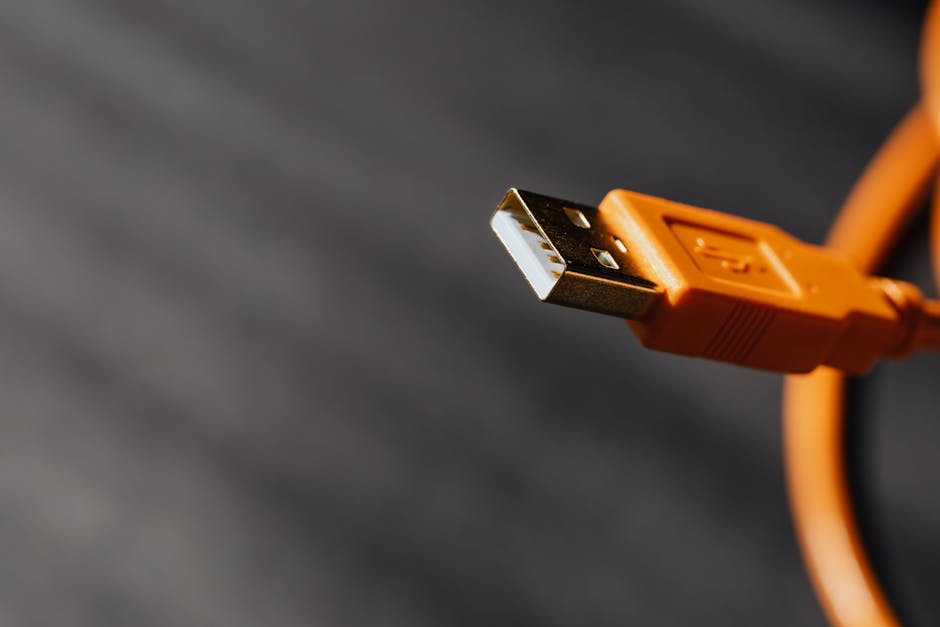
In the modern technological landscape, the humble USB cable is an indispensable conduit, connecting everything from your smartphone to your gaming console. Yet, navigating the labyrinth of USB standards, connectors, and specifications can be a bewildering experience. This comprehensive buyer’s guide demystifies the world of USB cables, empowering you to make informed purchasing decisions and avoid frustrating compatibility issues.
The Evolution of USB: A Timeline of Speed and Functionality
Understanding USB versions is paramount. Each iteration brought significant advancements in data transfer speeds and power delivery capabilities.
- USB 1.0/1.1 (1996/1998): The genesis. Offering speeds of 1.5 Mbps (Low-Speed) and 12 Mbps (Full-Speed), these were revolutionary for their time but are now largely obsolete for most modern devices.
- USB 2.0 (2000): A significant leap, introducing High-Speed at 480 Mbps. This became the workhorse for many years, found in countless peripherals like keyboards, mice, and older external hard drives.
- USB 3.0/3.1 Gen 1/3.2 Gen 1 (2008/2013/2017): Initially named USB 3.0, it was later rebranded multiple times. This standard offers SuperSpeed data transfer at 5 Gbps. Look for the distinctive blue connector housing on USB-A ports.
- USB 3.1 Gen 2/3.2 Gen 2 (2013/2017): This doubled the speed of its predecessor to 10 Gbps, often marketed as SuperSpeed+.
- USB 3.2 Gen 2×2 (2017): A further acceleration, achieving 20 Gbps by utilizing two lanes of USB 3.2 Gen 2. This requires compatible ports and cables.
- USB4 (2019): The latest iteration, built upon the Thunderbolt 3 protocol. USB4 offers incredible flexibility, with speeds up to 40 Gbps and even 80 Gbps in certain configurations. It supports advanced features like tunneling multiple protocols (including DisplayPort and PCIe) over a single cable and dynamic bandwidth allocation. USB4 is exclusively USB-C.
Decoding USB Connectors: The Physical Interface
The shape of the connector is as important as the underlying standard.
- USB-A: The ubiquitous rectangular connector found on most computers, chargers, and power banks. It’s been the standard for decades.
- USB-B: Typically found on larger devices like printers and scanners. There are several variations, including Mini-USB-B and Micro-USB-B, which were common on older smartphones and cameras.
- USB-C (USB Type-C): The modern, reversible connector that is rapidly becoming the universal standard. Its symmetrical design means you can plug it in either way up. USB-C is the only connector type that supports the latest USB4 standard and is also capable of handling high power delivery (USB PD) and alternate modes like DisplayPort.
Key Specifications to Consider When Buying:
-
USB Standard (Speed): As detailed above, prioritize cables that match or exceed the USB standard supported by your devices for optimal performance. A USB 3.0 device will only transfer at USB 3.0 speeds when connected with a USB 2.0 cable.
-
Connector Type: Ensure the cable has the correct connectors for both your source device (e.g., laptop) and your target device (e.g., external hard drive, smartphone). USB-C to USB-C is becoming increasingly prevalent.
-
Data Transfer Speed: Directly linked to the USB standard. For large file transfers, higher speeds are crucial. Look for labels like “SuperSpeed” or the Gbps rating.
-
Power Delivery (USB PD): This is a critical feature for charging modern devices, especially laptops and tablets. USB PD allows for significantly faster charging than older standards. Cables supporting USB PD will have higher wattage ratings (e.g., 60W, 100W, or even 240W for the latest Extended Power Range). Ensure both the cable and your charger/device support the desired wattage.
-
Cable Length: Longer cables are convenient but can sometimes lead to signal degradation, especially at higher speeds. For critical data transfers or high-speed applications, shorter cables are generally preferred. If you need a longer cable, look for ones specifically designed for extended lengths with robust shielding.
-
Build Quality and Durability: A cheap, flimsy cable can be a false economy. Look for:
- Thick Gauge Wires: Thicker wires (lower AWG number) indicate better conductivity and less resistance, especially important for power delivery.
- Shielding: Effective shielding (e.g., foil and braided shielding) protects against electromagnetic interference, ensuring cleaner data signals and preventing dropped connections.
- Connector Construction: Reinforced connectors with strain relief at the cable entry point are less prone to breaking.
- Cable Material: Braided nylon or robust rubber sheathing offers better durability and tangle resistance than standard plastic.
-
Alternate Modes (USB-C): USB-C cables can support more than just data and power. “Alternate Modes” allow them to carry other signals.
- DisplayPort Alternate Mode (DP Alt Mode): Enables the USB-C port to output video signals, allowing you to connect monitors directly.
- Thunderbolt 3/4: A high-speed interface that utilizes the USB-C connector and offers exceptional bandwidth for data, video, and power. USB4 is built on Thunderbolt 3 technology.
-
Certifications: Look for official certifications like “USB-IF Certified.” This indicates the cable has been tested and meets the specifications set by the USB Implementers Forum, ensuring compatibility and performance.
Common USB Cable Use Cases and Recommendations:
-
Charging Smartphones/Tablets: For most modern devices, a USB-C to USB-C cable supporting USB PD (at least 30W, ideally 65W or higher for faster charging) is recommended. For older devices, a USB-A to USB-C or USB-A to Micro-USB cable with sufficient power output from the charger is needed.
-
Connecting External Hard Drives/SSDs: For fast data transfers, a USB 3.2 Gen 2 (10 Gbps) or USB4 cable is ideal. Ensure the cable’s connectors match your drive and computer. USB-C to USB-C is common for modern external SSDs.
-
Connecting Peripherals (Keyboards, Mice, Webcams): USB 2.0 cables are often sufficient for these devices, but if your peripheral supports USB 3.0 or higher, a corresponding cable will offer better performance and potentially lower latency.
-
Connecting Monitors (via USB-C/Thunderbolt): If you’re using a USB-C port for video output, ensure the cable supports DisplayPort Alternate Mode and has sufficient bandwidth for your monitor’s resolution and refresh rate. For high-resolution and high-refresh-rate displays, a USB4 or Thunderbolt 3/4 certified cable is often necessary.
-
Charging Laptops: This is where USB PD and high wattage are critical. Look for cables rated for 60W, 100W, or even 240W (for newer USB PD 3.1 Extended Power Range) that are compatible with your laptop’s charging requirements. USB-C to USB-C is the standard for modern laptop charging.
Troubleshooting Common USB Cable Issues:
-
“Device Not Recognized” or Slow Speeds:
- Check the USB Standard: Is your cable rated for the speed your device requires?
- Try a Different Cable: The cable itself might be faulty.
- Check Connectors: Ensure they are clean and properly seated.
- Update Drivers: Outdated drivers on your computer can sometimes cause issues.
- Try a Different Port: The USB port on your device might be the problem.
-
Device Not Charging or Charging Slowly:
- Check USB PD Support: Does the cable and charger support the wattage your device needs?
- Inspect Cable for Damage: A damaged cable can hinder power delivery.
- Clean Connectors: Debris can obstruct the connection.
By understanding the nuances of USB standards, connectors, and the critical specifications like power delivery and data transfer speeds, you can confidently select the right USB cable for every need, ensuring seamless connectivity and optimal performance for all your devices.

Portronics Konnect L POR-1081 Fast Charging 3A Type-C Cable 1.2Meter with Charge & Sync Function for All Type-C Devices (Grey)
₹149.00 (as of October 9, 2026 19:12 GMT +05:30 - More infoProduct prices and availability are accurate as of the date/time indicated and are subject to change. Any price and availability information displayed on [relevant Amazon Site(s), as applicable] at the time of purchase will apply to the purchase of this product.)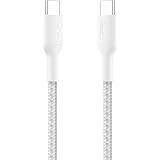
Belkin Apple Certified USB-C to USB-C Braided Nylon Cable 1M | Fast Charging Cable | Type C Charger Cable for iPhone 17, 16, Galaxy S25, Pixel 9, MacBook, iPad Pro | 2 Years Warranty | White
₹699.00 (as of October 9, 2026 19:12 GMT +05:30 - More infoProduct prices and availability are accurate as of the date/time indicated and are subject to change. Any price and availability information displayed on [relevant Amazon Site(s), as applicable] at the time of purchase will apply to the purchase of this product.)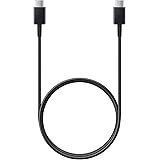
Samsung Original Type C to C Cable - 3.28 Feet (1 Meter), Black
₹348.00 (as of October 9, 2026 19:12 GMT +05:30 - More infoProduct prices and availability are accurate as of the date/time indicated and are subject to change. Any price and availability information displayed on [relevant Amazon Site(s), as applicable] at the time of purchase will apply to the purchase of this product.)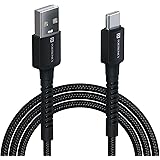
Portronics Konnect X USB to Type C Cable with 3A Output, Fast Charging & Data Transfer, Nylon Braided, Aluminium Alloy Shell, 1M Length compatible with Type C Smartphones(Black)
₹129.00 (as of October 9, 2026 19:12 GMT +05:30 - More infoProduct prices and availability are accurate as of the date/time indicated and are subject to change. Any price and availability information displayed on [relevant Amazon Site(s), as applicable] at the time of purchase will apply to the purchase of this product.)
One Plus Fast 80W Original USB Type C Data Sync Fast Charging Charger Cable for One Plus 13,13s,13r,12,12r,11,11r,10,10r,10t,10pro,9,9rt,9r,9pro,8,8t,7t,7pro,Nord 5,CE5,CE4,CE3,CE2lite,4,3,2,2T
₹179.00 (as of October 9, 2026 19:12 GMT +05:30 - More infoProduct prices and availability are accurate as of the date/time indicated and are subject to change. Any price and availability information displayed on [relevant Amazon Site(s), as applicable] at the time of purchase will apply to the purchase of this product.)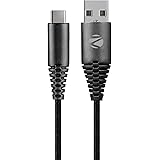
Zebronics Type-C Fast Charging Cable, Upto 480 Mbps, 36W Rapid Charge, 3A Output, Charge & Sync Data Cable, 1 Meter Length, Tangle-Free Durable Design (CU300T)
₹69.00 (as of October 9, 2026 19:12 GMT +05:30 - More infoProduct prices and availability are accurate as of the date/time indicated and are subject to change. Any price and availability information displayed on [relevant Amazon Site(s), as applicable] at the time of purchase will apply to the purchase of this product.)
Portronics Konnect X 60W Type C to Type C Unbreakable Nylon Braided Cable, 1M Fast Charging Cable for iPhone 15 series, iPad, Samsung Galaxy & other Type C Devices(Black)
₹139.00 (as of October 9, 2026 19:12 GMT +05:30 - More infoProduct prices and availability are accurate as of the date/time indicated and are subject to change. Any price and availability information displayed on [relevant Amazon Site(s), as applicable] at the time of purchase will apply to the purchase of this product.)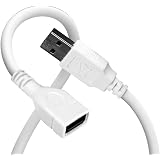
Zebronics USB Extension Cable, 1.5 Meter Length, 480Mbps Data Transfer, Full Copper Core, Nickel-Plated Connectors, Durable Build, For TV, Laptop, PC, Hard Drive, Gamepad (UEC15)
₹109.00 (as of October 9, 2026 19:12 GMT +05:30 - More infoProduct prices and availability are accurate as of the date/time indicated and are subject to change. Any price and availability information displayed on [relevant Amazon Site(s), as applicable] at the time of purchase will apply to the purchase of this product.)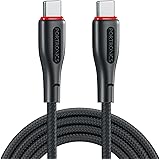
Portronics 100W Konnect B 1.5M Type C to Type C 5A Fast Charging Cable With E-Marker Chipset, Strong Braided Cable, Compatible With Laptops, Smartphone, Tablet, iphones, iPads & other type C Device
₹228.00 (as of October 9, 2026 19:12 GMT +05:30 - More infoProduct prices and availability are accurate as of the date/time indicated and are subject to change. Any price and availability information displayed on [relevant Amazon Site(s), as applicable] at the time of purchase will apply to the purchase of this product.)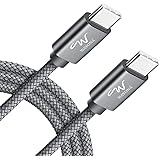
Wayona Type C to Type C 6FT/2M 65W Long Fast Charging Cable Compatible with iPhone 17, Air, iPhone 16,15 Pro/Max Series Macbook Air/Pro Samsung Galaxy S25, Ultra/S24/ S23 Flip Fold OnePlus (2M, Grey)
₹333.00 (as of October 9, 2026 19:12 GMT +05:30 - More infoProduct prices and availability are accurate as of the date/time indicated and are subject to change. Any price and availability information displayed on [relevant Amazon Site(s), as applicable] at the time of purchase will apply to the purchase of this product.)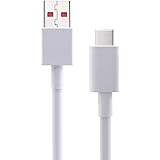
XIAOMI Mi 33W Fast Charging Cable USB C Quick Charge 4.0 Soniccharge Cord Compatible withMi, Redmi, iPhone 15 Pro Samsung Galaxy Android Phone Laptop PD Charger Cable (White)
₹279.00 (as of October 9, 2026 19:12 GMT +05:30 - More infoProduct prices and availability are accurate as of the date/time indicated and are subject to change. Any price and availability information displayed on [relevant Amazon Site(s), as applicable] at the time of purchase will apply to the purchase of this product.)
HAMMER Unbreakable Type C to Type C Cable 60W Braided, PD Fast Charging, Data Sync, 1.2 Meter Tangle Free Wire, Compatible with all C-Type Enabled Devices (Black)
₹137.00 (as of October 9, 2026 19:12 GMT +05:30 - More infoProduct prices and availability are accurate as of the date/time indicated and are subject to change. Any price and availability information displayed on [relevant Amazon Site(s), as applicable] at the time of purchase will apply to the purchase of this product.)
Wayona [Apple MFi Certified Charger Lightning to USB Charging Cable Cord Compatible iPhone 14/13/12/11 Pro/11/XS MAX/XR/8/7/6s Plus,iPad Pro/Air/Mini
₹329.00 (as of October 9, 2026 19:12 GMT +05:30 - More infoProduct prices and availability are accurate as of the date/time indicated and are subject to change. Any price and availability information displayed on [relevant Amazon Site(s), as applicable] at the time of purchase will apply to the purchase of this product.)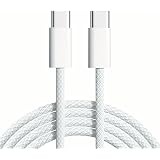
APFEN 80W Type C to C Fast Charging & Data Sync Cable Nylon Braided Cable Compatible With iPhone 17/16/15 Pro/ProMax Series/Macbook/iPad and Other Type C devices
₹271.00 (as of October 9, 2026 19:12 GMT +05:30 - More infoProduct prices and availability are accurate as of the date/time indicated and are subject to change. Any price and availability information displayed on [relevant Amazon Site(s), as applicable] at the time of purchase will apply to the purchase of this product.)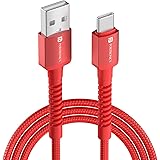
Portronics Konnect X 60W 6A USB-A to Type C Fast Charging Cable With WARP/DASH/VOOC/SuperVOOC/FLASH Charging Support, Compatible with OnePlus, Oppo, iPhone 15 & other Type C Smartphone & Devices(Red)
₹169.00 (as of October 9, 2026 19:12 GMT +05:30 - More infoProduct prices and availability are accurate as of the date/time indicated and are subject to change. Any price and availability information displayed on [relevant Amazon Site(s), as applicable] at the time of purchase will apply to the purchase of this product.)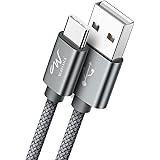
Type C Cable Fast Charging 65W USB C 1M Charger Cable Compatible for iPhone 17,16,15 Pro Max, 17 Air,Apple CarPlay,Galaxy S26 S25 Ultra Charge & Data Sync for All Type C Devices
₹265.00 (as of October 9, 2026 19:12 GMT +05:30 - More infoProduct prices and availability are accurate as of the date/time indicated and are subject to change. Any price and availability information displayed on [relevant Amazon Site(s), as applicable] at the time of purchase will apply to the purchase of this product.)
Ambrane Unbreakable 60W Fast Charging 1.5M Braided Type C to Type C Cable for Smartphones, Tablets, Laptops & Other Type C Devices, PD Technology, 480Mbps Data Sync (RCTT15, Black)
₹129.00 (as of October 9, 2026 19:12 GMT +05:30 - More infoProduct prices and availability are accurate as of the date/time indicated and are subject to change. Any price and availability information displayed on [relevant Amazon Site(s), as applicable] at the time of purchase will apply to the purchase of this product.)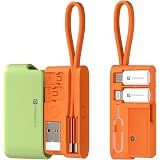
Portronics Snapcase Ultra Multifunctional 8-in-1 Cable & tool Kit, 60W Fast Charging, USB-A, Type-C to Type C, 8-Pin & Micro Adapters, SIM & Micro SD Holder, High-Speed Data transfer, Green
₹349.00 (as of October 9, 2026 19:12 GMT +05:30 - More infoProduct prices and availability are accurate as of the date/time indicated and are subject to change. Any price and availability information displayed on [relevant Amazon Site(s), as applicable] at the time of purchase will apply to the purchase of this product.)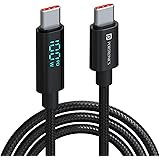
Portronics Konnect View 100W Type C to Type C Cable with LED Display with 5A Max Output, Fast Data Sync, 2M Length, Tangle Resistance supports Laptop Charging(Black)
₹489.00 (as of October 9, 2026 19:12 GMT +05:30 - More infoProduct prices and availability are accurate as of the date/time indicated and are subject to change. Any price and availability information displayed on [relevant Amazon Site(s), as applicable] at the time of purchase will apply to the purchase of this product.)