
USB Cable Compatibility: Ensuring Seamless Device Connection
The ubiquity of USB (Universal Serial Bus) has transformed our digital lives, connecting everything from smartphones and external hard drives to keyboards and gaming consoles. However, navigating the labyrinth of USB specifications, connectors, and speeds can be a daunting task, often leading to frustrating connection issues. Understanding USB cable compatibility is paramount to ensuring seamless device interaction and unlocking the full potential of your technology. This comprehensive guide delves into the intricacies of USB standards, connector types, and best practices to empower you in making informed choices for your connectivity needs.
At the heart of USB compatibility lies the evolution of its specifications. These define the data transfer rates, power delivery capabilities, and communication protocols. The most prevalent standards you’ll encounter are:
- USB 1.0/1.1 (Low Speed/Full Speed): These early iterations offered data transfer rates of 1.5 Mbps and 12 Mbps, respectively. While largely obsolete for modern devices, they might still be found on legacy peripherals.
- USB 2.0 (High Speed): Introduced in 2000, USB 2.0 significantly boosted speeds to 480 Mbps. This became the workhorse standard for many years and remains relevant for a wide range of devices, particularly keyboards, mice, and older external drives.
- USB 3.0/3.1 Gen 1/3.2 Gen 1 (SuperSpeed): These terms are often used interchangeably, all referring to the same standard with a theoretical speed of 5 Gbps. This was a substantial leap forward, making it suitable for faster external storage and modern peripherals.
- USB 3.1 Gen 2/3.2 Gen 2 (SuperSpeed+): Doubling the bandwidth of its predecessor, this standard offers speeds of 10 Gbps, ideal for high-performance SSDs and demanding data transfers.
- USB 3.2 Gen 2×2 (SuperSpeed 20Gbps): This newer standard leverages two 10 Gbps lanes to achieve a remarkable 20 Gbps transfer rate, commonly found on high-end motherboards and NVMe enclosures.
- USB4: The latest iteration, USB4, is built upon the Thunderbolt 3 protocol and offers a remarkable range of speeds, including 20 Gbps and 40 Gbps, with optional support for 80 Gbps and even 120 Gbps in future iterations. USB4 also introduces enhanced tunneling capabilities, allowing for simultaneous data, display, and power delivery over a single cable.
Crucially, backward compatibility is a core tenet of the USB standard. This means a newer USB port can generally communicate with older USB devices, and vice versa. However, the connection will operate at the speed of the slowest component. Plugging a USB 3.0 device into a USB 2.0 port will result in USB 2.0 speeds. Similarly, a USB 2.0 device connected to a USB 3.0 port will still perform at USB 2.0 speeds.
Beyond the specifications, the physical connector type plays a vital role in compatibility. The most common USB connectors are:
- USB Type-A: The rectangular connector that has been a staple of USB since its inception. It’s found on most computers, chargers, and hubs.
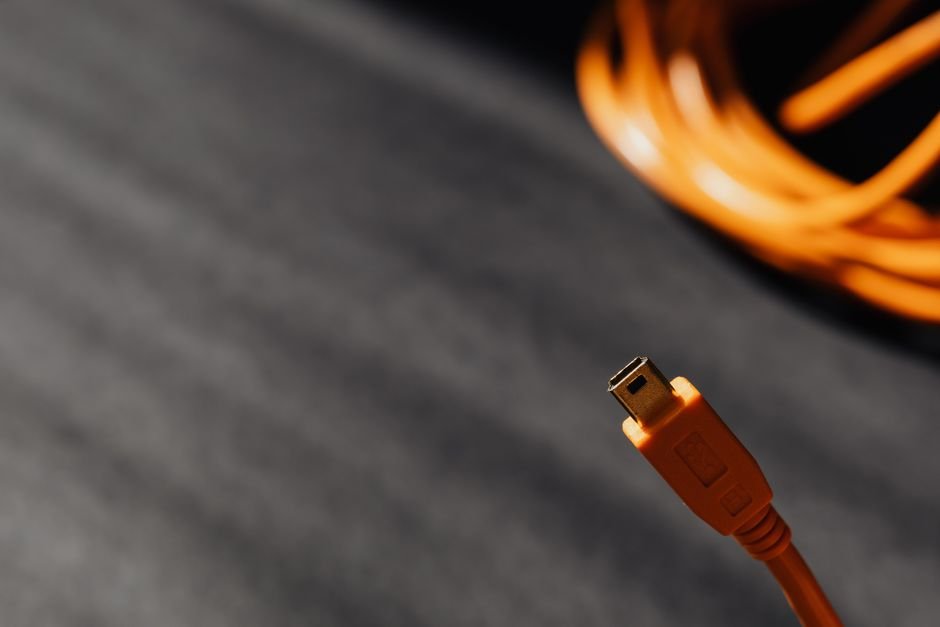
- USB Type-B: A squarer connector, often found on printers, scanners, and some external hard drives. There are mini-B and micro-B variants, which were prevalent on older smartphones, cameras, and portable devices.
- USB Type-C: The reversible, oval-shaped connector that is rapidly becoming the standard for modern devices. Its symmetrical design eliminates the frustration of plugging it in the wrong way. Type-C is versatile and can support various USB specifications, as well as other protocols like DisplayPort and Thunderbolt.
When choosing a USB cable, it’s essential to match the connector types on both your device and the host port. For instance, a USB-C to USB-A cable is required to connect a modern smartphone with a USB-C port to an older laptop with USB-A ports.
Power Delivery (PD) is another critical aspect of USB compatibility, particularly with USB-C. USB PD allows for significantly higher power transfer than traditional USB, enabling faster charging of laptops, tablets, and even some monitors. For USB PD to function effectively, both the device and the charger (or host port) must support the same PD profiles and wattage. A cable rated for higher wattage is necessary to safely deliver the required power.
The complexity of USB compatibility is further amplified by the various cable types and their capabilities. Not all USB-C cables are created equal. A basic USB-C cable might only support USB 2.0 speeds and limited power delivery. To achieve the full potential of USB 3.2 Gen 2×2 or USB4, you need a cable specifically designed and certified for those standards. These cables often feature thicker wiring, better shielding, and specialized chipsets.
Identifying compatible cables can be achieved by carefully examining product descriptions and packaging. Look for clear indications of the supported USB specification (e.g., “USB 3.2 Gen 2×2,” “USB4 40Gbps”) and the connector types (e.g., “USB-C to USB-C”). Reputable brands will often display logos or certifications that denote compliance with specific USB standards.
Troubleshooting common compatibility issues often boils down to understanding these fundamental principles. If a device isn’t recognized, or data transfer is slow, consider these possibilities:
- Incorrect Connector: Ensure the cable’s connectors physically match the ports on your devices.
- Outdated Cable: An older USB 2.0 cable will bottleneck the performance of a USB 3.0 or newer device.
- Unsupported Specification: A cable not designed for a particular USB speed will limit its performance. For example, a USB 2.0 rated USB-C cable won’t deliver USB 3.2 speeds.
- Power Limitations: Insufficient power delivery from the port or charger can prevent devices from functioning correctly or charging at the desired speed.
- Damaged Cable: Physical damage to the cable or its connectors can lead to intermittent connections or complete failure.
Best practices for ensuring seamless USB connections include:
- Invest in Quality Cables: Opt for cables from reputable manufacturers that clearly state their specifications and certifications. Cheap, unbranded cables are more likely to cause compatibility problems.
- Match the Cable to the Device: For high-performance devices like external SSDs or high-resolution monitors, choose cables that explicitly support the required USB specification (e.g., USB 3.2 Gen 2×2, USB4).
- Understand USB-C Versatility: Remember that USB-C is a connector type, not a speed standard. A USB-C cable might support USB 2.0, USB 3.2, or USB4. Always verify the underlying USB specification.
- Check Device Requirements: Consult your device’s manual or manufacturer’s website to determine the optimal USB cable specification for its intended use.
- Test with Different Cables: If you encounter issues, try a different, known-good cable to rule out a faulty cable as the cause.
- Keep Ports Clean: Dust and debris in USB ports can sometimes interfere with connections. Gently clean ports with compressed air.
By demystifying the world of USB specifications, connectors, and power delivery, you can confidently select the right cables for your devices. This knowledge empowers you to avoid frustrating connection woes, maximize data transfer speeds, and ensure your digital ecosystem functions harmoniously. Investing a little time in understanding USB compatibility will pay dividends in a smoother, more efficient user experience.