
The Ultimate Guide to USB Cables: Types, Speeds, and Uses
USB (Universal Serial Bus) cables are the ubiquitous connectors powering our digital lives, from charging smartphones to transferring massive video files. Navigating the labyrinth of USB types, speeds, and connector variations can be daunting, but understanding these nuances is crucial for optimizing performance, compatibility, and longevity of your devices. This comprehensive guide demystifies the world of USB cables, equipping you with the knowledge to make informed decisions.
Decoding USB Standards: A Journey Through Speeds and Capabilities
The evolution of USB has been marked by significant advancements in data transfer speeds and power delivery. Each iteration brought new capabilities, often introducing new connector types but also maintaining backward compatibility to a degree.
USB 1.0 and 1.1 (Low-Speed and Full-Speed): The genesis of USB, these early standards offered a modest 1.5 Mbps (Low-Speed) and 12 Mbps (Full-Speed). While foundational, they are largely obsolete for modern devices, primarily found in legacy peripherals.
USB 2.0 (Hi-Speed): A significant leap, USB 2.0 boasts a theoretical maximum speed of 480 Mbps. This became the workhorse for many years, supporting external hard drives, printers, and early smartphones. It introduced the familiar Type-A and Type-B connectors and offered improved power delivery over USB 1.x.
USB 3.0/3.1 Gen 1/3.2 Gen 1 (SuperSpeed): This is where things start to get a bit convoluted. Initially launched as USB 3.0, it was later rebranded as USB 3.1 Gen 1, and then as USB 3.2 Gen 1. Regardless of the name, the speed remains a theoretical 5 Gbps. This generation introduced a new blue-tinged Type-A port and the reversible USB Type-C connector, though Type-C was not exclusive to USB 3.x. USB 3.0 significantly improved data transfer rates, making large file transfers much faster.
USB 3.1 Gen 2/3.2 Gen 2 (SuperSpeed 10Gbps): This iteration doubled the speed of its predecessor, offering a theoretical maximum of 10 Gbps. It often uses the same connectors as USB 3.0/3.1 Gen 1 (Type-A and Type-C) but requires specific cables to achieve the higher speeds. This is ideal for faster external SSDs and high-resolution displays.
USB 3.2 Gen 2×2 (SuperSpeed 20Gbps): This is a more recent and less common standard, leveraging two lanes of 10 Gbps data transfer over a USB Type-C connector for a combined theoretical speed of 20 Gbps. This offers substantial performance gains for demanding applications.
USB4: Building upon the Thunderbolt 3 protocol, USB4 offers a remarkable theoretical speed of up to 40 Gbps. It’s designed to be highly versatile, supporting data transfer, display output (DisplayPort), and power delivery (USB PD) simultaneously over a single USB Type-C cable. USB4 also mandates compatibility with USB 3.2 and Thunderbolt 3.
USB4 Version 2.0: The latest iteration, pushing theoretical speeds to an astonishing 80 Gbps, and even up to 120 Gbps in specific asymmetrical configurations. This standard is poised to revolutionize high-performance computing and data-intensive workflows.
Understanding USB Connector Types: The Physical Interface
Beyond the speed standards, the physical connector type plays a vital role in compatibility and usability.
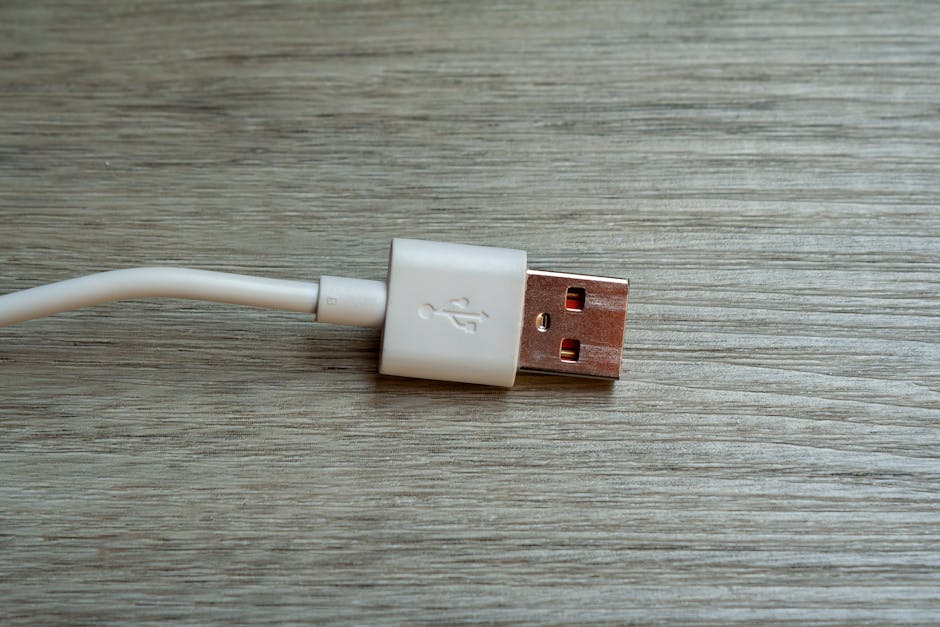
USB Type-A: The classic rectangular connector, ubiquitous on computers, chargers, and many peripherals. It’s not reversible, meaning it must be inserted in a specific orientation.
USB Type-B: A larger, squarish connector often found on printers, scanners, and some older external hard drives.
Mini-USB: A smaller, older connector, once common on digital cameras, MP3 players, and some GPS devices. Largely superseded by Micro-USB and USB-C.
Micro-USB: A very small, flat connector that became the standard for most smartphones and smaller electronic devices before the widespread adoption of USB-C. It’s not reversible.
USB Type-C: The modern, reversible, oval-shaped connector that is rapidly becoming the universal standard. Its reversible design eliminates the frustration of incorrect insertion. Type-C is the only connector that can support the highest USB speeds and advanced features like USB Power Delivery (USB PD) and DisplayPort Alternate Mode.
Key Features and Technologies: Beyond Just Data Transfer
Modern USB cables offer much more than just raw data speed. Several key technologies enhance their functionality:
USB Power Delivery (USB PD): This is a crucial feature that allows for significantly higher power output and intelligent negotiation of power levels between devices. USB PD can deliver up to 100W (and even higher with extended power range profiles), enabling fast charging for laptops, tablets, and even some monitors. A USB PD-compatible cable is essential to leverage these higher power capabilities.
DisplayPort Alternate Mode (DP Alt Mode): This allows USB Type-C ports to carry native DisplayPort video signals. This means you can connect a USB-C port directly to a monitor or TV using a USB-C to HDMI or USB-C to DisplayPort cable, without needing separate video adapters.
Thunderbolt Technology: Developed by Intel and Apple, Thunderbolt shares the USB-C connector and is backward compatible with USB. Thunderbolt 3 and 4 offer speeds up to 40 Gbps and are highly versatile, supporting data, video, and power over a single cable. USB4 is built upon Thunderbolt 3, making them highly interoperable.
Choosing the Right USB Cable: Practical Considerations
When selecting a USB cable, consider these factors:
- Device Compatibility: Ensure the cable’s connector type matches your devices (e.g., USB-C to USB-C for modern smartphones and laptops).
- Required Speed: For faster data transfers (e.g., external SSDs, video editing), opt for cables supporting USB 3.2 Gen 2 or USB4. For basic charging and standard peripherals, USB 2.0 or USB 3.2 Gen 1 might suffice.
- Power Delivery Needs: If you need fast charging for a laptop or other power-hungry devices, look for cables explicitly stating USB PD support and the appropriate wattage rating.
- Cable Length: Longer cables can sometimes lead to signal degradation, especially at higher speeds. For optimal performance, try to use the shortest cable necessary.
- Build Quality and Durability: Invest in well-made cables from reputable brands. Look for features like reinforced connectors, braided sleeves, and strain relief to ensure longevity.
- Certification: For critical applications or high-speed data transfer, look for cables that are certified by the USB Implementers Forum (USB-IF) to ensure they meet the specified standards.
Common Use Cases for Different USB Cable Types and Speeds
- Everyday Charging (Smartphones, Tablets): USB 2.0 or USB 3.2 Gen 1 cables with USB-C or Micro-USB connectors are generally sufficient. For faster charging, look for USB PD support.
- Data Transfer (External Hard Drives, SSDs): USB 3.2 Gen 2 (10 Gbps) or USB4 (40 Gbps) cables are ideal for quickly transferring large files.
- Connecting Peripherals (Keyboards, Mice, Printers): USB 2.0 or USB 3.2 Gen 1 cables are typically adequate.
- Connecting High-Resolution Displays: USB-C cables with DisplayPort Alternate Mode support are essential for connecting monitors via USB-C. For higher refresh rates and resolutions, USB4 or Thunderbolt cables are recommended.
- Docking Stations and Hubs: These often utilize USB-C with USB PD and DisplayPort Alt Mode to connect multiple peripherals and power a laptop simultaneously. USB4 and Thunderbolt cables offer the most comprehensive connectivity.
- VR Headsets and High-Bandwidth Devices: These demanding applications often require the highest speeds offered by USB4 or Thunderbolt 4 cables.
By understanding the intricacies of USB standards, connector types, and supporting technologies, you can confidently select the right USB cables to maximize the performance, efficiency, and convenience of your digital ecosystem.