
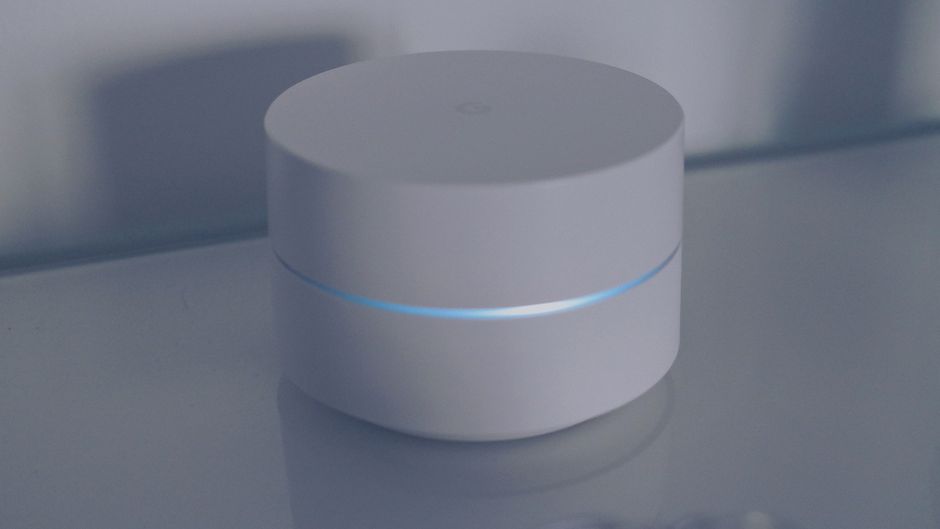
Router Explained: Your Ultimate Guide to Home Wi-Fi
The humble router, often a blinking, unassuming box tucked away in a corner, is the unsung hero of our modern connected lives. It’s the gateway to the internet, the orchestrator of our wireless networks, and the silent guardian of our digital interactions. Understanding how your router works and how to optimize its performance is paramount to enjoying a seamless, fast, and secure home Wi-Fi experience. This comprehensive guide demystifies the router, empowering you to conquer your connectivity challenges and unlock the full potential of your home network.
At its core, a router is a networking device that forwards data packets between computer networks. In your home, it connects your local area network (LAN) – all your devices like laptops, smartphones, smart TVs, and gaming consoles – to the wider internet, which is a vast network of networks. It acts as a traffic cop, directing incoming and outgoing data to the correct destinations. When you request a webpage, your device sends a request to the router, which then forwards it to your Internet Service Provider (ISP) and ultimately to the web server. The server’s response travels back through the ISP to your router, which then directs it to your specific device.
The magic happens through a process called Network Address Translation (NAT). Your ISP assigns your home a single public IP address, which is like your home’s unique postal address on the internet. However, within your home, each of your devices has a private IP address. NAT allows multiple devices to share that single public IP address, making it appear as if all your devices are communicating directly with the internet. This is crucial for efficient internet usage and security, as it masks the individual IP addresses of your internal devices from the outside world.
Beyond its primary routing function, most modern home routers are also wireless access points (WAPs). This dual functionality allows them to broadcast Wi-Fi signals, creating your wireless network. They achieve this by converting data from your wired devices into radio waves and vice versa, enabling your wireless devices to connect to the internet without cables. This wireless capability is what most users associate with their router, and its strength and range are critical for a good Wi-Fi experience.
Key Router Components and Their Roles:
- WAN Port (Wide Area Network): This is where your router connects to your modem, the device that translates the internet signal from your ISP (e.g., cable, DSL, fiber optic) into a format your router can understand.
- LAN Ports (Local Area Network): These are the Ethernet ports on the back of your router. They allow you to connect devices directly to the router via Ethernet cables, providing a more stable and often faster connection than Wi-Fi.
- Antennas: These are responsible for broadcasting and receiving Wi-Fi signals. Routers can have internal or external antennas, and the number and type of antennas can influence Wi-Fi coverage and speed.
- Processor and RAM: Like any computer, routers have a processor and memory. A more powerful processor and more RAM allow the router to handle more devices simultaneously, manage complex network traffic, and run advanced features without performance degradation.
- Firmware: This is the router’s operating system. It controls the router’s functions and is updated periodically by the manufacturer to improve performance, add features, and patch security vulnerabilities. Keeping your router’s firmware up-to-date is crucial for optimal performance and security.
Understanding Wi-Fi Standards:
The performance of your wireless network is heavily influenced by the Wi-Fi standard your router supports. These standards, developed by the Institute of Electrical and Electronics Engineers (IEEE) under the 802.11 family, dictate the speed, range, and efficiency of wireless communication.
- 802.11b (Older): Limited to 11 Mbps, rarely seen in new devices.
- 802.11g: Up to 54 Mbps, still functional but outdated for modern needs.
- 802.11n (Wi-Fi 4): The first widely adopted standard offering speeds up to 600 Mbps, supporting both 2.4 GHz and 5 GHz bands.
- 802.11ac (Wi-Fi 5): Significantly faster than 802.11n, offering theoretical speeds up to several Gbps, primarily operating on the 5 GHz band.
- 802.11ax (Wi-Fi 6): The latest mainstream standard, offering substantial improvements in speed, efficiency, and capacity, especially in crowded environments. It introduces technologies like OFDMA and MU-MIMO to better manage multiple devices.
- Wi-Fi 6E: An extension of Wi-Fi 6 that adds the 6 GHz band, providing even more bandwidth and less interference.
The frequency bands (2.4 GHz and 5 GHz) also play a vital role. The 2.4 GHz band offers a longer range and better penetration through walls but is more prone to interference from other devices like microwaves and Bluetooth devices, and it offers lower speeds. The 5 GHz band provides faster speeds and less interference but has a shorter range and struggles more with obstacles. Modern dual-band or tri-band routers offer both, allowing you to choose the best band for each device.
Setting Up Your Router:
The initial setup of your router is usually straightforward. Connect your modem to the router’s WAN port using an Ethernet cable. Then, connect your computer to one of the router’s LAN ports (or wirelessly if you’re using a pre-configured network). Open a web browser and navigate to the router’s default IP address (often 192.168.1.1 or 192.168.0.1, which can be found in your router’s manual or on a sticker on the device). You’ll be prompted to log in with default credentials (also found in the manual or on the device).
Once logged in, you’ll typically find a quick setup wizard. This will guide you through essential configurations:
- Internet Connection Type: Your ISP will provide you with the necessary settings (e.g., PPPoE, DHCP, Static IP).
- Wireless Network Name (SSID): This is the name your Wi-Fi network will broadcast. Choose something unique and easy to identify.
- Wireless Security: This is the most critical step for protecting your network. Always choose WPA2-PSK or WPA3-PSK encryption and set a strong, unique password. Avoid WEP, as it is highly insecure.
- Router Administrator Password: Change the default administrator password for your router’s interface to prevent unauthorized access.
Optimizing Your Router for Peak Performance:
Even with a modern router, several factors can impact your Wi-Fi performance. By implementing these optimization strategies, you can ensure a robust and reliable connection:
- Router Placement: This is arguably the most impactful factor. Place your router in a central, elevated location, away from obstructions like walls, metal objects, and appliances that can cause interference (microwaves, cordless phones). Avoid placing it in corners or behind furniture.
- Firmware Updates: Regularly check for and install firmware updates. Manufacturers release these to improve performance, security, and compatibility. Most routers have an automatic update feature, but it’s good practice to check manually periodically.
- Channel Selection: Wi-Fi signals operate on different channels. If your neighbors are using the same channels, it can lead to interference. Many routers have an automatic channel selection feature, but you can also manually select less congested channels using Wi-Fi analyzer apps. The 2.4 GHz band typically has channels 1, 6, and 11 that don’t overlap.
- Band Steering: If your router supports band steering, enable it. This feature automatically directs devices to the most appropriate band (2.4 GHz or 5 GHz) based on their capabilities and signal strength, optimizing performance.
- Guest Network: Utilize the guest network feature to provide internet access to visitors without granting them access to your main network and its connected devices. This enhances security.
- Quality of Service (QoS): QoS allows you to prioritize certain types of traffic or specific devices over others. For example, you can prioritize video streaming or online gaming to ensure a smooth experience, even when other devices are using bandwidth.
- Reboot Regularly: Like any electronic device, routers can benefit from occasional reboots. This can clear out temporary glitches and improve performance. A weekly reboot is often sufficient.
- Wired Connections for Stationary Devices: For devices that are stationary and require the most reliable connection (e.g., gaming consoles, smart TVs, desktop computers), use Ethernet cables. This offloads traffic from your Wi-Fi network and provides superior stability and speed.
- Consider Router Upgrades: If your router is several years old or you have a large home with many connected devices, it might be time to upgrade to a newer model that supports the latest Wi-Fi standards (Wi-Fi 6/6E) and has a more powerful processor.
Troubleshooting Common Wi-Fi Issues:
- Slow Speeds: Check your internet speed plan with your ISP. Then, try rebooting your router and modem. Ensure you are close to the router and not experiencing interference. Test speeds with a wired connection to rule out Wi-Fi issues.
- Intermittent Connections: This can be caused by interference, an outdated router, or an unstable internet connection