
Choosing the Right USB Cable: A Comprehensive Guide to Unlocking Seamless Connectivity
In our hyper-connected world, USB (Universal Serial Bus) cables are the unsung heroes, silently powering our devices, transferring our data, and bridging the gap between the digital and physical realms. Yet, amidst the ubiquity of these essential connectors, a surprising amount of confusion and frustration can arise when selecting the right USB cable. This comprehensive guide delves deep into the intricate world of USB, empowering you to make informed decisions and avoid the pitfalls of incompatible or underperforming cables.
Understanding the USB Generations: A Timeline of Speed and Power
The USB standard has undergone significant evolution since its inception, with each generation bringing substantial improvements in data transfer speeds and power delivery capabilities. Navigating these generations is paramount to ensuring your cable can keep pace with your devices.
- USB 1.0/1.1 (Low Speed/Full Speed): The earliest iterations, offering speeds of 1.5 Mbps and 12 Mbps respectively. These are largely obsolete for modern use, found only in legacy devices.
- USB 2.0 (Hi-Speed): A significant leap forward, boasting speeds of up to 480 Mbps. This was the workhorse for many years and is still prevalent in many accessories like keyboards, mice, and older external hard drives.
- USB 3.0/3.1 Gen 1/3.2 Gen 1 (SuperSpeed): These all refer to the same standard, offering speeds of 5 Gbps. You’ll often see them marketed as “USB 3.0” or “USB 3.1 Gen 1.” This is the minimum speed you should aim for when purchasing cables for faster data transfer needs.
- USB 3.1 Gen 2/3.2 Gen 2 (SuperSpeed+): Doubling the speed of its predecessor to 10 Gbps. This is ideal for demanding tasks like transferring large video files or using high-speed SSDs.
- USB 3.2 Gen 2×2 (SuperSpeed+ 20Gbps): This newer standard utilizes two lanes of 10 Gbps for a combined speed of 20 Gbps. It requires specific hardware support on both the device and the host.
- USB4: The latest iteration, built upon the Thunderbolt 3 protocol. USB4 offers impressive speeds of up to 40 Gbps and can even support multiple data and display protocols simultaneously. It’s backward compatible with USB 3.2 and Thunderbolt 3.
Key Indicators on the Cable and Connector:
To identify the USB generation, look for these visual cues:
- Color Coding: While not universally enforced, USB 2.0 ports and connectors are often black, while USB 3.0 and later are typically blue. Newer generations might introduce teal or red.
- Logos/Markings: Cables and ports often feature the USB logo with a “SS” (SuperSpeed) prefix and a number indicating the generation (e.g., “SS 5” for 5 Gbps, “SS 10” for 10 Gbps).
Beyond Speed: The Importance of Connectors
The physical connector at the end of your USB cable is just as crucial as the underlying standard. Mismatched connectors will render even the fastest cable useless.
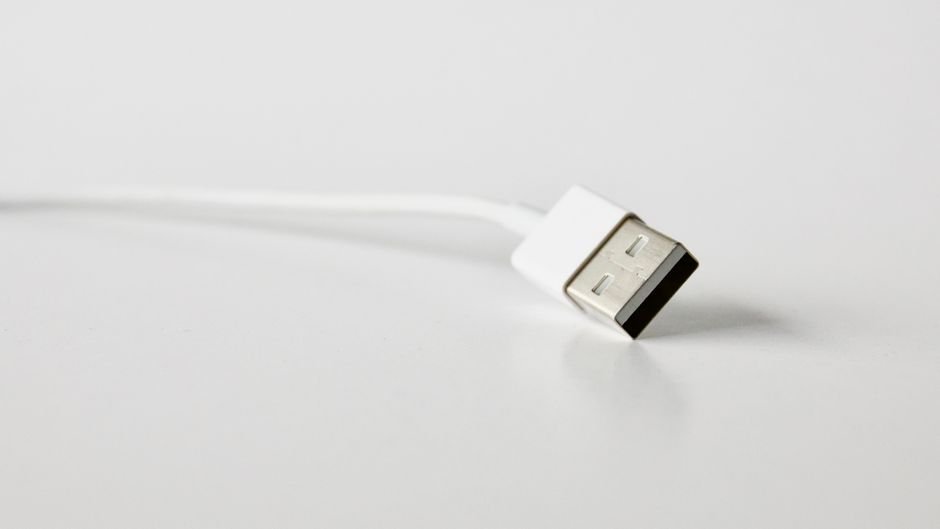
- USB-A: The rectangular connector you’re most familiar with, found on computers, power adapters, and many peripherals.
- USB-B: A squarer connector, commonly found on printers, scanners, and some external hard drives. There are variations like Mini-USB-B and Micro-USB-B.
- USB-C: The modern, reversible, oval-shaped connector that’s rapidly becoming the universal standard. It’s smaller, more durable, and supports higher data speeds and power delivery. Nearly all new smartphones, laptops, tablets, and many peripherals are adopting USB-C.
Crucial Considerations When Choosing Your USB Cable:
-
Device Compatibility: This is the most fundamental aspect.
- Check your device’s ports: Does your laptop have USB-A or USB-C ports? Does your smartphone use Micro-USB or USB-C?
- Check your device’s specifications: What USB generation does your device support? For example, connecting a USB 3.2 Gen 2 external SSD to a USB 2.0 port will severely bottleneck its speed.
- Consider the “weakest link” principle: The overall speed and functionality will be limited by the slowest component in the chain (device port, cable, or host).
-
Data Transfer Speed Requirements:
- Everyday use (keyboards, mice, basic charging): USB 2.0 is often sufficient.
- External hard drives, flash drives, faster charging: USB 3.0 (5 Gbps) is a good minimum.
- High-speed SSDs, 4K video editing, large file transfers: USB 3.1 Gen 2 (10 Gbps) or USB 3.2 Gen 2×2 (20 Gbps) or USB4 (40 Gbps) are essential.
-
Power Delivery (PD) Capabilities:
- Charging speed: USB Power Delivery (USB PD) is a specification that allows for significantly faster charging of devices. Look for cables that explicitly state support for USB PD, especially if you’re charging laptops or tablets.
- Wattage: USB PD cables can deliver varying wattages, from 15W to 100W and even higher with newer standards. Ensure the cable’s wattage rating matches or exceeds your device’s charging requirements. A cable with a lower wattage rating will charge your device slower or may not charge it at all if it’s a power-hungry device.
- Cable quality matters for PD: Higher wattage charging generates more heat. Inferior cables with thin wires can overheat, posing a safety risk and degrading performance.
-
Cable Length:
- Shorter is often better for speed: For optimal data transfer speeds, especially with high-speed USB 3.0 and above, shorter cables (1-2 meters) are generally recommended. Signal degradation can occur over longer distances, leading to reduced speeds or intermittent connections.
- Longer cables for convenience: If you need to connect devices across a room, longer cables are necessary. However, be aware that you might sacrifice some speed. Look for “active” or “repeater” cables for longer runs, which have built-in electronics to boost the signal.
-
Cable Construction and Durability:
- Wire gauge (AWG): This refers to the thickness of the copper wires inside the cable. Lower AWG numbers indicate thicker wires, which are better for carrying higher currents (faster charging) and maintaining signal integrity over longer distances. For charging, look for cables with lower AWG ratings for power conductors.
- Shielding: Good quality cables have multiple layers of shielding (e.g., aluminum foil and braided shielding) to protect against electromagnetic interference (EMI) and radio frequency interference (RFI). This is crucial for maintaining stable data transfer, especially in environments with many electronic devices.
- Connector materials: Gold-plated connectors are more resistant to corrosion and can offer a more reliable connection over time.
- Cable jacket material: Braided nylon or reinforced PVC jackets offer superior durability and kink resistance compared to standard plastic.
-
Brand Reputation and Certifications:
- Reputable brands: Stick to well-known and reputable brands that have a track record of producing quality cables. Avoid suspiciously cheap, unbranded cables, as they often compromise on materials and safety.
- USB-IF Certification: The USB Implementers Forum (USB-IF) is the organization that develops USB specifications. Cables that are certified by USB-IF have undergone rigorous testing to ensure they meet the specified performance and safety standards. Look for the USB-IF logo on packaging.
Common USB Cable Scenarios and Recommendations:
- Charging your smartphone: For most modern smartphones, a USB-C to USB-C cable supporting USB PD is ideal for fast charging. If your charger or phone still uses USB-A, a high-quality USB-A to USB-C cable with good power delivery capabilities is recommended.
- Connecting an external hard drive/SSD: For a USB 3.0 or 3.1 external drive, a USB-A to USB-A or USB-C to USB-A cable supporting at least 5 Gbps is necessary. For faster NVMe SSDs, a USB-C to USB-C cable supporting 10 Gbps or higher is crucial.
- Transferring data from a camera or SD card reader: A USB 3.0 or higher cable with the appropriate connector for your device (often USB-A or USB-C) will ensure quick file transfers.
- Connecting a printer or scanner: Most older printers use USB-B connectors. A USB-A to USB-B cable, usually USB 2.0, is sufficient. Newer models might use USB-C.
- Using a laptop dock or hub: Ensure the cable connecting your laptop to the dock (often USB-C) supports the required data speeds and power delivery for all the peripherals connected to the dock. USB4 docks can offer the