
The Ultimate USB Cable Guide: Navigating the Maze for Optimal Device Performance
In today’s interconnected world, USB (Universal Serial Bus) cables are the unsung heroes, silently powering and connecting our vast array of electronic devices. From charging smartphones and transferring data to connecting peripherals and even powering external monitors, the humble USB cable is indispensable. However, the sheer variety of USB standards, connectors, and charging technologies can transform a simple purchase into a perplexing expedition. This comprehensive guide will demystify the world of USB cables, empowering you to choose the perfect one for every device, ensuring optimal performance, speed, and longevity.
Understanding the USB Evolution: From USB 1.0 to USB4
The USB standard has undergone a remarkable evolution since its inception, with each iteration bringing significant improvements in speed, power delivery, and functionality. Understanding these generations is crucial for selecting a cable that can unlock the full potential of your devices.
- USB 1.0 and 1.1 (The Dawn): These early standards offered speeds of 1.5 Mbps (Low Speed) and 12 Mbps (Full Speed), respectively. While revolutionary at the time, they are largely obsolete for modern devices.
- USB 2.0 (The Workhorse): Introduced in 2000, USB 2.0 boasts a maximum theoretical speed of 480 Mbps (High Speed). It remains widely supported and is sufficient for many basic tasks like charging and transferring smaller files. Look for cables explicitly labeled “USB 2.0 High Speed.”
- USB 3.0 / 3.1 Gen 1 / 3.2 Gen 1 (The Speed Boost): These designations are often used interchangeably and refer to the same SuperSpeed standard, offering up to 5 Gbps (Gigabits per second). Visually, USB 3.0 ports and connectors are often blue. This is a significant leap, crucial for faster data transfers to external hard drives, SSDs, and high-resolution cameras.
- USB 3.1 Gen 2 / 3.2 Gen 2 (The Turbocharge): This generation doubles the speed to 10 Gbps, offering even faster data transfer rates. Cables and ports for this standard might also be blue or sometimes red, indicating increased performance.
- USB 3.2 Gen 2×2 (The Double Lane): This advanced standard leverages two 10 Gbps lanes to achieve a staggering 20 Gbps, ideal for demanding applications like high-bandwidth video editing and virtual reality.
- USB4 (The Future is Now): Based on the Thunderbolt 3 protocol, USB4 offers incredible versatility and speed, supporting up to 40 Gbps. It can tunnel various protocols, including DisplayPort and PCIe, allowing for a single cable to handle charging, data transfer, and video output to multiple high-resolution displays. USB4 also backward-compatible with USB 3.2 and Thunderbolt 3.
Decoding the Connectors: A Visual Dictionary
The physical connector on each end of the USB cable is just as important as the underlying standard. Mismatched connectors will prevent any connection, while using the wrong connector can potentially damage your devices.
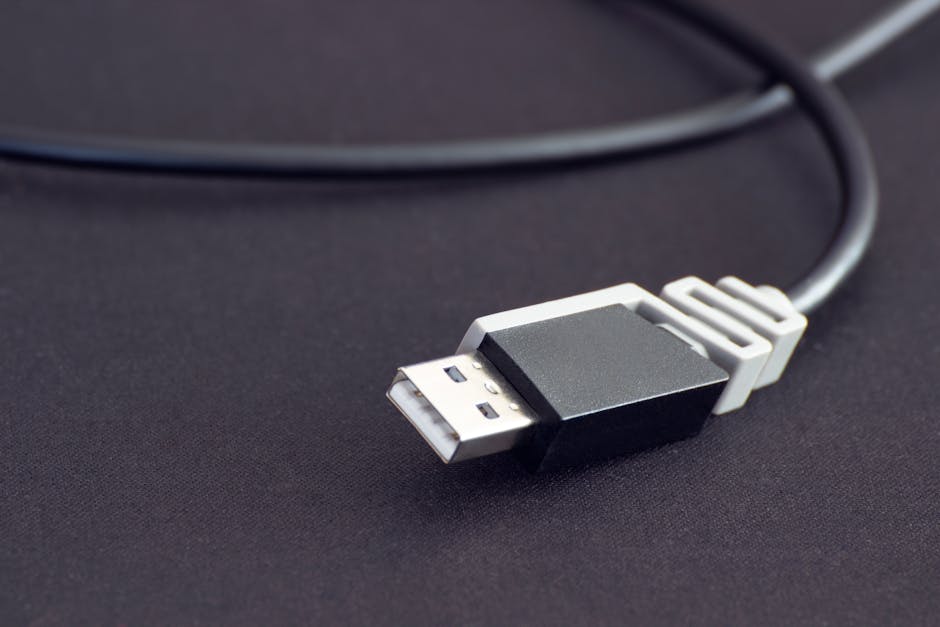
- Type-A: The most ubiquitous and recognizable USB connector. It’s rectangular and has a flat orientation, found on computers, power adapters, and older devices.
- USB 2.0 Type-A: Typically black or white.
- USB 3.x Type-A: Usually blue, with additional pins for higher speeds.
- Type-B: Less common for consumer devices, often found on printers, scanners, and some external hard drives. It’s a more square-ish connector with beveled edges.
- Standard Type-B: Used with USB 2.0.
- Mini-B and Micro-B: Smaller versions, prevalent on older smartphones, cameras, and portable devices. Mini-B is larger than Micro-B.
- Type-C (The Game Changer): This reversible, oval-shaped connector is rapidly becoming the universal standard. Its key advantage is its ability to be plugged in either way, eliminating the frustration of fumbling. Type-C is designed to support the latest USB standards (USB 3.2 and USB4), Thunderbolt 3/4, and Power Delivery. When choosing a Type-C cable, it’s crucial to look beyond just the connector shape and consider the underlying USB standard and charging capabilities.
The Power Play: USB Power Delivery (PD) and Quick Charge
Beyond data transfer, USB cables are vital for charging our devices. Two key technologies dominate this space:
- USB Power Delivery (PD): A more advanced charging standard that allows for higher power output (up to 100W, and even 240W with the latest PD 3.1 revision) and intelligent negotiation of power levels between the charger and the device. This means your laptop can charge faster, and your phone will receive the optimal wattage. To benefit from USB PD, both your charger and your cable must support it. Look for cables explicitly labeled “USB PD” or “Power Delivery Compatible.”
- Qualcomm Quick Charge: A proprietary fast-charging technology developed by Qualcomm, commonly found on Android devices. Different versions (Quick Charge 1.0 to 5.0) offer increasing charging speeds. While not as universally adopted as USB PD, it’s still prevalent. Ensure your charger, device, and cable all support the same Quick Charge version for optimal results.
Choosing the Right Cable: Key Considerations
Now that you understand the fundamentals, here’s how to make an informed decision:
-
Identify Your Device’s Needs:
- Smartphone/Tablet: For most modern smartphones, a USB-C to USB-C cable supporting USB PD is ideal for fast charging. Older devices might require USB-A to Micro-USB or USB-A to Lightning (Apple’s proprietary connector, often using USB 2.0 speeds).
- Laptop: Laptops often require higher wattage charging. Look for USB-C cables supporting USB PD 60W or higher. For data transfer to external SSDs or docks, a USB 3.2 Gen 2 or USB4 cable is recommended.
- External Hard Drive/SSD: For fast data backups and transfers, prioritize USB 3.0 (5 Gbps) or higher. USB-C to USB-C or USB-C to USB-A cables are common.
- Camera/Drone: High-resolution media requires fast transfer. USB 3.0 or higher is crucial. Many cameras use Micro-USB or USB-C.
- Gaming Console: For charging controllers and potentially faster data transfer for game updates, a robust USB-C cable is often beneficial.
- Monitors/Docking Stations: For high-resolution displays and multiple peripherals, USB4 or Thunderbolt 3/4 cables are essential to leverage their full bandwidth.
-
Match the USB Standard: Always try to match the highest USB standard supported by both your device and the intended port. Using a USB 2.0 cable with a USB 3.2 port will limit you to USB 2.0 speeds.
-
Prioritize USB Type-C for Future-Proofing: If your devices support it, investing in USB-C cables is a wise choice due to its versatility and widespread adoption.
-
Check for Power Delivery (PD) Support: If fast charging is a priority, ensure the cable explicitly states support for USB PD and the appropriate wattage.
-
Consider Cable Length: While longer cables offer convenience, they can sometimes lead to signal degradation or slower charging, especially for higher-speed standards. For optimal performance, stick to shorter cables (1-2 meters) when possible, especially for data-intensive tasks. If you need a longer cable, look for “active” cables with built-in signal boosters.
-
Cable Construction and Durability: Cheaply made cables can fray easily, leading to poor connections and potential damage. Look for cables with reinforced connectors, braided nylon sleeving, and strain relief to ensure longevity. Reputable brands often offer better build quality and warranties.
-
Brand Reputation and Reviews: Opt for cables from well-known and trusted brands. Read customer reviews to gauge real-world performance and durability.
-
Thunderbolt Compatibility: If you have Thunderbolt devices (like some high-end laptops, external GPUs, or docks), you’ll need a Thunderbolt-certified cable. Thunderbolt 3 and 4 cables are typically USB-C connectors but are specifically designed to handle the higher bandwidth and features of Thunderbolt. They are backward compatible with USB standards.
Common Pitfalls to Avoid
- The “Looks the Same” Trap: Don’t assume all USB-C cables are created equal. A basic USB-C cable might only support USB 2.0 speeds and limited power. Always check the specifications.
- Overpaying for Unnecessary Features: If you only need to charge your old MP3 player, a high-end USB4 cable is overkill.
- Ignoring Device Compatibility: Ensure the cable’s connectors match your device’s ports.
- Using Damaged Cables: A frayed or damaged cable can cause intermittent connections, slow speeds, and even damage your devices. Replace them immediately.
By understanding the nuances of USB standards, connectors, and charging technologies, you can navigate the cable aisle with confidence. Investing