
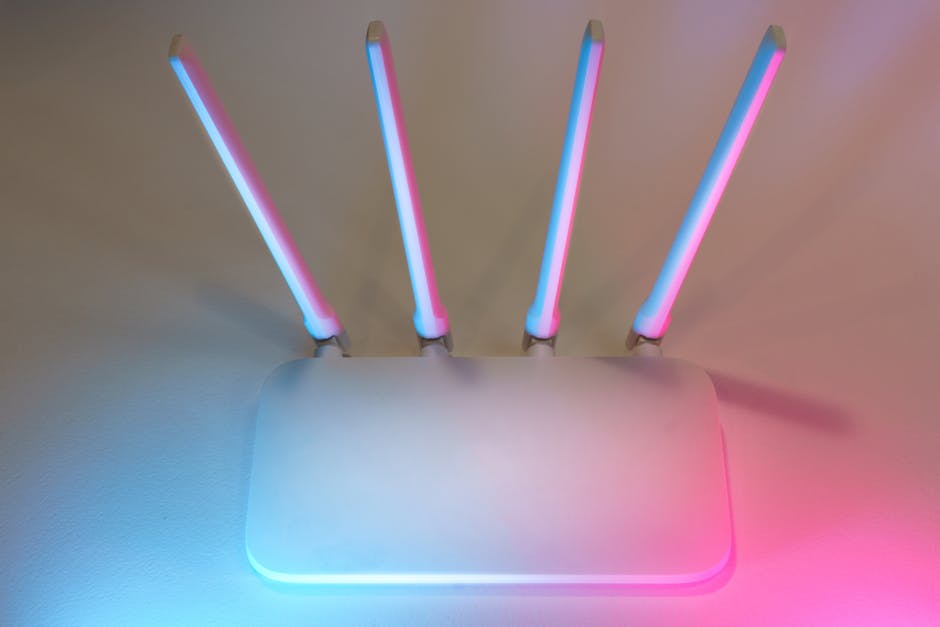
Fortify Your Digital Fortress: A Comprehensive Guide to Wi-Fi Router Security
Your Wi-Fi router is the gateway to your digital life, connecting your home to the vast expanse of the internet. Yet, this vital piece of technology is often overlooked when it comes to security, leaving your sensitive data vulnerable to cyber threats. This in-depth guide will equip you with the knowledge and actionable steps to fortify your home network, transforming your router into an impenetrable digital fortress.
Understanding the Threats: Why Router Security Matters
The internet is a double-edged sword. While it offers unparalleled convenience and access to information, it also harbors malicious actors. Without proper router security, your network can become a prime target for:
- Unauthorized Access: Intruders can connect to your Wi-Fi, consuming your bandwidth, launching attacks from your IP address, or even accessing your connected devices.
- Data Theft: Sensitive personal information, including passwords, financial details, and browsing history, can be intercepted and stolen.
- Malware Distribution: Hackers can use your compromised network to spread viruses, ransomware, and other malicious software to your devices and potentially your contacts.
- Identity Theft: Stolen personal data can be used for fraudulent activities, leading to significant financial and personal repercussions.
- DDoS Attacks: Your network could be hijacked and used to launch distributed denial-of-service (DDoS) attacks against other websites or services, making you an unwitting accomplice.
The First Line of Defense: Securing Your Router’s Access
The most fundamental step in router security is controlling who can access its administrative interface. This is typically done through a web-based portal.
1. Change the Default Administrator Username and Password:
This is arguably the most critical and frequently overlooked security measure. Routers come with default credentials that are widely known and easily discoverable online.
- Action: Access your router’s administrative interface by typing its IP address (usually
192.168.1.1or192.168.0.1) into your web browser. Locate the “Administration,” “System,” or “Management” section. Find the option to change the administrator username and password. - Best Practices:
- Strong Passwords: Opt for a complex password that includes a mix of uppercase and lowercase letters, numbers, and symbols. Aim for at least 12 characters. Avoid easily guessable information like your name, address, or common words.
- Unique Credentials: Never reuse passwords from other accounts.
- Password Manager: Consider using a reputable password manager to generate and store strong, unique passwords.
2. Keep Your Router’s Firmware Up-to-Date:
Router manufacturers regularly release firmware updates to patch security vulnerabilities, improve performance, and add new features. Outdated firmware is a significant security risk.
- Action: Access your router’s administrative interface. Look for a “Firmware Update,” “System Update,” or “Software Update” option, usually found in the “Administration” or “System” settings. Enable automatic updates if available.
- Best Practices:
- Regular Checks: If automatic updates aren’t an option, manually check for updates at least once a month.
- Manufacturer Website: You can also visit your router manufacturer’s official website and search for firmware updates specific to your router model.
3. Disable Remote Management:
Remote management allows you to access your router’s settings from outside your home network. While convenient for some, it significantly increases your attack surface.
- Action: Within your router’s administrative interface, search for “Remote Management,” “Remote Administration,” or “WAN Access.” Ensure this feature is disabled.
- Best Practices: Only enable this if absolutely necessary and if you understand the associated risks. If you do enable it, use a strong, unique password and restrict access to specific IP addresses if possible.
Securing Your Wireless Network: The Wi-Fi Encryption and Settings
Your Wi-Fi signal itself needs robust protection. This involves choosing the right encryption and configuring your wireless settings wisely.
4. Enable Strong Wi-Fi Encryption (WPA3 or WPA2-AES):
Encryption scrambles your data, making it unreadable to anyone who intercepts it without the correct key. Older encryption methods like WEP are easily broken and should be avoided.
- Action: Navigate to your router’s wireless settings. Look for “Security,” “Wireless Security,” or “Encryption.” Select “WPA3-Personal” if your router and devices support it. If not, choose “WPA2-Personal” and ensure the encryption type is set to “AES.”
- Best Practices:
- WPA3: This is the latest and most secure Wi-Fi encryption standard. It offers enhanced protection against brute-force attacks and improved privacy.
- WPA2-AES: This is still a very strong and widely supported option. Avoid WPA2-TKIP, as it’s less secure.
- Avoid WEP and Open: These are extremely vulnerable and should never be used.
5. Create a Strong, Unique Wi-Fi Password (Passphrase):
This is the password your devices use to connect to your Wi-Fi network. It’s distinct from your router’s administrator password.
- Action: In your router’s wireless security settings, locate the “Wi-Fi Password,” “Pre-Shared Key (PSK),” or “Passphrase” field.
- Best Practices:
- Length and Complexity: Similar to your administrator password, aim for a long (at least 12 characters) and complex passphrase.
- Avoid Personal Information: Don’t use names, birthdays, or easily guessable phrases.
- Mix of Characters: Include uppercase and lowercase letters, numbers, and symbols.
6. Change the Default SSID (Network Name):
Your SSID is the name of your Wi-Fi network that appears when you scan for available networks. Changing it from the default can offer a slight security advantage.
- Action: In your router’s wireless settings, find the “SSID” or “Network Name” field.
- Best Practices:
- Avoid Identifiable Information: Don’t use your name, address, or any personal identifiers in your SSID.
- Uniqueness: Choose a name that is not commonly used.
- Consider Disabling SSID Broadcast (with caution): While it makes your network invisible to casual scans, it’s not a foolproof security measure and can sometimes cause connection issues. If you do this, you’ll need to manually enter the SSID on each device.
7. Enable the Guest Network (if available):
Most modern routers offer a guest network feature. This allows you to provide internet access to visitors without giving them access to your main network and connected devices.
- Action: Look for a “Guest Network,” “Guest Wi-Fi,” or “Visitor Network” option in your router’s wireless settings.
- Best Practices:
- Separate Network: The guest network operates independently from your main network.
- Unique Password: Set a strong, unique password for your guest network.
- Time Limits: Some routers allow you to set time limits for guest access, automatically disconnecting visitors after a certain period.
Advanced Security Measures for Enhanced Protection
Beyond the fundamental steps, consider these advanced techniques to further bolster your router’s security.
8. Disable WPS (Wi-Fi Protected Setup):
WPS is a feature designed to simplify connecting devices to your Wi-Fi. However, it has known vulnerabilities that can be exploited by attackers.
- Action: In your router’s wireless settings, locate the “WPS” option and disable it.
- Best Practices: While convenient, the security risks associated with WPS outweigh its benefits for most home users.
9. Implement MAC Address Filtering (with caution):
MAC (Media Access Control) address filtering allows you to specify which devices are permitted to connect to your network based on their unique hardware address.
- Action: Find the “MAC Filtering” or “Access Control” section in your router’s settings. You’ll need to manually enter the MAC addresses of your trusted devices.
- Best Practices:
- Not a Primary Defense: MAC filtering can be bypassed by experienced attackers. It’s best used as an additional layer of security, not a sole defense.
- Management Overhead: Manually managing MAC addresses for all your devices can be cumbersome, especially with a growing number of connected gadgets.
10. Configure Your Firewall:
Your router has a built-in firewall that acts as a barrier between your internal network and the internet, blocking unauthorized traffic.
- Action: Access your router’s firewall settings. Ensure it is enabled and configured to block incoming connections from unknown sources.
- Best Practices:
- Default Settings: For most home users, the default firewall settings are usually sufficient.
- Port Forwarding: If you have specific applications or services that require port forwarding (e.g., gaming servers, remote access), be extremely cautious and only open the necessary ports. Incorrectly configured port forwarding can create security holes.
11. Consider a VPN (Virtual Private Network):
While not directly a router setting, using a