
Unlocking Peak Performance: A Deep Dive into Wi-Fi Router Settings
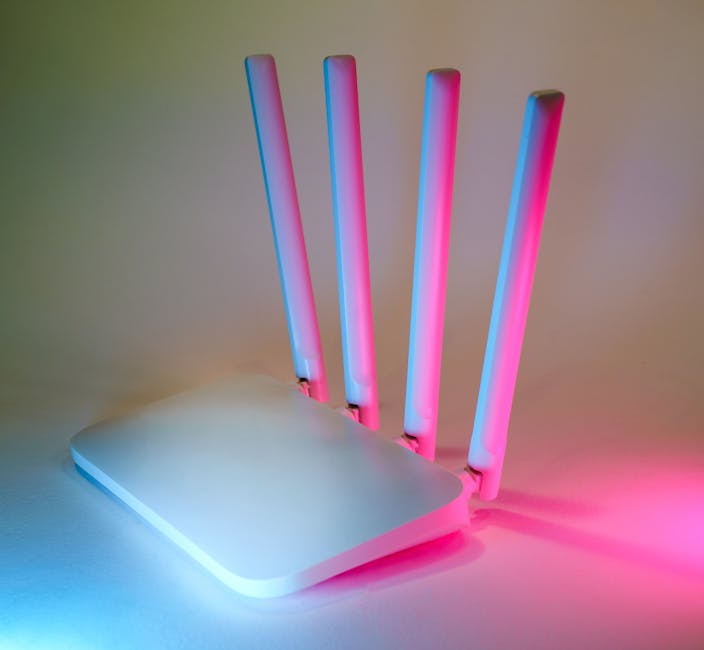
Your Wi-Fi router, the unassuming black box humming in the corner, is the gateway to your digital life. Yet, for many, its settings remain a mystifying labyrinth. Understanding these configurations is not just for tech enthusiasts; it’s the key to unlocking consistently fast, stable, and secure internet performance throughout your home or office. This comprehensive guide will demystify those router settings, empowering you to optimize your wireless network for peak performance.
The Foundation: Understanding Wi-Fi Bands and Channels
Modern routers typically operate on two primary frequency bands: 2.4 GHz and 5 GHz. Each offers distinct advantages and disadvantages, and choosing the right one for your devices and environment is crucial.
- 2.4 GHz Band: This older, more established band offers a wider range and better penetration through walls and obstacles. However, it’s also more prone to interference from other devices like microwaves, Bluetooth gadgets, and cordless phones. Its maximum theoretical speed is lower.
- Optimizing 2.4 GHz: If you have older devices or need coverage in distant rooms, the 2.4 GHz band is your go-to. However, interference can be a significant bottleneck. Channel selection within this band is paramount. Routers broadcast on specific channels. Channels 1, 6, and 11 are generally considered non-overlapping in North America, minimizing interference with neighboring networks. Many routers offer an “auto” channel selection feature, which can be effective, but manually selecting a less congested channel, often through a Wi-Fi analyzer app on your smartphone, can yield superior results. Avoid channels that are heavily utilized by your neighbors.
- 5 GHz Band: This newer band offers significantly faster speeds and is less susceptible to interference. However, its range is shorter, and it struggles more with penetrating solid objects.
- Optimizing 5 GHz: This is the band for speed-critical devices like streaming boxes, gaming consoles, and newer laptops and smartphones. To maximize its potential, minimize distance from the router and ensure a clear line of sight where possible. Similar to the 2.4 GHz band, channel selection is important, though the 5 GHz band has more non-overlapping channels (up to 25 in some regions). Again, using a Wi-Fi analyzer can help identify the least congested channel. Some routers allow for “channel bonding,” where multiple channels are combined to create a wider channel, further increasing speed. This is often an advanced setting and can sometimes lead to instability if not configured correctly.
SSID and Security: Your Network’s Identity and Fortress
- SSID (Service Set Identifier): This is the name of your Wi-Fi network. While you can name it anything you like, consider a few best practices for better management and security.
- Optimizing SSID: Avoid using personally identifiable information in your SSID. A unique and non-descriptive name makes it harder for casual snoops to guess your identity. You can also set up a guest network with a separate SSID. This is invaluable for security. Devices connected to the guest network are isolated from your main network, preventing them from accessing your personal files or sensitive devices.
- Wi-Fi Security Protocols: This is the digital lock on your network. Using a strong security protocol is non-negotiable.
- Optimizing Security: WPA3 is the latest and most secure protocol, offering robust encryption and protection against brute-force attacks. If your router and devices support WPA3, use it. Otherwise, WPA2-PSK (AES) is the next best option. Avoid older protocols like WEP and WPA, as they are easily compromised.
- Password Strength: A strong password is your first line of defense.
- Optimizing Password: Aim for a password that is at least 12 characters long, combining uppercase and lowercase letters, numbers, and symbols. Avoid easily guessable patterns or dictionary words. Consider using a password manager to generate and store complex passwords.
Advanced Settings for the Performance-Savvy
Beyond the basics, several advanced settings can fine-tune your router’s performance.
- Firmware Updates: This is arguably the most critical “setting” to manage. Router manufacturers regularly release firmware updates to fix bugs, improve performance, and patch security vulnerabilities.
- Optimizing Firmware: Regularly check for and install firmware updates. Most routers have an automatic update feature, but it’s good practice to manually verify. Outdated firmware can lead to performance issues and security risks.
- QoS (Quality of Service): QoS allows you to prioritize certain types of network traffic over others. This is incredibly useful for ensuring smooth performance for critical applications.
- Optimizing QoS: If you frequently stream video, play online games, or conduct video conferences, you can configure QoS to give these applications higher priority. This means that even if other devices are downloading large files, your video stream or game connection will receive preferential bandwidth, preventing buffering and lag. You can often prioritize by device or by application type.
- MU-MIMO (Multi-User, Multiple-Input, Multiple-Output): This technology allows your router to communicate with multiple devices simultaneously, rather than sequentially. This is particularly beneficial in households with many connected devices.
- Optimizing MU-MIMO: Ensure your router supports MU-MIMO and that your connected devices (especially newer ones) also support it. While it’s often enabled by default, understanding its presence can explain why your network performs better with many devices active.
- Beamforming: This feature directs Wi-Fi signals more directly towards connected devices, rather than broadcasting them equally in all directions. This can improve signal strength and range.
- Optimizing Beamforming: Most modern routers with MU-MIMO also support beamforming. It’s usually enabled by default, but checking ensures you’re benefiting from this directed signal technology.
- Channel Width (Bandwidth): This setting determines how much bandwidth is used on a particular channel. Wider channels can offer higher speeds but are more susceptible to interference.
- Optimizing Channel Width: On the 5 GHz band, you might see options like 20 MHz, 40 MHz, 80 MHz, or even 160 MHz. For congested environments, a narrower channel (e.g., 40 MHz or 80 MHz) might offer more stability. For less congested areas and maximum speed, a wider channel can be beneficial. Experiment to find the best balance.
- Transmit Power: This setting controls the strength of your Wi-Fi signal.
- Optimizing Transmit Power: While it might seem intuitive to crank this up to maximum, it’s not always the best approach. A very strong signal can sometimes cause issues for devices trying to connect or switch between access points. It can also increase interference with neighboring networks. For most home users, the default setting is usually sufficient. If you’re experiencing weak signals in specific areas, you might consider increasing it slightly, but always monitor for any negative side effects.
Troubleshooting and Maintenance: Keeping Your Network Healthy
- Router Placement: The physical location of your router significantly impacts performance.
- Optimizing Placement: Place your router in a central, open location, away from walls, large metal objects, and other electronic devices that can cause interference. Elevating the router can also improve signal dispersion.
- Rebooting Your Router: The classic IT solution often works wonders.
- Optimizing Rebooting: If you’re experiencing slow speeds or connectivity issues, try rebooting your router. Unplug it for about 30 seconds, then plug it back in. This can clear temporary glitches and refresh its connection to your ISP.
- Device Limits: Routers have a limit to the number of devices they can effectively manage.
- Optimizing Device Limits: If you have a very large number of connected devices, especially older ones, your router might struggle. Consider upgrading to a more powerful router or using a mesh Wi-Fi system for better coverage and capacity.
- Network Congestion: Too many devices actively using the internet simultaneously can strain your router.
- Optimizing for Congestion: During peak usage times, consider temporarily disconnecting non-essential devices or scheduling large downloads for off-peak hours. Utilizing QoS can also help manage congestion.
- ISP Speed Test: Ensure your router is delivering the speeds you’re paying for.
- Optimizing Speed Tests: Regularly run speed tests (e.g., Ookla Speedtest) from various locations in your home. Compare these results to your ISP’s advertised speeds. If there’s a significant discrepancy, it might indicate an issue with your router, your ISP, or the wiring in your home.
By taking the time to understand and configure these Wi-Fi router settings, you can transform your wireless network from a source of frustration into a seamless, high-performing conduit for your digital life.