
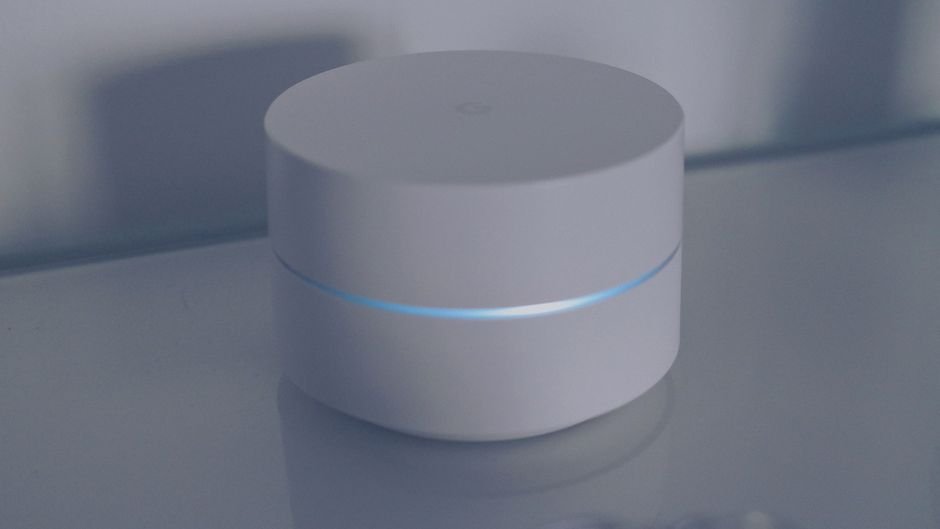
Wi-Fi Router: Your Ultimate Guide to Faster Internet
In today’s hyper-connected world, a sluggish Wi-Fi connection can be more than just an annoyance; it’s a productivity killer and a gateway to digital frustration. The humble Wi-Fi router, often tucked away in a corner, is the linchpin of your home or office network. Understanding its capabilities and how to optimize its performance is paramount to unlocking truly faster internet. This comprehensive guide will demystify the world of Wi-Fi routers, empowering you to make informed decisions and troubleshoot common issues for a seamless online experience.
Understanding the Core: How Your Wi-Fi Router Works
At its heart, your Wi-Fi router acts as a traffic director for your internet connection. It receives the internet signal from your modem (which translates the signal from your Internet Service Provider, or ISP) and then broadcasts it wirelessly to all your connected devices. It also manages the flow of data between these devices and the internet, ensuring that requests are routed correctly. Think of it as the central hub, creating a local area network (LAN) for your wireless devices.
Key Router Components and Their Impact on Speed:
- Processor (CPU): Just like a computer, your router has a CPU. A more powerful CPU can handle more data traffic, manage more connected devices, and execute complex tasks like Quality of Service (QoS) more efficiently. This translates directly to a smoother, faster experience, especially when multiple devices are streaming, gaming, or downloading simultaneously.
- RAM (Random Access Memory): RAM is where the router temporarily stores data it’s actively processing. More RAM allows the router to juggle more data packets and connections without slowing down. For a busy household with numerous connected devices, ample RAM is crucial.
- Antennas: These are responsible for broadcasting and receiving the Wi-Fi signal. The number, type (internal vs. external), and design of antennas significantly influence the range and strength of your Wi-Fi. External antennas are often adjustable, allowing you to direct the signal more effectively.
- Wi-Fi Standards (802.11ac, 802.11ax/Wi-Fi 6, Wi-Fi 6E): This is arguably the most critical factor for speed. Each new standard offers significant improvements in data transfer rates, efficiency, and capacity.
- 802.11ac (Wi-Fi 5): The current mainstream standard, offering speeds of up to several gigabits per second (Gbps) under ideal conditions. It primarily operates on the 5GHz band, which is faster but has a shorter range than 2.4GHz.
- 802.11ax (Wi-Fi 6): The latest widely adopted standard. Wi-Fi 6 isn’t just about raw speed; it’s about efficiency. It introduces technologies like OFDMA (Orthogonal Frequency Division Multiple Access) and MU-MIMO (Multi-User, Multiple-Input, Multiple-Output) that allow the router to communicate with multiple devices simultaneously and more efficiently, reducing congestion and latency. This is especially beneficial in crowded Wi-Fi environments.
- Wi-Fi 6E: An extension of Wi-Fi 6 that adds support for the 6GHz band. This band offers even more capacity and less interference than 5GHz, leading to potentially higher speeds and lower latency. However, devices also need to support Wi-Fi 6E to utilize this band.
Choosing the Right Router for Your Needs:
Selecting a new router can feel overwhelming with the plethora of options available. Consider these factors:
- Your Internet Speed Plan: There’s no point in buying a router capable of 2 Gbps if your ISP only provides 100 Mbps. Ensure your router’s theoretical maximum speed significantly exceeds your current internet plan to future-proof your network.
- Number of Connected Devices: A household with a few smartphones and laptops will have different needs than a smart-home enthusiast with dozens of connected devices. For more devices, opt for a router with higher capacity and Wi-Fi 6 or Wi-Fi 6E support.
- Home Size and Layout: For larger homes or those with thick walls, a router with strong signal penetration and range is essential. Consider routers with external antennas or a mesh Wi-Fi system.
- Budget: Router prices vary significantly. While budget options can suffice for basic needs, investing in a higher-end router will offer better performance, features, and longevity, especially with newer Wi-Fi standards.
- Features: Look for features like:
- MU-MIMO: Crucial for managing multiple devices simultaneously.
- Beamforming: Directs the Wi-Fi signal towards connected devices, improving strength and range.
- Quality of Service (QoS): Allows you to prioritize certain devices or applications (e.g., gaming, video streaming) to ensure they receive sufficient bandwidth.
- Guest Network: Provides a separate Wi-Fi network for visitors, keeping your main network secure.
- Parental Controls: Allows you to manage internet access for children.
- Security Features: WPA3 encryption is the latest and most secure standard.
Optimizing Your Existing Router for Maximum Speed:
Even with a powerful router, poor placement and configuration can cripple your Wi-Fi speed. Here’s how to get the most out of your current setup:
-
Strategic Router Placement:
- Central Location: Position your router in a central location in your home, away from external walls. This ensures the signal can reach all corners of your house as evenly as possible.
- Elevated Position: Place your router on a shelf or table, not on the floor. Radio waves travel more effectively downwards.
- Avoid Obstructions: Keep your router away from large metal objects, mirrors, aquariums, and thick walls, as these can absorb or reflect Wi-Fi signals.
- Minimize Interference: Place your router away from other electronic devices that emit radio waves, such as microwaves, cordless phones, Bluetooth devices, and even some older monitors.
-
Update Router Firmware:
- Router manufacturers regularly release firmware updates that fix bugs, improve performance, and patch security vulnerabilities. Most routers have an automatic update feature, but it’s wise to check manually through your router’s web interface periodically.
-
Choose the Right Wi-Fi Band:
- 2.4GHz Band: Offers a wider range and better penetration through obstacles but is slower and more prone to interference from other devices. Ideal for devices further from the router or those that don’t require high speeds (e.g., smart home devices like smart plugs).
- 5GHz Band: Offers significantly faster speeds and less interference but has a shorter range. Best for devices close to the router that require high bandwidth (e.g., streaming devices, gaming consoles, laptops for downloading large files).
- Dual-Band Routers: Most modern routers are dual-band, broadcasting both 2.4GHz and 5GHz networks. Some routers have an “auto” setting that will connect devices to the best band. You can also manually assign devices to specific bands.
-
Select the Optimal Wi-Fi Channel:
- Wi-Fi operates on different channels within the 2.4GHz and 5GHz bands. If many networks in your area are using the same channel, it can lead to congestion and slower speeds.
- 2.4GHz: Channels 1, 6, and 11 are generally recommended as they don’t overlap.
- 5GHz: Has more non-overlapping channels, making interference less of an issue.
- Many routers have an “auto” channel selection feature, which can work well. However, for optimal performance, you might consider using a Wi-Fi analyzer app on your smartphone to identify the least congested channels in your area and manually set your router to those.
-
Utilize QoS (Quality of Service):
- If your router supports QoS, use it to prioritize traffic. For instance, you can give your gaming console or streaming device higher priority than a device used for casual web browsing. This ensures that critical applications receive the bandwidth they need, even when the network is busy.
-
Consider a Mesh Wi-Fi System:
- For larger homes or areas with Wi-Fi dead zones, a mesh Wi-Fi system is an excellent solution. It consists of a main router and one or more satellite nodes that work together to create a single, seamless Wi-Fi network throughout your home. This eliminates dead spots and provides consistent speeds.
-
Secure Your Network:
- Strong Password: Use a strong, unique password for your Wi-Fi network.
- WPA3 Encryption: If your router and devices support it, use WPA3 encryption for the highest level of security. If not, WPA2 is the next best option. Avoid WEP, as it’s outdated and insecure.
- Disable WPS (Wi-Fi Protected Setup): While convenient, WPS can be a security vulnerability. Disable it if you don’t actively use it.
- Change Default Credentials: Always change the default administrator username and password for your router’s web interface.
-
Restart Your Router Regularly:
- A simple reboot can often resolve