
Troubleshooting Your USB Rechargeable Fan: Quick Tips for Instant Relief
USB rechargeable fans have become indispensable companions, offering portable cool breezes wherever we go. From desk duty to outdoor adventures, their convenience is undeniable. However, like any electronic device, they can occasionally falter. When your trusty fan decides to take an unscheduled siesta, don’t despair. This comprehensive guide offers a treasure trove of quick, effective troubleshooting tips to get your USB rechargeable fan back in action, ensuring your comfort is never compromised.
1. The Power Predicament: Is it Truly Charging?
The most common culprit behind a non-functional USB rechargeable fan is a power-related issue. Before delving into more complex solutions, meticulously examine the charging process.
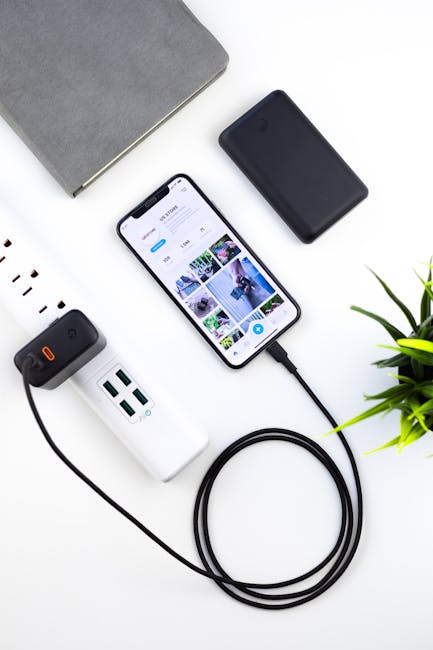
- Inspect the USB Cable: This seemingly simple component is often the weak link. Gently flex the cable near the connectors at both ends. Look for any visible damage, such as frayed wires, kinks, or bent pins. A damaged cable can disrupt the flow of electricity. If you suspect the cable, try using a different, known-working USB cable. Ensure it’s of sufficient quality; some cheaper cables may not be able to handle the power requirements of a fan.
- Examine the USB Port (Fan and Power Source): Dust, lint, and debris can accumulate in USB ports, hindering proper connection. Use a can of compressed air to gently blow out any obstructions from both the fan’s charging port and the USB port on your power source (computer, power bank, wall adapter). A toothpick or a non-metallic, thin object can be used with extreme caution to dislodge stubborn debris, but avoid forcing anything.
- Test the Power Source: The issue might not be with the fan itself but with the source providing the power.
- Computer USB Port: If charging from a computer, try a different USB port. Some ports may have lower power output or be temporarily disabled by the operating system. Ensure your computer is powered on and not in sleep or hibernation mode, as this can interrupt charging.
- Power Bank: If using a power bank, verify that it has sufficient charge remaining. Many power banks have indicator lights to show their battery level. Try a different power bank or a different USB port on the same power bank if available.
- Wall Adapter: If using a USB wall adapter, confirm it’s functioning correctly by testing it with another USB device. Ensure the adapter is rated for the correct voltage and amperage for your fan.
- Check the Charging Indicator Light: Most USB rechargeable fans feature an LED indicator light that illuminates when charging. If this light is not on, it strongly suggests a charging issue. If the light is on but the fan still doesn’t power up, the problem might lie elsewhere.
- Allow Sufficient Charging Time: Don’t underestimate the power of patience. Some fans, especially if completely depleted, require a significant charging period. Refer to your fan’s manual for recommended charging times and allow at least a few hours for a depleted battery to regain a substantial charge.
2. The “No-Spin” Syndrome: Fan Blades Not Moving
If the fan powers on (indicated by lights) but the blades refuse to spin, the problem is likely mechanical or related to the motor.
- Obstruction Check: Carefully inspect the fan blades for any foreign objects. Stray threads, hair, or small debris can get caught in the mechanism, preventing rotation. Gently try to rotate the blades by hand (with the fan powered off and unplugged). If you encounter resistance, locate and remove the obstruction.
- Blade Alignment and Damage: While less common, fan blades can become slightly misaligned or even cracked. Visually inspect the blades for any signs of damage or warping. If a blade is bent, it might be hitting the fan’s housing.
- Motor Overheating Protection: Some fans have built-in thermal protection that shuts down the motor if it overheats. If the fan has been running continuously for an extended period, or in a very warm environment, allow it to cool down completely before attempting to power it on again.
- Loose Motor Connection (Advanced): For those comfortable with minor disassembly, a loose motor connection could be the cause. This is a more advanced troubleshooting step and should only be attempted if you are confident in your abilities and have consulted your fan’s manual or online resources for disassembly instructions. Proceed with caution and ensure the device is unplugged.
3. Erratic Behavior: Intermittent Power or Speed Issues
When your fan powers on and off unexpectedly, or its speed fluctuates wildly, it points towards an unstable power supply or internal component issue.
- Battery Health: Over time, rechargeable batteries degrade. If your fan is several years old, the battery may no longer hold a charge effectively, leading to intermittent power. Unfortunately, battery replacement in many USB rechargeable fans is not user-serviceable.
- Loose Internal Connections: Similar to the motor connection, internal wiring within the fan could be loose, causing intermittent power. This again falls into the realm of advanced troubleshooting.
- Faulty On/Off Switch: The power button itself could be malfunctioning. Try pressing it firmly and in different ways to see if it resolves the issue. If the switch feels loose or unresponsive, it might be the problem.
- Software Glitches (Rare): While less common in simple fan designs, some more advanced fans might have basic firmware. If a software glitch is suspected, try a “hard reset” if your model allows for it (consult the manual).
4. The “No Air” Phenomenon: Fan Powers On, But No Airflow
This is a perplexing issue where the fan appears to be working, but no air is being moved.
- Blade Rotation (Revisited): Double-check that the blades are indeed spinning. Sometimes, a very slow rotation might be imperceptible at first glance.
- Motor Sound: Listen closely. Can you hear the motor running? If you hear a whirring sound but no blade movement, refer back to the “Obstruction Check” and “Blade Alignment” sections.
- Reduced Airflow vs. No Airflow: Is there absolutely no air movement, or is it significantly reduced? If reduced, it might be a sign of battery depletion or a partially obstructed motor.
5. Water Damage and Accidental Mishaps
Accidents happen. If your USB rechargeable fan has been exposed to moisture or dropped, the troubleshooting steps become more delicate.
- Immediate Action for Water Exposure: If your fan gets wet, immediately power it off (if it was on), unplug it, and remove it from the water source. Do not attempt to charge it.
- Drying Thoroughly: Gently shake out any excess water. Place the fan in a dry, well-ventilated area and allow it to air dry completely for at least 48-72 hours. Avoid using heat sources like hairdryers, as this can damage internal components.
- Rice or Silica Gel: For more thorough drying, you can place the fan in a sealed container filled with uncooked rice or silica gel packets. These absorb moisture.
- Post-Drying Inspection: After thorough drying, attempt to power it on. If it still doesn’t work, water damage may have caused irreparable harm to the electronics.
6. When All Else Fails: Seeking Further Assistance
If you’ve diligently followed these troubleshooting steps and your USB rechargeable fan remains stubbornly uncooperative, it’s time to consider other options.
- Consult the User Manual: Your fan’s user manual is an invaluable resource. It often contains a dedicated troubleshooting section specific to your model, providing tailored advice.
- Manufacturer’s Website and Support: Visit the manufacturer’s website. They often have FAQs, troubleshooting guides, and customer support contact information.
- Warranty Check: If your fan is still within its warranty period, contact the manufacturer for repair or replacement options. Keep your proof of purchase handy.
- Consider Replacement: Unfortunately, not all electronic devices are designed for long-term repairability. If your fan is old, has suffered significant damage, or the cost of repair outweighs the cost of a new unit, it might be time to invest in a new USB rechargeable fan.
By systematically working through these troubleshooting tips, you can significantly increase your chances of reviving your USB rechargeable fan and enjoying its cooling comfort once again. Remember to always prioritize safety and consult your device’s manual for specific instructions.