
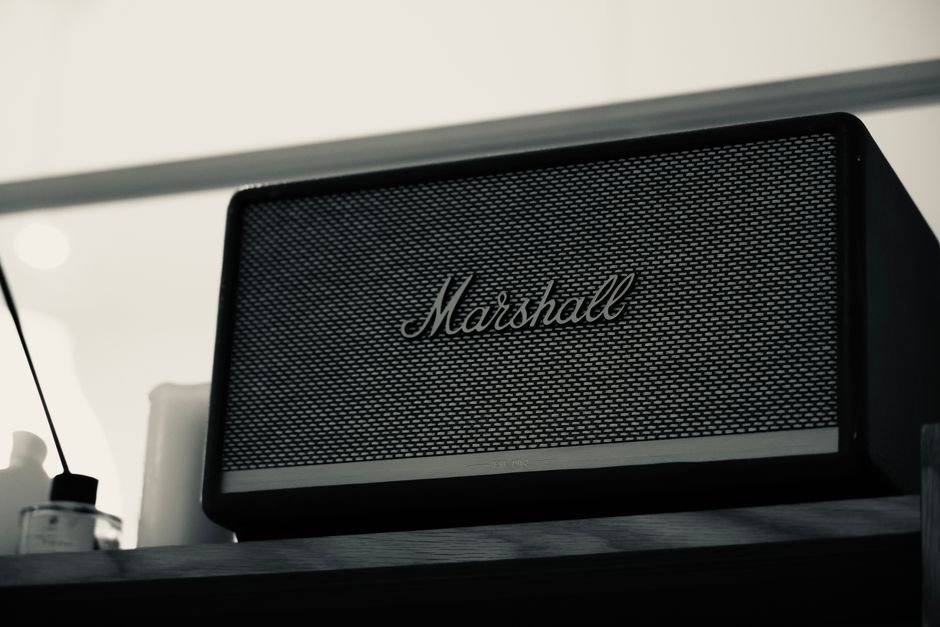
Syncing Up: How to Connect Your Bluetooth Speaker – A Simple Guide
The freedom of wireless audio is a modern marvel. Gone are the days of tangled cables and limited placement options. Bluetooth speakers have revolutionized how we enjoy music, podcasts, and even conference calls, offering portability and convenience at our fingertips. However, for some, the initial setup can feel a little daunting. Fear not! This comprehensive guide will walk you through every step of connecting your Bluetooth speaker, ensuring you’re enjoying your audio wirelessly in no time.
Understanding the Basics: What is Bluetooth?
Before we dive into the connection process, a brief understanding of Bluetooth technology is helpful. Bluetooth is a short-range wireless technology standard used for exchanging data between fixed and mobile devices over short distances using UHF radio waves. It’s the invisible handshake that allows your phone, tablet, or laptop to communicate with your speaker without any physical wires.
Step 1: Powering Up Your Speaker and Device
The very first step is to ensure both your Bluetooth speaker and the device you want to connect it to (your smartphone, tablet, laptop, etc.) are powered on and have sufficient battery life. For speakers that require charging, make sure they are plugged in and have a good charge. For devices, a quick check of the battery indicator is always a good idea.
Step 2: Putting Your Bluetooth Speaker into Pairing Mode
This is the most crucial step and the one that often causes confusion. Each Bluetooth speaker has a specific way to enter “pairing mode.” This mode makes your speaker discoverable by other Bluetooth devices.
- Locate the Bluetooth Button: Most Bluetooth speakers have a dedicated button for Bluetooth functionality. It’s often marked with the universal Bluetooth symbol (a stylized “B”).
- Press and Hold: Typically, you’ll need to press and hold this Bluetooth button for a few seconds.
- Indicator Lights: As you hold the button, you’ll usually see an LED indicator light on the speaker start to blink. This blinking light signifies that the speaker is in pairing mode and actively searching for devices to connect to. The color and pattern of the blinking light can vary between brands and models, so consult your speaker’s manual if you’re unsure.
- Auditory Cues: Some speakers also emit an audible tone or chime to indicate that they have entered pairing mode.
Important Note on Pairing Mode: Pairing mode is usually temporary. If you don’t initiate a connection within a certain timeframe (often a few minutes), the speaker will exit pairing mode to conserve battery. If this happens, simply repeat the process of pressing and holding the Bluetooth button.
Step 3: Enabling Bluetooth on Your Source Device
Now, you need to tell your smartphone, tablet, or computer to look for Bluetooth devices. The exact location of the Bluetooth settings will vary depending on your device’s operating system.
-
For iOS (iPhone/iPad):
- Go to Settings.
- Tap on Bluetooth.
- Ensure the toggle switch at the top is turned On (it will turn green).
-
For Android:
- Swipe down from the top of your screen to open the Quick Settings panel.
- Look for the Bluetooth icon (often a stylized “B”).
- Tap and hold the Bluetooth icon to open the Bluetooth settings.
- Ensure the toggle switch is turned On.
-
For Windows Laptops/Desktops:
- Click the Start button.
- Go to Settings (the gear icon).
- Click on Devices.
- Select Bluetooth & other devices from the left-hand menu.
- Ensure the Bluetooth toggle switch is turned On.
-
For macOS Laptops/Desktops:
- Click the Apple menu in the top-left corner.
- Select System Preferences.
- Click on Bluetooth.
- Ensure Bluetooth is turned On.
Step 4: Discovering and Selecting Your Speaker
With Bluetooth enabled on your device and your speaker in pairing mode, it’s time to find your speaker.
- Scanning for Devices: Your source device will automatically start scanning for nearby Bluetooth devices. You should see a list of available devices appear under a “Devices” or “Other Devices” section in your Bluetooth settings.
- Identifying Your Speaker: Look for the name of your Bluetooth speaker in the list. This name is usually printed on the speaker itself, in its manual, or can be found in the product packaging. If you have multiple Bluetooth devices nearby, it might take a moment to identify yours.
- Tapping to Connect: Once you’ve found your speaker’s name, tap on it to initiate the connection.
Step 5: Confirming the Connection (If Necessary)
In most cases, once you tap on your speaker’s name, the connection will be established automatically. You might hear a confirmation sound from your speaker, and the blinking indicator light will usually turn solid, indicating a successful connection.
- Passkey/PIN Entry: Some older Bluetooth devices or specific speaker models might require you to enter a passkey or PIN. This is usually a four-digit code, with “0000” or “1234” being common defaults. If prompted, enter the code. If you’re unsure of the PIN, consult your speaker’s manual.
- Confirmation Prompt: On your source device, you might see a prompt asking you to confirm the pairing. Simply tap “Pair” or “Connect.”
Step 6: Enjoying Your Wireless Audio!
Congratulations! Your Bluetooth speaker is now connected. You can now play music, videos, or any other audio from your connected device through your speaker.
- Adjusting Volume: You can control the volume from either your source device or directly on your Bluetooth speaker.
- Troubleshooting Connection Issues: If the connection fails, don’t worry. Here are a few common troubleshooting tips:
- Restart Both Devices: Turn off both your speaker and your source device, wait a few seconds, and then turn them back on.
- Forget and Re-pair: In your device’s Bluetooth settings, “forget” or “unpair” the speaker if it appears in the list of previously connected devices. Then, put the speaker back into pairing mode and try connecting again.
- Check Distance: Ensure your speaker and device are within the optimal Bluetooth range (usually around 30 feet or 10 meters).
- Minimize Interference: Other wireless devices (like Wi-Fi routers or microwaves) can sometimes cause interference. Try moving them further away.
- Update Software: Ensure your source device’s operating system and any associated speaker apps are up-to-date.
- Consult the Manual: If all else fails, your speaker’s user manual is an invaluable resource for specific troubleshooting steps.
Connecting Multiple Devices (Multi-Point Pairing)
Many modern Bluetooth speakers support “multi-point pairing,” allowing them to connect to two devices simultaneously. This is incredibly useful if you want to switch between listening to music from your phone and taking a call from your tablet without having to disconnect and re-pair.
- How it Works: To use multi-point pairing, you typically connect your first device as you normally would. Then, put the speaker back into pairing mode and connect your second device. The speaker will remember both connections.
- Switching Between Devices: When audio is playing from one device and another device starts playing audio, the speaker will usually automatically switch to the new source. You might need to pause audio on the first device for the switch to occur seamlessly.
Reconnecting to Your Speaker
Once your Bluetooth speaker has been paired with a device, it will usually remember that connection. The next time you turn on your speaker and your device’s Bluetooth is enabled, they should automatically reconnect.
- Automatic Reconnection: If they don’t reconnect automatically, simply go into your device’s Bluetooth settings. Your speaker should appear under “My Devices” or “Previously Connected Devices.” Tap on its name to initiate the reconnection.
Understanding Bluetooth Profiles
While you don’t need to be an expert, knowing about Bluetooth profiles can be helpful. The most common profile for audio streaming is A2DP (Advanced Audio Distribution Profile). This profile ensures high-quality stereo audio transmission. Your speaker and source device must both support A2DP for wireless audio to work. Other profiles exist for controlling playback (AVRCP), hands-free calling (HFP), and more.
Tips for Optimal Bluetooth Speaker Performance
- Placement Matters: For the best sound quality and signal strength, place your speaker in an open area, away from obstructions.
- Firmware Updates: Some speakers have companion apps that allow you to update their firmware. These updates can sometimes improve performance and add new features.
- Battery Management: To prolong battery life, consider lowering the volume slightly when not needed and turning off the speaker when not in use.
- Cleaning: Keep your speaker clean, especially the charging port and any buttons, to ensure proper functionality.
By following these steps, you’ll be a Bluetooth speaker expert in no time, enjoying the freedom and convenience of wireless audio wherever you go.