
Boost Your Wi-Fi Signal: Essential Router Tips for a Seamless Connection
In today’s digitally driven world, a robust Wi-Fi signal is no longer a luxury; it’s a necessity. Whether you’re streaming high-definition content, engaging in video conferences, or simply browsing the web, a weak or intermittent Wi-Fi connection can be a source of immense frustration. Fortunately, many of the common Wi-Fi woes can be resolved by optimizing your router settings and strategically positioning your device. This comprehensive guide delves into essential router tips designed to significantly boost your Wi-Fi signal, ensuring a seamless and reliable internet experience throughout your home or office.
1. Router Placement: The Foundation of a Strong Signal
The physical location of your router plays a paramount role in its signal strength and reach. Think of your router as a light bulb; the further away you are, and the more obstructions there are, the dimmer the light becomes.
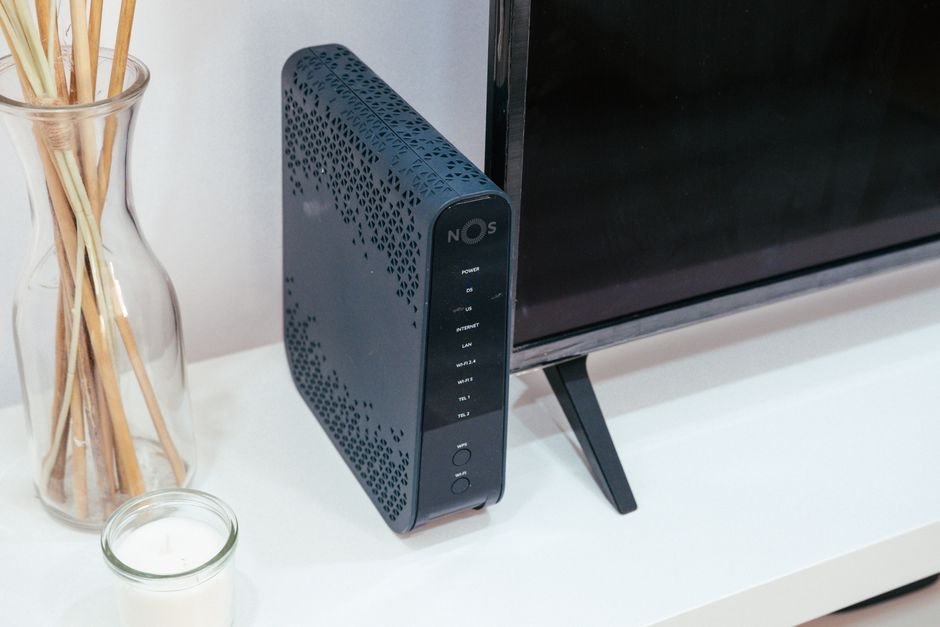
- Centralize Your Router: Position your router in a central location within your home or office. This ensures the signal can radiate outwards evenly in all directions, minimizing dead zones. Avoid placing it in corners, basements, or attics, which inherently limit its coverage area.
- Elevate Your Router: Routers emit signals downwards and outwards. Placing your router on a high shelf, a wall mount, or even on top of furniture can improve its reach. This also helps to avoid signal absorption by dense furniture or flooring.
- Minimize Obstructions: Physical objects can significantly impede Wi-Fi signals. Thick walls (especially concrete or brick), large metal appliances (like refrigerators or microwaves), aquariums, and even mirrors can absorb or reflect Wi-Fi signals, weakening their strength. Try to keep your router in an open space, away from these common signal blockers.
- Avoid Electronic Interference: Many household electronics emit radio frequencies that can interfere with your Wi-Fi signal. Devices like cordless phones, Bluetooth speakers, baby monitors, and even some older microwave ovens operate on similar frequencies (2.4 GHz) and can cause congestion and reduce performance. Relocate your router away from these potential sources of interference.
2. Router Antennas: Harnessing Their Power
Modern routers often come with external antennas that can be adjusted to optimize signal direction.
- Positioning is Key: If your router has adjustable external antennas, experiment with their orientation. For a single-story home, pointing all antennas upwards is often effective. For a multi-story home, try positioning some antennas horizontally and others vertically to broadcast the signal across different floors.
- Consider Antenna Upgrades: For significantly improved range, consider upgrading to high-gain antennas. These specialized antennas are designed to focus the Wi-Fi signal in a particular direction, extending its reach. Ensure compatibility with your router model before purchasing.
3. Router Firmware: The Brains of the Operation
Router firmware is the software that controls your router’s operations. Keeping it updated is crucial for optimal performance, security, and bug fixes.
- Regular Updates: Most router manufacturers release firmware updates periodically. These updates can include performance enhancements, improved security protocols, and bug fixes that might be impacting your Wi-Fi signal.
- Accessing Firmware Updates: To update your firmware, you’ll typically need to log into your router’s web-based interface. This is usually done by typing your router’s IP address (often 192.168.1.1 or 192.168.0.1) into a web browser. Consult your router’s manual or the manufacturer’s website for specific instructions.
- Automatic Updates: Some newer routers offer automatic firmware updates, which is a convenient way to ensure your device is always running the latest software.
4. Wi-Fi Channel Optimization: Reducing Congestion
Your Wi-Fi network operates on specific channels within the 2.4 GHz and 5 GHz frequency bands. If many nearby networks are using the same channel, it can lead to interference and slower speeds.
- Understanding Frequency Bands:
- 2.4 GHz: Offers wider coverage but is more prone to interference and has slower speeds. It’s better for devices further away from the router.
- 5 GHz: Provides faster speeds and less interference but has a shorter range. It’s ideal for devices closer to the router that require high bandwidth.
- Channel Scanning: Many routers have built-in tools to scan for the least congested channels. Alternatively, you can use third-party Wi-Fi analyzer apps on your smartphone or computer to identify optimal channels.
- Manual Channel Selection: Once you’ve identified the best channels, you can manually set your router to use them. This is done within your router’s web interface. For the 2.4 GHz band, channels 1, 6, and 11 are generally recommended as they don’t overlap.
5. Wi-Fi Band Steering: Leveraging Both Frequencies
Many modern routers support dual-band (2.4 GHz and 5 GHz) or tri-band (adding a second 5 GHz band) operation. Band steering is a feature that automatically directs your devices to the optimal frequency band.
- Enable Band Steering: Ensure that band steering is enabled in your router’s settings. This allows your router to intelligently assign devices to the 2.4 GHz or 5 GHz band based on signal strength, device capabilities, and network congestion.
- Separate SSIDs (Optional): While band steering is generally effective, some users prefer to create separate SSIDs (network names) for their 2.4 GHz and 5 GHz networks. This gives you more manual control over which devices connect to which band. For example, you might name your 5 GHz network “MyHome_5G” and your 2.4 GHz network “MyHome_2.4G.”
6. Router Security: A Crucial Step
While not directly impacting signal strength, strong Wi-Fi security is essential to prevent unauthorized access, which can consume your bandwidth and slow down your network.
- WPA2/WPA3 Encryption: Always use WPA2 or WPA3 encryption. WPA3 is the latest and most secure standard, offering enhanced protection against hacking. Avoid older WEP encryption, which is easily compromised.
- Strong, Unique Password: Create a strong, unique password for your Wi-Fi network. Avoid easily guessable passwords like “password123” or your street address. A combination of uppercase and lowercase letters, numbers, and symbols is recommended.
- Change Default Login Credentials: Change the default username and password for accessing your router’s web interface. These are often widely known and can be a security vulnerability.
7. Quality of Service (QoS) Settings: Prioritizing Traffic
Quality of Service (QoS) allows you to prioritize certain types of internet traffic over others. This is particularly useful for ensuring smooth streaming or gaming experiences, even when your network is under heavy load.
- Identify Bandwidth Hogs: Determine which applications or devices consume the most bandwidth.
- Prioritize Critical Traffic: Configure QoS to give priority to applications like video conferencing, online gaming, or streaming services. This ensures they receive sufficient bandwidth, even when other devices are downloading large files.
- Router-Specific Implementation: The way QoS is implemented varies between router models. Consult your router’s manual for specific instructions on how to configure these settings.
8. Router Reboot: The Simple Fix
It might sound too simple, but regularly rebooting your router can resolve many minor performance issues and improve signal stability.
- Power Cycle Your Router: Turn off your router, wait for about 30 seconds, and then turn it back on. This allows the router to clear its memory and re-establish its network connections.
- Schedule Reboots: Consider scheduling automatic reboots for your router, especially if you notice a gradual decline in performance over time. Some routers have this feature built-in.
9. Consider a Wi-Fi Extender or Mesh System
If you’ve tried all the above tips and still experience Wi-Fi dead zones or weak signals, it might be time to consider additional hardware.
- Wi-Fi Extenders (Repeaters): These devices capture your existing Wi-Fi signal and rebroadcast it, extending its range. They are a cost-effective solution for smaller areas or to eliminate specific dead spots. However, they can sometimes halve your bandwidth.
- Mesh Wi-Fi Systems: A mesh system consists of a main router and several satellite nodes that work together to create a single, seamless Wi-Fi network throughout your home. They offer superior coverage and performance compared to extenders, eliminating dead zones and providing a consistent signal. While more expensive, they are often the best solution for larger homes or those with complex layouts.
By implementing these essential router tips, you can significantly improve your Wi-Fi signal strength, eliminate frustrating dead zones, and enjoy a faster, more reliable internet connection throughout your home or office. Regular maintenance and optimization are key to a consistently strong and seamless digital experience.