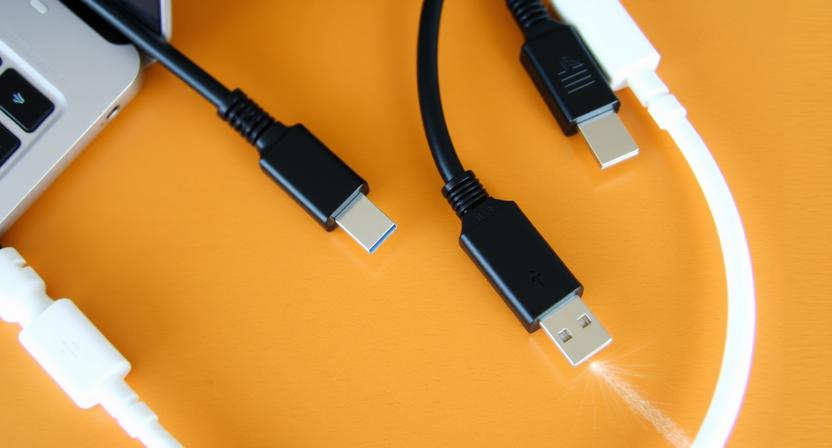
In the intricate web of modern technology, USB cables are the unsung heroes, silently powering our devices, facilitating data transfer, and connecting a universe of peripherals. Yet, navigating the labyrinth of USB connectors can be a bewildering experience, with a proliferation of shapes and sizes often leading to frustration. This comprehensive guide demystifies the world of USB cable types, from the ubiquitous USB-A to the revolutionary USB-C, exploring their evolution, specifications, and unique applications. Understanding these digital lifelines is crucial for anyone seeking optimal performance, seamless connectivity, and future-proofing their tech arsenal.
The Genesis and Evolution of USB: A Standardized Revolution
The Universal Serial Bus (USB) standard emerged in the mid-1990s with a singular goal: to simplify peripheral connectivity. Before USB, connecting devices like printers, modems, and keyboards involved a chaotic array of proprietary ports and complex configurations. USB promised a standardized, plug-and-play experience, drastically reducing installation headaches and fostering interoperability. Over the years, USB has undergone significant revisions, each iteration bringing enhanced speed, power delivery capabilities, and new connector designs.
USB-A: The Enduring Workhorse
The rectangular USB-A connector is arguably the most recognizable USB port in existence. Its flat, elongated design has graced countless computers, chargers, and peripherals for decades. USB-A connectors are typically found on the host device side, acting as the primary interface for connecting peripherals.
-
Specifications and Generations: USB-A has been the physical connector for multiple USB standards, including:
- USB 1.0/1.1: The original standards, offering speeds of 1.5 Mbps (Low Speed) and 12 Mbps (Full Speed). While largely obsolete for modern data transfer, they laid the foundation.
- USB 2.0: A significant leap, introducing High Speed at 480 Mbps. This became the dominant standard for many years, powering everything from flash drives to webcams.
- USB 3.0/3.1 Gen 1/3.2 Gen 1 (SuperSpeed): Introduced a blue tint to the port and offered speeds of 5 Gbps. Often referred to as USB 3.0, it was later rebranded as USB 3.1 Gen 1 and then USB 3.2 Gen 1, causing some confusion but maintaining the same speed.
- USB 3.1 Gen 2/3.2 Gen 2 (SuperSpeed+): Doubled the speed to 10 Gbps. These ports are often colored teal or red.
- USB 3.2 Gen 2×2 (SuperSpeed 20Gbps): Utilizes two lanes of 10 Gbps, achieving a remarkable 20 Gbps. This requires specific USB-A ports and cables.
-
Applications: USB-A remains prevalent for connecting keyboards, mice, printers, external hard drives, USB flash drives, and charging accessories. Its backward compatibility ensures that older devices can still connect to newer ports, albeit at their original speeds. However, its unidirectional nature and relatively large size have paved the way for more advanced connectors.
Micro-USB: The Compact Predecessor
The Micro-USB connector emerged as a smaller, more compact alternative to the Mini-USB, designed primarily for mobile devices. Its trapezoidal shape, slightly narrower than Mini-USB, became the standard for smartphones, tablets, and many portable electronics before the advent of USB-C.
-
Specifications and Generations: Micro-USB connectors primarily supported USB 2.0 speeds (480 Mbps). While some Micro-USB ports might have been integrated into devices with USB 3.0 capabilities, the connector itself was the bottleneck for higher speeds.
-
Variations:
- Micro-USB B: The most common variant, featuring a symmetrical design.
- Micro-USB AB: Less common, designed to accept both Micro-USB A and B plugs, allowing for host or device functionality.
- Micro-USB 3.0: A wider version of Micro-USB, designed to support USB 3.0 speeds (5 Gbps). It featured a distinct double-decker design, with a standard Micro-USB connector on top and a USB 3.0 connector below. While offering faster speeds, it never gained widespread adoption due to its bulkiness and the rapid rise of USB-C.
-
Applications: Micro-USB was ubiquitous for charging and data transfer on older smartphones, digital cameras, MP3 players, GPS devices, and various other portable gadgets. Its decline is largely attributed to the superior versatility and reversible design of USB-C.
USB-C: The Future-Proof Connector
The USB-C (also known as USB Type-C) connector represents a paradigm shift in USB technology. Its small, oval, and symmetrical design is its most striking feature, allowing for reversible insertion – no more fumbling to find the correct orientation. Beyond its physical design, USB-C is a versatile connector capable of supporting a multitude of functions.
-
Specifications and Capabilities: USB-C is not a speed standard in itself but a connector type that can carry various USB protocols and other signals:
- USB Data Transfer: It supports all USB data transfer speeds, from USB 2.0 (480 Mbps) to the latest USB4 (up to 40 Gbps and beyond).
- Power Delivery (USB PD): USB-C is the backbone of USB Power Delivery, a specification that allows for significantly higher power output (up to 240W with the latest Extended Power Range) and intelligent power negotiation between devices. This enables rapid charging of laptops, tablets, and even high-power peripherals.
- Alternate Modes (Alt Modes): This is where USB-C truly shines. Alt Modes allow the USB-C connector to carry non-USB signals, such as:
- DisplayPort (DP Alt Mode): Enables the transmission of high-resolution video and audio signals to monitors and displays.
- HDMI Alt Mode: Similar to DisplayPort, allowing for HDMI signal transmission.
- Thunderbolt 3 & 4: These high-speed interfaces utilize the USB-C connector, offering exceptional bandwidth for data transfer, display output, and power delivery, often exceeding 40 Gbps.
- MHL (Mobile High-Definition Link): Used for connecting mobile devices to displays, though less common now with DP Alt Mode.
-
Applications: USB-C is rapidly becoming the universal standard. It’s found on modern smartphones, laptops, tablets, gaming consoles, monitors, docking stations, external SSDs, and a growing array of other devices. Its ability to handle data, video, and power through a single cable simplifies connectivity and reduces cable clutter.
Mini-USB: The Precursor to Compactness
While less common today, Mini-USB connectors played a crucial role in the transition to smaller form factors. They were a predecessor to Micro-USB and were found on many digital cameras, MP3 players, and early smartphones.
-
Specifications: Mini-USB connectors typically supported USB 1.1 and USB 2.0 speeds.
-
Variations:
- Mini-USB A: Less common, designed for host devices.
- Mini-USB B: The more prevalent variant, found on peripheral devices.
-
Applications: Largely superseded by Micro-USB and then USB-C, Mini-USB is now rarely encountered on new devices.
Beyond the Mainstream: Specialized USB Connectors
While USB-A, USB-C, and Micro-USB dominate the landscape, a few other specialized USB connectors exist or have existed:
-
USB-B: A larger, squarish connector often found on larger peripherals like printers and scanners. It’s designed for more robust connections where space is less of a concern.
-
USB-OTG (On-The-Go): This is not a connector type itself but a feature that allows certain mobile devices (often with Micro-USB or USB-C ports) to act as a host, enabling them to connect to other USB devices like flash drives or keyboards. This is often achieved through specific cables or adapters.
-
Proprietary Connectors: Some manufacturers have historically used proprietary USB-like connectors for specific devices, often to control accessories or offer unique features. However, the trend is strongly towards standardization with USB-C.
Choosing the Right USB Cable: A Practical Guide
With the diverse array of USB cable types, selecting the correct one is essential for optimal performance and avoiding compatibility issues.
- Identify Your Devices: Examine the ports on your devices. Are they USB-A, USB-C, or Micro-USB?
- Consider Speed Requirements: For faster data transfer (e.g., external SSDs, high-resolution video editing), opt for cables that support the highest USB specification your devices are capable of (e.g., USB 3.2 Gen 2×2, USB4, Thunderbolt). Look for cables explicitly stating their supported speeds.
- Power Delivery Needs: If you need to charge laptops or other power-hungry devices quickly, ensure your cable supports USB Power Delivery (USB PD) and has a sufficient wattage rating
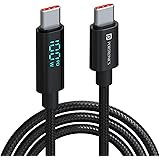
Portronics Konnect View 100W Type C to Type C Cable with LED Display with 5A Max Output, Fast Data Sync, 2M Length, Tangle Resistance supports Laptop Charging(Black)
₹489.00 (as of October 18, 2026 23:05 GMT +05:30 - More infoProduct prices and availability are accurate as of the date/time indicated and are subject to change. Any price and availability information displayed on [relevant Amazon Site(s), as applicable] at the time of purchase will apply to the purchase of this product.)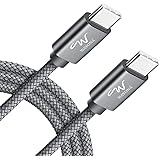
Wayona Type C to Type C 6FT/2M 65W Long Fast Charging Cable Compatible with iPhone 17, Air, iPhone 16,15 Pro/Max Series Macbook Air/Pro Samsung Galaxy S25, Ultra/S24/ S23 Flip Fold OnePlus (2M, Grey)
₹333.00 (as of October 18, 2026 23:05 GMT +05:30 - More infoProduct prices and availability are accurate as of the date/time indicated and are subject to change. Any price and availability information displayed on [relevant Amazon Site(s), as applicable] at the time of purchase will apply to the purchase of this product.)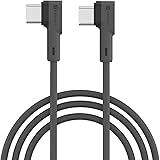
Portronics Konnect L 60W PD Type C to Type C Mobile Charging Cable, 1.2M, Fast Data Sync, Tangle Resistant, TPE+Nylon Braided(Grey)
₹149.00 (as of October 18, 2026 23:05 GMT +05:30 - More infoProduct prices and availability are accurate as of the date/time indicated and are subject to change. Any price and availability information displayed on [relevant Amazon Site(s), as applicable] at the time of purchase will apply to the purchase of this product.)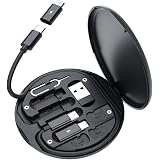
60W Multifunctional Fast Charging Data Cable Kit with Conversion Set – USB-A & USB-C to Micro/USB-C/i O S Connectors, Data Transfer, SIM Storage, SIM Eject Pin, Pocket Mirror & Phone Holder (Black)
₹98.00 (as of October 18, 2026 23:05 GMT +05:30 - More infoProduct prices and availability are accurate as of the date/time indicated and are subject to change. Any price and availability information displayed on [relevant Amazon Site(s), as applicable] at the time of purchase will apply to the purchase of this product.)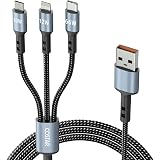
COSTAR 60W 3-in-1 Multi Fast Charging Cable – 3A Nylon Braided 1.5M Cable with Type-C & Micro USB for iPhone, iPad, Samsung, OnePlus, Xiaomi, Oppo, Vivo, Android & Car Charging (Grey)
₹349.00 (as of October 18, 2026 23:05 GMT +05:30 - More infoProduct prices and availability are accurate as of the date/time indicated and are subject to change. Any price and availability information displayed on [relevant Amazon Site(s), as applicable] at the time of purchase will apply to the purchase of this product.)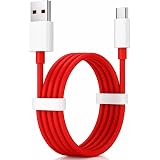
80w Oneplus Compatible Fast Charging USB A to Type C Cable | 13,13S,13R,12,12R,11,11R,10,10R,10T,10Pro,9,9Rt,9R,9Pro,8,8T,7T,7Pro,Nord CE3,Ce2Lite,4,3,2,2T,CE4 By Basesailor
₹296.00 (as of October 18, 2026 23:05 GMT +05:30 - More infoProduct prices and availability are accurate as of the date/time indicated and are subject to change. Any price and availability information displayed on [relevant Amazon Site(s), as applicable] at the time of purchase will apply to the purchase of this product.)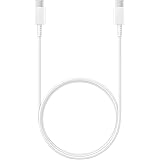
Samsung Original Type C to C Cable - 3.28 Feet (1 Meter), White
₹325.00 (as of October 18, 2026 23:05 GMT +05:30 - More infoProduct prices and availability are accurate as of the date/time indicated and are subject to change. Any price and availability information displayed on [relevant Amazon Site(s), as applicable] at the time of purchase will apply to the purchase of this product.)
HAMMER Unbreakable Type C to Type C Cable 60W Braided, PD Fast Charging, Data Sync, 1.2 Meter Tangle Free Wire, Compatible with all C-Type Enabled Devices (Black)
₹137.00 (as of October 18, 2026 23:05 GMT +05:30 - More infoProduct prices and availability are accurate as of the date/time indicated and are subject to change. Any price and availability information displayed on [relevant Amazon Site(s), as applicable] at the time of purchase will apply to the purchase of this product.)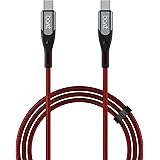
boAt Type C to C 65W Fast Charging Cable with 480 Mbps Data Transfer, Tangle-Free Cable in Premium Nylon Braided Design (Martian Red)
₹179.00 (as of October 18, 2026 23:05 GMT +05:30 - More infoProduct prices and availability are accurate as of the date/time indicated and are subject to change. Any price and availability information displayed on [relevant Amazon Site(s), as applicable] at the time of purchase will apply to the purchase of this product.)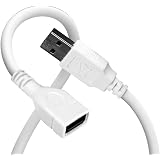
Zebronics USB Extension Cable, 1.5 Meter Length, 480Mbps Data Transfer, Full Copper Core, Nickel-Plated Connectors, Durable Build, For TV, Laptop, PC, Hard Drive, Gamepad (UEC15)
₹109.00 (as of October 18, 2026 23:05 GMT +05:30 - More infoProduct prices and availability are accurate as of the date/time indicated and are subject to change. Any price and availability information displayed on [relevant Amazon Site(s), as applicable] at the time of purchase will apply to the purchase of this product.)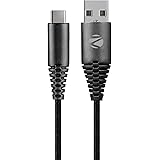
Zebronics Type-C Fast Charging Cable, Upto 480 Mbps, 36W Rapid Charge, 3A Output, Charge & Sync Data Cable, 1 Meter Length, Tangle-Free Durable Design (CU300T)
₹69.00 (as of October 18, 2026 23:05 GMT +05:30 - More infoProduct prices and availability are accurate as of the date/time indicated and are subject to change. Any price and availability information displayed on [relevant Amazon Site(s), as applicable] at the time of purchase will apply to the purchase of this product.)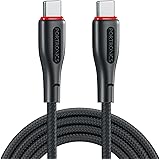
Portronics 100W Konnect B 1.5M Type C to Type C 5A Fast Charging Cable With E-Marker Chipset, Strong Braided Cable, Compatible With Laptops, Smartphone, Tablet, iphones, iPads & other type C Device
₹228.00 (as of October 18, 2026 23:05 GMT +05:30 - More infoProduct prices and availability are accurate as of the date/time indicated and are subject to change. Any price and availability information displayed on [relevant Amazon Site(s), as applicable] at the time of purchase will apply to the purchase of this product.)
Portronics Konnect X 60W Type C to Type C Unbreakable Nylon Braided Cable, 1M Fast Charging Cable for iPhone 15 series, iPad, Samsung Galaxy & other Type C Devices(Black)
₹139.00 (as of October 18, 2026 23:05 GMT +05:30 - More infoProduct prices and availability are accurate as of the date/time indicated and are subject to change. Any price and availability information displayed on [relevant Amazon Site(s), as applicable] at the time of purchase will apply to the purchase of this product.)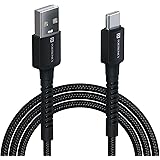
Portronics Konnect X USB to Type C Cable with 3A Output, Fast Charging & Data Transfer, Nylon Braided, Aluminium Alloy Shell, 1M Length compatible with Type C Smartphones(Black)
₹129.00 (as of October 18, 2026 23:05 GMT +05:30 - More infoProduct prices and availability are accurate as of the date/time indicated and are subject to change. Any price and availability information displayed on [relevant Amazon Site(s), as applicable] at the time of purchase will apply to the purchase of this product.)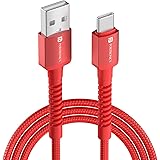
Portronics Konnect X 60W 6A USB-A to Type C Fast Charging Cable With WARP/DASH/VOOC/SuperVOOC/FLASH Charging Support, Compatible with OnePlus, Oppo, iPhone 15 & other Type C Smartphone & Devices(Red)
₹169.00 (as of October 18, 2026 23:05 GMT +05:30 - More infoProduct prices and availability are accurate as of the date/time indicated and are subject to change. Any price and availability information displayed on [relevant Amazon Site(s), as applicable] at the time of purchase will apply to the purchase of this product.)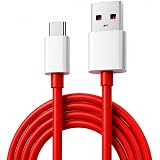
SB 80W SuperVOOC Fast Charging Cable USB A to Type C | 7.3A Rapid Charge Data Cable | Compatible with OnePlus, OPPO, Realme & SuperVOOC Devices | High Speed Sync | Durable Charging Cable | 1 Meter
₹149.00 (as of October 18, 2026 23:05 GMT +05:30 - More infoProduct prices and availability are accurate as of the date/time indicated and are subject to change. Any price and availability information displayed on [relevant Amazon Site(s), as applicable] at the time of purchase will apply to the purchase of this product.)
Portronics Konnect L POR-1081 Fast Charging 3A Type-C Cable 1.2Meter with Charge & Sync Function for All Type-C Devices (Grey)
₹149.00 (as of October 18, 2026 23:05 GMT +05:30 - More infoProduct prices and availability are accurate as of the date/time indicated and are subject to change. Any price and availability information displayed on [relevant Amazon Site(s), as applicable] at the time of purchase will apply to the purchase of this product.)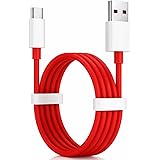
APFEN 100W USB-A to Type-C Fast Charger Cable Compatible for OnePlus 15R/15/13R/13/12R/12/11/10/9/8, Nord 6/CE6/5/CE5/4/3/2 & Lite, Data Transfer upto 480mbps
₹272.00 (as of October 18, 2026 23:05 GMT +05:30 - More infoProduct prices and availability are accurate as of the date/time indicated and are subject to change. Any price and availability information displayed on [relevant Amazon Site(s), as applicable] at the time of purchase will apply to the purchase of this product.)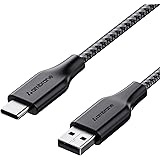
Ambrane Unbreakable 3A Fast Charging 1.5m Braided Type C Cable for Smartphones, Tablets & other Type C devices, 480Mbps Data Sync, Quick Charge 3.0 (RCT15A, Black)
₹99.00 (as of October 18, 2026 23:05 GMT +05:30 - More infoProduct prices and availability are accurate as of the date/time indicated and are subject to change. Any price and availability information displayed on [relevant Amazon Site(s), as applicable] at the time of purchase will apply to the purchase of this product.)