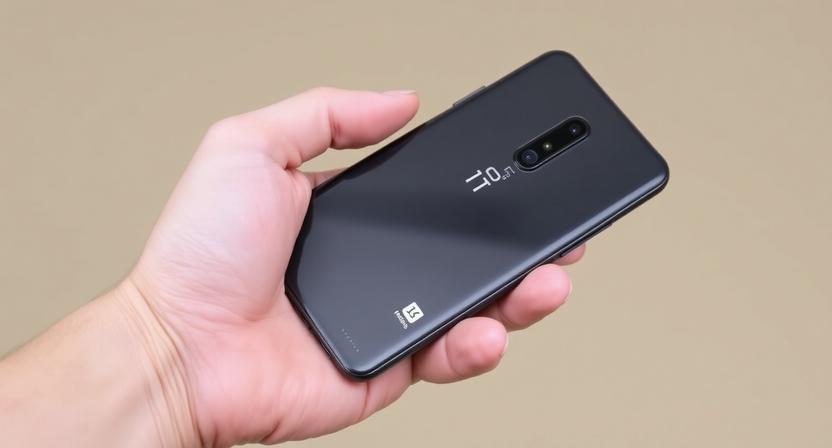
The OnePlus Nord 5G, a mid-range marvel, offers a compelling blend of performance, display quality, and a clean software experience. However, many users scratch the surface of its capabilities. To truly leverage the power and flexibility of your Nord, a deeper dive into its features and settings is essential. This guide will equip you with practical tips and tricks to optimize your daily experience, enhance performance, conserve battery, and unlock hidden functionalities.
Mastering the Display: A Visual Feast
Your OnePlus Nord 5G boasts a stunning 90Hz Fluid AMOLED display, designed for smooth scrolling and vibrant visuals. To ensure you’re experiencing it at its best:
- Enable the 90Hz Refresh Rate: Navigate to Settings > Display & brightness > Screen refresh rate. Select “High” to unlock the buttery-smooth 90Hz experience. While it consumes slightly more battery, the visual difference is significant and well worth it for everyday use.
- Optimize Color Calibration: Under Settings > Display & brightness > Screen color mode, experiment with the different profiles. “Vivid” offers punchy colors, while “Natural” provides a more color-accurate representation. “Advanced” allows for fine-tuning of the color temperature to your preference.
- Dark Mode for Comfort and Battery: Actively use Dark mode (Settings > Display & brightness > Dark mode). This not only reduces eye strain in low-light conditions but also conserves battery life on the AMOLED panel by turning off pixels for black areas. Schedule it to activate automatically during nighttime hours.
- Ambient Display Customization: Explore Settings > Display & brightness > Ambient display. Here you can choose what information appears on your screen when it’s locked, from time and notifications to custom messages. Consider enabling “Tap to show” for a quick glance without fully waking the device.
Performance Prowess: Fine-Tuning for Speed
While the Nord 5G is generally snappy, a few tweaks can elevate its performance even further:
- Clean Up Background Apps: Regularly swipe up from the bottom of the screen and hold to access recent apps. Tap the “three dots” icon and select “Close all” to free up RAM. For specific apps you want to keep running, you can “lock” them by tapping the lock icon.
- Storage Management is Key: A cluttered storage can significantly slow down your phone. Utilize Settings > Storage to identify large files, duplicate photos, and unused apps. Uninstall apps you no longer need and consider using cloud storage for photos and videos.
- OxygenOS Performance Mode: While not a dedicated “performance mode” in the traditional sense, ensure your Battery settings are optimized. Avoid extreme power-saving modes unless absolutely necessary, as they can throttle performance.
- Developer Options (for the adventurous): For advanced users, enabling Developer Options (tap “Build number” seven times in Settings > About phone) offers granular control. Within Developer Options, you can adjust Animation scales (set to 0.5x or disable them entirely for a snappier feel) and manage Background process limits. Use these settings with caution, as incorrect adjustments can negatively impact performance.
Battery Life: Making Every Charge Count
Maximizing your Nord’s battery life is crucial for a seamless experience:
- Adaptive Battery: Ensure Adaptive Battery is enabled in Settings > Battery > Battery optimization. This feature learns your usage patterns and prioritizes battery for the apps you use most.
- Screen Timeout Optimization: Set your Screen timeout (Settings > Display & brightness > Screen timeout) to a reasonable duration, such as 30 seconds or 1 minute. A constantly illuminated screen is a significant battery drain.
- Location Services Wisely: While convenient, GPS can be a battery hog. Adjust Location settings (Settings > Location) to allow apps to access your location only “While using the app” or disable it for apps that don’t require it.
- Disable Unused Connectivity: Turn off Wi-Fi, Bluetooth, and Mobile Data when not in use. These radios constantly search for connections and consume power.
- Warp Charge Efficiency: Take advantage of the incredibly fast Warp Charge technology. However, for overnight charging, consider enabling Optimized charging (Settings > Battery > Optimized charging). This feature learns your charging habits and slows down charging overnight to reduce battery degradation.
Camera Capabilities: Capturing Brilliance
The OnePlus Nord 5G’s camera system is more capable than many realize. Here’s how to get the most out of it:
- Explore Pro Mode: Don’t shy away from Pro mode in the Camera app. It allows manual control over ISO, shutter speed, white balance, and focus, enabling you to capture stunning shots in challenging lighting conditions.
- Utilize AI Scene Detection: The Nord’s AI automatically optimizes settings for various scenes. Ensure AI Scene Detection is enabled in the camera settings for automatic enhancements.
- Nightscape for Low Light: For impressive low-light photography, use the dedicated Nightscape mode. Hold the phone steady for a few seconds to capture brighter, more detailed images.
- Ultra-Wide Lens Creativity: Experiment with the ultra-wide lens for expansive landscape shots or to fit more into your frame. Remember to shoot from different angles to avoid distortion.
- Macro Photography: The Nord’s macro capabilities can reveal intricate details. Get close to your subject (within a few centimeters) to capture stunning close-up shots.
OxygenOS Customization: Making it Yours
OxygenOS is renowned for its clean interface and extensive customization options.
- Quick Gestures: Dive into Settings > Buttons & gestures > Quick gestures. Customize actions for double-tapping the screen to wake or sleep, drawing letters to launch apps, and more. This significantly speeds up everyday interactions.
- Customization Hub: Explore Settings > Customization. Here you can change icon packs, accent colors, font styles, and even the always-on display style to truly personalize your Nord.
- Shelf Power: Swipe right from your home screen to access Shelf. This customizable panel can house widgets, notes, and frequently used apps, providing quick access to your essential information.
- Zen Mode for Focus: If you find yourself easily distracted, Zen Mode (accessible via Quick Settings or Settings > Utilities) offers a digital detox. It limits app usage and notifications for a set period, promoting focus and mindfulness.
Connectivity and Audio: Seamless Integration
- 5G Optimization: To ensure you’re benefiting from 5G speeds, check your SIM card and network settings to confirm 5G is enabled and that your carrier plan supports it.
- Dual-Band Wi-Fi: Your Nord supports dual-band Wi-Fi (2.4GHz and 5GHz). Connect to the 5GHz band for faster speeds and less interference when available.
- Dirac Audio Tuner: Experience enhanced audio with Dirac Audio Tuner (Settings > Sound & vibration > Dirac Audio Tuner). Experiment with the different presets for music, movies, and gaming to find your preferred sound profile.
- Bluetooth AptX HD: If you have compatible Bluetooth headphones, ensure AptX HD is enabled in Developer Options for higher-fidelity wireless audio.
By actively exploring and utilizing these tips and tricks, you’ll transform your OnePlus Nord 5G from a capable smartphone into a personalized powerhouse, perfectly tailored to your needs and preferences.
Samsung Galaxy Z Fold7 5G Mobile with Galaxy AI (Silver Shadow, 12GB RAM, 256GB Storage), Ultra Sleek Design with 200MP Camera, Ultra-Smooth Gaming with Powerful Snapdragon 8 Elite, Google Gemini
₹1,29,999.00 (as of October 13, 2026 03:25 GMT +05:30 - More infoProduct prices and availability are accurate as of the date/time indicated and are subject to change. Any price and availability information displayed on [relevant Amazon Site(s), as applicable] at the time of purchase will apply to the purchase of this product.)
iQOO Z11 Lite 44W 5G (Midnight Blue, 4GB RAM, 128GB Storage) | 6500mAh Battery with 44W Fast Charging* | Dimensity 6300 with 579k+ AnTuTu Score* | OriginOS 6.0 with AI Creation* & Private Space*
₹19,497.00 (as of October 13, 2026 03:25 GMT +05:30 - More infoProduct prices and availability are accurate as of the date/time indicated and are subject to change. Any price and availability information displayed on [relevant Amazon Site(s), as applicable] at the time of purchase will apply to the purchase of this product.)
Motorola g37 Power (Pantone Impenetrable, 8GB RAM, 128GB Storage) | Dimensity 6400 Processor | 50MP Rear Camera | 8MP Front Camera | 6.66" HD+ Display | 7000mAh Battery | Expandable Up to 1TB
₹20,999.00 (as of October 13, 2026 03:25 GMT +05:30 - More infoProduct prices and availability are accurate as of the date/time indicated and are subject to change. Any price and availability information displayed on [relevant Amazon Site(s), as applicable] at the time of purchase will apply to the purchase of this product.)
REDMI A7 Pro 5G (Mist Blue, 4GB RAM,128GB Storage) | Segment's Fastest Processor | Segment's Largest Battery | Segment's Largest & Smoothest 6.9in 120Hz Display
₹15,497.00 (as of October 13, 2026 03:25 GMT +05:30 - More infoProduct prices and availability are accurate as of the date/time indicated and are subject to change. Any price and availability information displayed on [relevant Amazon Site(s), as applicable] at the time of purchase will apply to the purchase of this product.)
Motorola Edge 70 Fusion (Pantone Country Air, 8GB RAM, 128GB Storage) | 6.78" 1.5K 144Hz AMOLED Display | Snapdragon 7s Gen 4 | 50MP Sony LYTIA 710 OIS | 32MP Selfie | 7000mAh | 68W TurboPower |
₹29,799.00 (as of October 13, 2026 03:25 GMT +05:30 - More infoProduct prices and availability are accurate as of the date/time indicated and are subject to change. Any price and availability information displayed on [relevant Amazon Site(s), as applicable] at the time of purchase will apply to the purchase of this product.)
OnePlus N6 | 6GB+128GB | Midnight Green | Segment's Biggest 8000mAh Battery | Segment's Fastest 45W Charging | 60-Month Smoothness | Smooth 120Hz Display | 50MP Camera | Military-Grade Durability
₹24,999.00 (as of October 13, 2026 03:25 GMT +05:30 - More infoProduct prices and availability are accurate as of the date/time indicated and are subject to change. Any price and availability information displayed on [relevant Amazon Site(s), as applicable] at the time of purchase will apply to the purchase of this product.)
Motorola Moto G67 Power 5G – Pantone Curacao Blue 12GB RAM + 256GB Storage | 7000mAh Battery | Snapdragon 7s Gen 2 | 30W TurboPower Charging | 5G Smartphone
₹26,699.00 (as of October 13, 2026 03:25 GMT +05:30 - More infoProduct prices and availability are accurate as of the date/time indicated and are subject to change. Any price and availability information displayed on [relevant Amazon Site(s), as applicable] at the time of purchase will apply to the purchase of this product.)
Zeno 100 Pro | 3GB RAM + 5GB Virtual RAM, 64GB Storage | 5000mAh Battery | UNISOC Octa-Core Processor | DTS Sound | Military Grade Protection | 6.6" 90Hz HD+ Display | Android 15 Go | Cloud White
₹8,199.00 (as of October 13, 2026 03:25 GMT +05:30 - More infoProduct prices and availability are accurate as of the date/time indicated and are subject to change. Any price and availability information displayed on [relevant Amazon Site(s), as applicable] at the time of purchase will apply to the purchase of this product.)
iQOO 15R (Triumph Silver 2026, 8GB RAM, 256GB Storage) | Snapdragon® 8 Gen 5 Processor | India’s Slimmest Smartphone in 7600mAh Battery* | Segment's Most Stable 144FPS Gaming*
₹53,999.00 (as of October 13, 2026 03:25 GMT +05:30 - More infoProduct prices and availability are accurate as of the date/time indicated and are subject to change. Any price and availability information displayed on [relevant Amazon Site(s), as applicable] at the time of purchase will apply to the purchase of this product.)
Zeno 100 Lite | UNISOC Octa-Core Processor | 2GB + 4GB RAM 64GB Storage | 5000mAh Battery | 6.6" HD+ 90Hz Display | DTS Sound | Titanium Gold
₹7,649.00 (as of October 13, 2026 03:25 GMT +05:30 - More infoProduct prices and availability are accurate as of the date/time indicated and are subject to change. Any price and availability information displayed on [relevant Amazon Site(s), as applicable] at the time of purchase will apply to the purchase of this product.)
Samsung Galaxy A36 5G (Dark Blue, 8GB RAM, 128GB Storage) | Snapdragon 6 Gen 3 Octa-Core Processor | 50MP + 8MP AI Dual Camera | 12MP Front Camera | 6.7-inch FHD+ Super AMOLED 120Hz Display |
₹26,499.00 (as of October 13, 2026 03:25 GMT +05:30 - More infoProduct prices and availability are accurate as of the date/time indicated and are subject to change. Any price and availability information displayed on [relevant Amazon Site(s), as applicable] at the time of purchase will apply to the purchase of this product.)
Redmi 15C 5G Prime Edition Dusk Purple 6GB + 128GB | Massive 6000mAh Battery | Segment's Largest 17.53cm Display Up to 120Hz | MediaTek Dimensity 6300 | 33W Fast Charging | 50MP AI Dual Camera
₹17,999.00 (as of October 13, 2026 03:25 GMT +05:30 - More infoProduct prices and availability are accurate as of the date/time indicated and are subject to change. Any price and availability information displayed on [relevant Amazon Site(s), as applicable] at the time of purchase will apply to the purchase of this product.)
Samsung Galaxy A56 5G Mobile (Awesome Midnight Blue, 8GB, 128GB) | Segment Most Complete Triple Camera | 50MP | AI Editing | 4nm Processor | sAMOLED | 5000mAh | Gorilla Glass Victus+| Knox Security
₹31,999.00 (as of October 13, 2026 03:25 GMT +05:30 - More infoProduct prices and availability are accurate as of the date/time indicated and are subject to change. Any price and availability information displayed on [relevant Amazon Site(s), as applicable] at the time of purchase will apply to the purchase of this product.)
OnePlus Nord CE6 | 8GB+128GB | Pitch Black | Snapdragon 7s Gen 4 | Segment's Fastest Touch Response | 8000mAh Battery | 144Hz 1.5K AMOLED Display | 50MP Main + 32MP Selfie 4K Cameras | IP66,68,69,69K
₹34,999.00 (as of October 13, 2026 03:25 GMT +05:30 - More infoProduct prices and availability are accurate as of the date/time indicated and are subject to change. Any price and availability information displayed on [relevant Amazon Site(s), as applicable] at the time of purchase will apply to the purchase of this product.)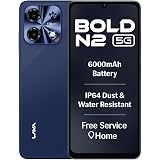
Lava Bold N2 5G (Billionaire Blue, 4GB RAM, 64GB Storage) | 6000 mAh Super Battery | Octacore Ultrafast Processor | Biggest 6.75 (HD+) 120Hz Display | IP64 Dust & Water Resistant | Free Service @ Home
₹12,998.00 (as of October 13, 2026 03:25 GMT +05:30 - More infoProduct prices and availability are accurate as of the date/time indicated and are subject to change. Any price and availability information displayed on [relevant Amazon Site(s), as applicable] at the time of purchase will apply to the purchase of this product.)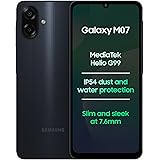
Samsung Galaxy M07 Mobile (Black, 4GB RAM, 64GB Storage) | MediaTek Helio G99 | AnTuTu 624K | IP54| 50MP Camera | 7.6mm Slim | 5000mAh Battery | 25W Fast Charging | 6 Gen OS Upgrades | Without Charger
₹11,999.00 (as of October 13, 2026 03:25 GMT +05:30 - More infoProduct prices and availability are accurate as of the date/time indicated and are subject to change. Any price and availability information displayed on [relevant Amazon Site(s), as applicable] at the time of purchase will apply to the purchase of this product.)
OnePlus Nord 6 | 8GB+256GB | Pitch Black | Snapdragon 8s Gen 4 | Segment's First Stable 165FPS Gaming | Segment's Largest 9000mAh Battery | Most Complete IP Rating | Personalized AI
₹44,999.00 (as of October 13, 2026 03:25 GMT +05:30 - More infoProduct prices and availability are accurate as of the date/time indicated and are subject to change. Any price and availability information displayed on [relevant Amazon Site(s), as applicable] at the time of purchase will apply to the purchase of this product.)
iQOO Z11 5G (Aurora Green, 6GB RAM, 128GB Storage) | India's 1st MediaTek Dimensity 7500 Turbo Processor* | 3D Curved Display- Brightest Display in the Segment* | AI Captions- Record & Recap*
₹34,999.00 (as of October 13, 2026 03:25 GMT +05:30 - More infoProduct prices and availability are accurate as of the date/time indicated and are subject to change. Any price and availability information displayed on [relevant Amazon Site(s), as applicable] at the time of purchase will apply to the purchase of this product.)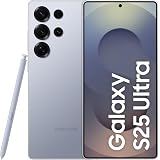
Samsung Galaxy S25 Ultra 5G AI Smartphone (Titanium Silverblue, 12GB RAM, 256GB Storage), 200MP Camera, 5000mAh Ultra Long Battery, QHD+ Dynamic AMOLED 2X, Galaxy AI, Knox Security, S Pen Included
₹94,999.00 (as of October 13, 2026 03:25 GMT +05:30 - More infoProduct prices and availability are accurate as of the date/time indicated and are subject to change. Any price and availability information displayed on [relevant Amazon Site(s), as applicable] at the time of purchase will apply to the purchase of this product.)