
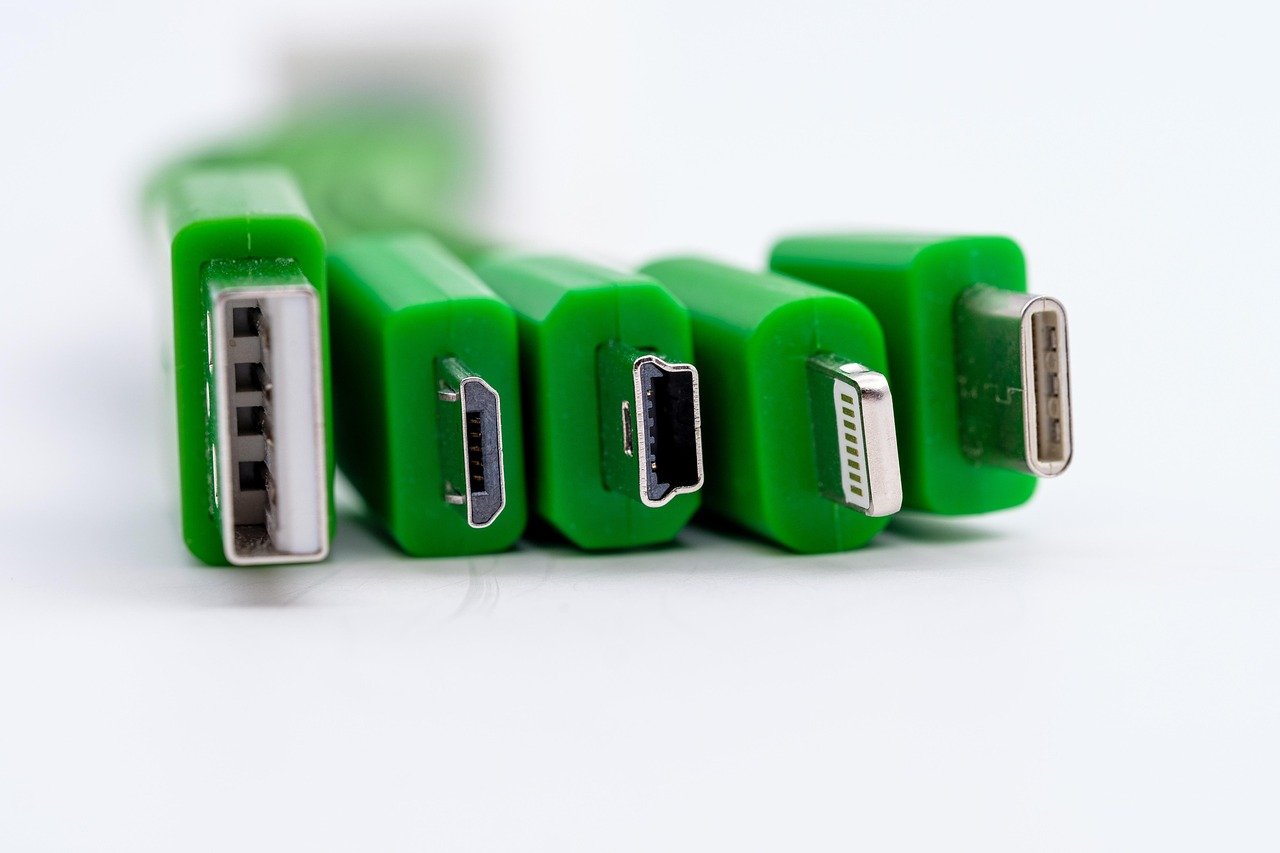
USB Cable Connectors Explained: What’s the Difference?
The humble USB cable, a ubiquitous presence in our digital lives, has evolved significantly since its inception. While its core function remains consistent – facilitating data transfer and power delivery – the sheer variety of USB connectors can be bewildering. Understanding the differences between these connectors is crucial for seamless device compatibility, optimal performance, and avoiding frustrating mismatches. This deep dive unravels the intricacies of USB cable connectors, demystifying their designations, shapes, and functionalities.
The Foundation: USB Standards and Their Evolution
Before dissecting the connectors themselves, it’s essential to grasp the underlying USB standards that dictate their capabilities. Each standard represents a leap in speed, power, and features:
- USB 1.0/1.1 (Low Speed/Full Speed): The earliest iterations, offering speeds of 1.5 Mbps and 12 Mbps respectively. Largely obsolete for modern devices.
- USB 2.0 (High Speed): A significant improvement, reaching 480 Mbps. Still prevalent for many peripherals like keyboards, mice, and older printers.
- USB 3.0 / 3.1 Gen 1 / 3.2 Gen 1×1 (SuperSpeed): Introduced at 5 Gbps, offering a substantial performance boost. Often backward compatible with USB 2.0.
- USB 3.1 Gen 2 / 3.2 Gen 2×1 (SuperSpeed+): Doubled the speed to 10 Gbps, ideal for faster storage devices and external GPUs.
- USB 3.2 Gen 2×2 (SuperSpeed 20Gbps): Achieves 20 Gbps by utilizing two lanes of SuperSpeed 10 Gbps. Requires specific hardware support.
- USB4: The latest evolution, building upon Thunderbolt 3 technology. Offers speeds of up to 40 Gbps and supports features like display output and power delivery over a single cable. USB4 is backward compatible with USB 3.2 and Thunderbolt 3.
The physical connector type doesn’t always directly correlate with the USB standard it supports. A USB-A port, for instance, can house USB 2.0, 3.0, or even 3.2 technology, indicated by color coding or subtle design cues.
The Connector Landscape: A Visual Guide
Let’s explore the most common USB connector types, their appearances, and their typical applications:
1. USB Type-A (Standard USB)
- Appearance: Rectangular, flat, and the most recognizable USB connector. It has been the workhorse of USB connectivity for decades.
- Key Characteristics:
- Reversible? No, it’s a “keyed” connector, meaning it only fits in one orientation. This is a common source of user frustration.
- Data Speed: Can support USB 1.1, 2.0, 3.0, 3.1, and 3.2 standards.
- Power Delivery: Capable of delivering power, with USB 3.x standards offering higher current for faster charging.
- Applications: Found on computers (laptops, desktops), gaming consoles, TVs, wall chargers, power banks, and the host end of most USB peripherals (keyboards, mice, flash drives, external hard drives).
- Distinguishing Between Generations:
- USB 2.0 Type-A: Typically black or white plastic inside.
- USB 3.0/3.1/3.2 Type-A: Often features blue plastic inside. Later iterations (USB 3.2) might have red or teal accents.
- SuperSpeed+ (10Gbps) Type-A: May have additional internal pins or a slightly different internal configuration to accommodate higher speeds.
2. USB Type-B
- Appearance: Larger and squarer than Type-A, with slightly beveled corners.
- Key Characteristics:
- Reversible? No.
- Data Speed: Primarily associated with USB 2.0 and USB 3.0.
- Power Delivery: Designed for higher power draw.
- Applications: Less common now, but historically found on larger peripherals like printers, scanners, external hard drive enclosures, and some audio interfaces.
- Sub-Types:
- Standard USB Type-B: The classic square connector.
- USB 3.0 Type-B: A larger, wider connector with additional pins to support USB 3.0 speeds. It’s designed to be backward compatible, meaning a USB 3.0 Type-B cable can plug into a USB 2.0 Type-B port, but will operate at USB 2.0 speeds.
3. Mini-USB
- Appearance: Smaller than Type-A and Type-B, with a trapezoidal shape.
- Key Characteristics:
- Reversible? No.
- Data Speed: Primarily USB 2.0.
- Power Delivery: Limited power output.
- Applications: Once prevalent on digital cameras, MP3 players, older smartphones, GPS devices, and some portable gaming consoles. Largely superseded by Micro-USB and USB-C.
- Sub-Types:
- Mini-USB A: Less common, with a slightly different pin configuration.
- Mini-USB B: The more prevalent type.
4. Micro-USB
- Appearance: Even smaller than Mini-USB, with a flatter, more rectangular profile and distinctly tapered sides.
- Key Characteristics:
- Reversible? No.
- Data Speed: Primarily USB 2.0, though some Micro-USB 3.0 variants exist.
- Power Delivery: Offers slightly better power delivery than Mini-USB.
- Applications: Dominated the smartphone and tablet market for many years. Still found on many budget Android devices, e-readers, Bluetooth speakers, power banks, and various small electronic gadgets.
- Sub-Types:
- Micro-USB B: The most common form factor.
- Micro-USB AB: A more versatile connector that can accept either Micro-A or Micro-B plugs.
- Micro-USB 3.0: A wider connector designed to support USB 3.0 speeds, often seen on external hard drives. It’s backward compatible with Micro-USB 2.0 ports.
5. USB Type-C (USB-C)
- Appearance: Small, oval-shaped, and symmetrical. This is the connector of the future.
- Key Characteristics:
- Reversible? Yes! This is its most celebrated feature. You can plug it in either way.
- Data Speed: Supports the latest USB standards, including USB 3.1, 3.2, and USB4, offering speeds from 5 Gbps up to 40 Gbps and beyond.
- Power Delivery: Features USB Power Delivery (USB PD), allowing for significantly higher wattage for faster charging of laptops, tablets, and even some smartphones. It can also reverse power flow, enabling devices to charge each other.
- Alternate Modes: Crucially, USB-C supports “Alternate Modes,” which allow it to carry other types of signals besides USB data. This includes:
- DisplayPort Alternate Mode: Enables video output directly from the USB-C port to monitors and displays.
- HDMI Alternate Mode: Similar to DisplayPort, for HDMI video output.
- Thunderbolt 3/4: USB-C is the physical connector for Thunderbolt 3 and 4, offering extremely high bandwidth for data, video, and power.
- Applications: Rapidly becoming the standard for new devices. Found on modern smartphones (including iPhones from iPhone 15 onwards), laptops, tablets, monitors, gaming consoles, external SSDs, and a vast array of accessories.
- Important Note: While the connector is USB-C, the capabilities (speed, power delivery, alternate modes) depend on the underlying USB standard and the device’s implementation. A USB-C port labeled as “USB 2.0” will only offer USB 2.0 speeds, even though it’s a USB-C connector. Always check device specifications for full details.
Understanding the Nuances: Beyond the Shape
- Color Coding: As mentioned, the color of the plastic inside a USB-A port or connector can often indicate its speed standard. Blue usually signifies USB 3.x, while black or white is typically USB 2.0. However, this is not a universal standard and can vary by manufacturer.
- Pin Count: Higher USB standards often require more pins within the connector to handle the increased data lanes and power requirements. USB-C, with its 24 pins, is designed to be highly versatile.
- Cable Quality: The physical construction of the cable itself is paramount. A high-quality cable is essential to achieve the advertised speeds and reliably deliver power, especially for higher USB standards. Cheaply made cables can bottleneck performance or even be a safety hazard.