
Are All USB Cables Created Equal? A Buyer’s Guide
The ubiquitous USB cable, a seemingly simple connector, is often overlooked in the realm of technology. We grab the nearest one, assuming it will perform its duty flawlessly. However, the reality is far more nuanced. Not all USB cables are created equal, and understanding the differences is crucial for optimal device performance, data transfer speeds, and even safety. This guide will demystify the world of USB cables, empowering you to make informed purchasing decisions.
The evolution of USB has been a journey of increasing speed, power delivery, and versatility. From the early USB 1.0, with its glacial data transfer rates of 1.5 Mbps, to the lightning-fast USB4, capable of 40 Gbps, each iteration has brought significant advancements. These advancements are not just in the ports themselves but are intrinsically linked to the cables that facilitate the connection.
Understanding USB Standards: The Foundation of Performance
The most significant differentiator between USB cables lies in the USB standard they support. Each standard dictates the maximum theoretical data transfer speed and power delivery capabilities.
- USB 1.0/1.1 (Low Speed/Full Speed): These are largely obsolete, offering speeds of 1.5 Mbps and 12 Mbps respectively. You’ll rarely encounter these today, but older peripherals might still use them.
- USB 2.0 (Hi-Speed): A workhorse for many years, USB 2.0 offers speeds of up to 480 Mbps. It’s still prevalent for keyboards, mice, printers, and older external hard drives. While adequate for basic tasks, it can be a bottleneck for transferring large files or charging power-hungry devices.
- USB 3.0/3.1 Gen 1/3.2 Gen 1 (SuperSpeed): These all refer to the same standard, offering speeds of up to 5 Gbps. The renaming can be confusing, but the key takeaway is a significant jump in speed over USB 2.0. This is ideal for external SSDs, faster storage devices, and high-resolution webcams.
- USB 3.1 Gen 2/3.2 Gen 2 (SuperSpeed+): Doubling the speed of the previous generation, these offer up to 10 Gbps. You’ll find this in high-performance external storage and docking stations.
- USB 3.2 Gen 2×2 (SuperSpeed 20Gbps): This standard utilizes two lanes of 10 Gbps, achieving a remarkable 20 Gbps. This is less common but found in cutting-edge external SSDs and some high-end motherboards.
- USB4: The latest and most advanced standard, USB4 offers speeds of up to 40 Gbps. It’s built on the Thunderbolt 3 protocol and can carry data, video, and power simultaneously. USB4 also offers backward compatibility with USB 3.2 and Thunderbolt 3.
Visual Cues: Identifying USB Connectors
Beyond the standard, the physical connector type plays a role in compatibility and functionality.
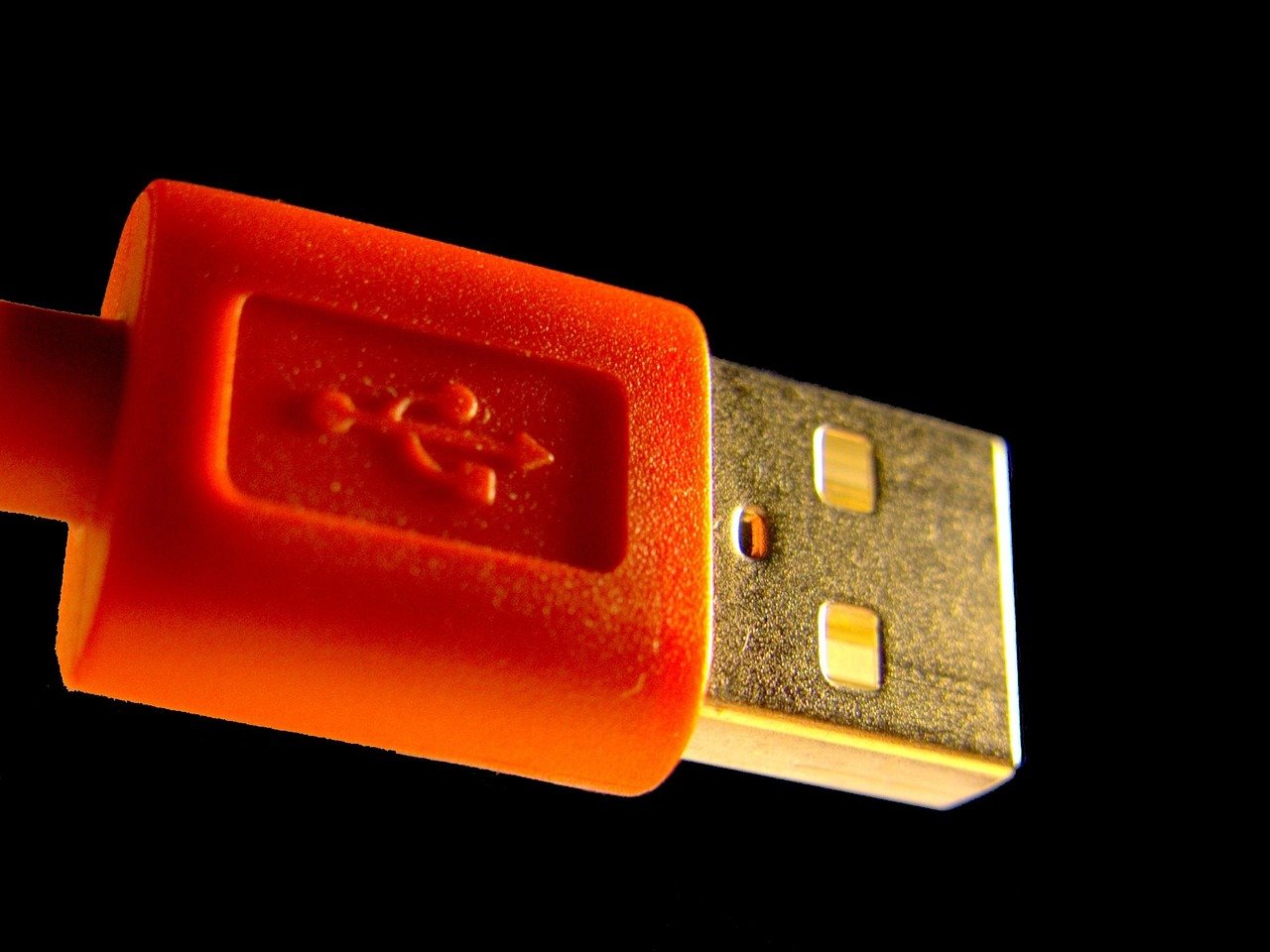
- USB-A: The rectangular connector you’re most familiar with. It’s found on the host device (computer, charger) and often on the peripheral.
- USB-B: A squarish connector, often found on printers, scanners, and older external hard drives.
- Mini-USB: A smaller, trapezoidal connector, once common on digital cameras, MP3 players, and some external hard drives. Largely replaced by Micro-USB and USB-C.
- Micro-USB: A very small, flat, and trapezoidal connector. It was the standard for most smartphones and many portable devices before the widespread adoption of USB-C.
- USB-C (Type-C): The modern, reversible, oval-shaped connector. It’s becoming the universal standard across all devices, from smartphones and laptops to monitors and external drives. Its reversibility means you can plug it in either way, eliminating the frustration of fumbling.
Key Features to Consider When Buying a USB Cable:
-
USB Standard Support: Always ensure the cable supports the USB standard of your devices. A USB 3.0 device plugged into a USB 2.0 cable will only operate at USB 2.0 speeds. Similarly, a USB 3.0 cable won’t magically make a USB 2.0 device faster. Look for clear labeling on the cable or its packaging indicating the supported standard (e.g., “USB 3.2 Gen 2,” “SuperSpeed 10Gbps”).
-
Data Transfer Speed: This is directly tied to the USB standard. If you frequently transfer large files, invest in cables supporting USB 3.0 or higher. For basic charging and peripherals, USB 2.0 might suffice, but consider future-proofing.
-
Power Delivery (PD) and Charging Capabilities: Modern devices, especially laptops and smartphones, require more power. Look for cables that support USB Power Delivery (USB PD). This technology allows for higher wattage charging, significantly reducing charging times. Cables will often specify their charging wattage (e.g., “60W,” “100W”). Ensure the cable’s wattage rating meets or exceeds your device’s requirements. A cable rated for 30W will not optimally charge a laptop that requires 65W.
-
Cable Length: While longer cables offer convenience, they can sometimes lead to signal degradation and slower speeds, especially for older USB standards or high-speed data transfers. For optimal performance, try to use the shortest cable necessary. If a long cable is unavoidable, ensure it’s a high-quality cable designed for longer runs, often with thicker gauge wires.
-
Wire Gauge (AWG): The American Wire Gauge (AWG) indicates the thickness of the copper wires inside the cable. A lower AWG number signifies thicker wires. Thicker wires have less resistance, allowing for more efficient power transfer and less signal loss, particularly important for charging and high-speed data. Look for cables with lower AWG numbers, especially for charging cables (e.g., 24AWG or 22AWG for power lines).
-
Build Quality and Durability: A cheap, flimsy cable is more likely to break, fray, or develop internal connection issues. Look for cables with robust construction, reinforced connectors, and durable braiding (e.g., nylon). Braided cables are generally more resistant to tangling and wear and tear. Strain relief at the connector points is also crucial to prevent damage from bending.
-
Shielding: High-quality cables feature good shielding to protect against electromagnetic interference (EMI) and radio frequency interference (RFI). This is especially important for high-speed data transfers, preventing data corruption and ensuring stable connections. Look for cables that mention triple or quadruple shielding.
-
Connector Type and Reversibility (USB-C): As mentioned, USB-C is the future. If your devices support it, opt for USB-C cables. The reversible design is a significant usability improvement.
-
Brand Reputation and Reviews: Reputable brands often invest more in quality control and materials. Read reviews from other users to gauge the cable’s real-world performance and durability. Be wary of suspiciously cheap cables from unknown manufacturers.
-
Certification (e.g., USB-IF Certified): Cables certified by the USB Implementers Forum (USB-IF) have undergone rigorous testing to ensure they meet the USB specifications. While not always explicitly advertised, looking for the USB-IF logo can be a good indicator of quality.
Common Pitfalls to Avoid:
- Misleading Marketing: Brands may use terms like “SuperSpeed” without specifying the exact standard (e.g., USB 3.0 vs. USB 3.1 Gen 2). Always look for detailed specifications.
- “Fast Charging” Claims: While a cable might support fast charging, the charger and the device also need to support the same fast-charging technology (e.g., Quick Charge, USB PD).
- Using the Wrong Cable for the Job: A USB 2.0 cable for a high-speed external SSD will severely limit its performance. Likewise, using a low-wattage cable for a power-hungry laptop will result in slow or no charging.
- Ignoring Cable Length for High-Speed Data: For very high-speed data transfers (e.g., Thunderbolt or USB4), shorter, high-quality cables are generally preferred.
Specific Cable Types and Their Nuances:
- Charging Cables: Prioritize cables with good power delivery capabilities (high wattage) and appropriate wire gauge (low AWG) for faster and more efficient charging.
- Data Transfer Cables: Focus on cables supporting the highest USB standard your devices are capable of, with good shielding and build quality for reliable data integrity.
- Video Cables (USB-C to DisplayPort/HDMI): For video output via USB-C, ensure the cable explicitly supports the video standard (e.g., DisplayPort Alt Mode) and the desired resolution and refresh rate.
- Thunderbolt Cables: These are distinct from standard USB-C cables and are specifically designed for Thunderbolt 3 and 4 protocols, offering higher bandwidth for data, video, and power. They are backward compatible with USB-C but not vice-versa.
In conclusion, while the humble USB cable may seem insignificant, it plays a vital role in the