
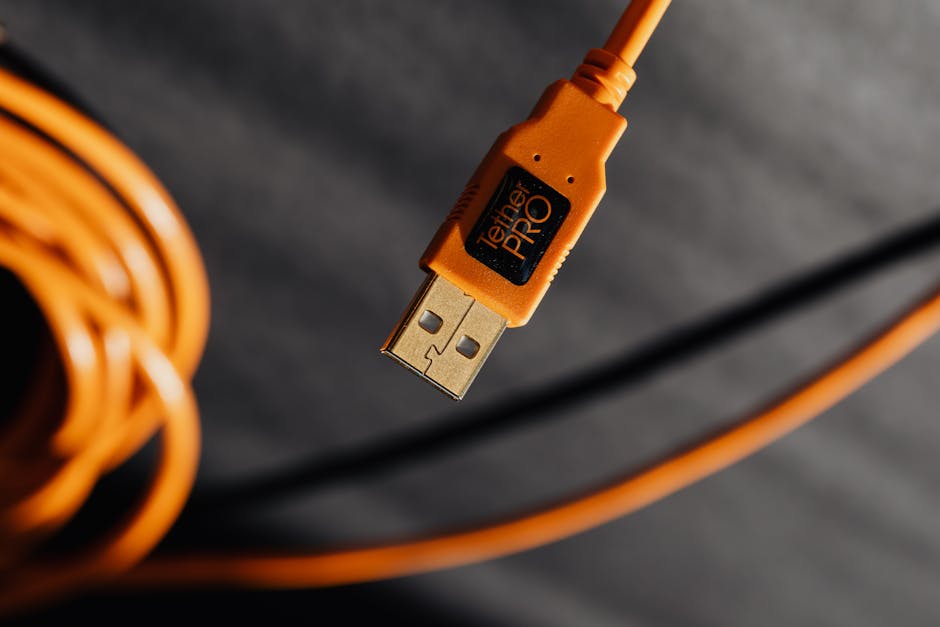
Data Transfer Speeds: How USB Cables Impact Your Workflow
In today’s digitally driven world, efficient data transfer is paramount. From backing up critical files to transferring large media assets or connecting high-performance peripherals, the speed at which data moves directly influences productivity and workflow. At the heart of this crucial process lies the humble USB cable, a seemingly simple connector that belies a complex and rapidly evolving technology. Understanding the nuances of USB standards and their corresponding cable requirements is no longer a niche technical concern; it’s a fundamental aspect of optimizing any digital workflow, impacting everything from the time it takes to transfer a few megabytes to the responsiveness of your entire system.
The evolution of USB (Universal Serial Bus) technology has been a relentless march towards faster speeds and greater versatility. Each iteration has brought significant improvements, enabling new possibilities for device connectivity and data throughput. The earliest USB standards, like USB 1.0 and 1.1, operated at glacial speeds of 1.5 Mbps and 12 Mbps respectively. While sufficient for basic peripherals like keyboards and mice, these speeds quickly became a bottleneck for anything requiring substantial data movement. The advent of USB 2.0 marked a significant leap forward, offering a theoretical maximum speed of 480 Mbps. This allowed for the widespread adoption of external hard drives, flash drives, and digital cameras, dramatically improving the transfer of photos and documents.
However, the true revolution in data transfer speeds began with USB 3.0, later rebranded as USB 3.2 Gen 1. This standard introduced a theoretical maximum speed of 5 Gbps (Gigabits per second), a tenfold increase over USB 2.0. This jump in bandwidth unlocked the potential for significantly faster external storage solutions, making the transfer of large video files, high-resolution images, and extensive software installations considerably quicker. Following closely, USB 3.2 Gen 2 (formerly USB 3.1 Gen 2) doubled this speed to 10 Gbps, further accelerating data transfer and enabling more demanding applications.
The most recent and fastest iterations, USB 3.2 Gen 2×2 and USB4, have pushed the boundaries even further. USB 3.2 Gen 2×2, leveraging two lanes of 10 Gbps data transfer, can achieve a remarkable 20 Gbps. USB4, built upon the Thunderbolt 3 protocol, offers even greater flexibility and speeds, with versions supporting 20 Gbps, 40 Gbps, and even higher in some implementations. These speeds are not merely theoretical; they translate directly into tangible workflow improvements. For content creators, photographers, and videographers, transferring multi-gigabyte raw footage or high-resolution image libraries can be reduced from hours to mere minutes. IT professionals can deploy operating systems and software to multiple machines with unprecedented speed. Gamers can experience faster load times for large game installations and quicker transfers of game assets.
The impact of these speed differences on workflow can be profound. Imagine a photographer needing to back up hundreds of RAW photos after a shoot. Using a USB 2.0 drive, this could take a significant portion of their evening. With a USB 3.2 Gen 2 drive and a compatible camera or card reader, the same transfer might take mere minutes, allowing them to move on to editing or other tasks much sooner. Similarly, a video editor working with 4K or 8K footage will find the difference between a 5 Gbps and a 40 Gbps transfer speed to be the difference between a frustrating wait and a seamless workflow. The time saved by faster data transfer directly translates into more time spent on creative or productive activities, increasing overall output and reducing project turnaround times.
However, achieving these advertised speeds is not solely dependent on the USB standard supported by your devices. The USB cable itself plays a critical, often overlooked, role. Not all USB cables are created equal. A cable designed for USB 2.0 will not support the speeds of USB 3.0 or higher, regardless of the ports on your devices. Attempting to use a USB 2.0 cable with USB 3.0 ports will result in performance limited to USB 2.0 speeds, creating a significant bottleneck. To unlock the full potential of your high-speed USB ports, you must use cables specifically rated for the desired USB standard.
For USB 3.2 Gen 1 (5 Gbps), look for cables labeled “SuperSpeed USB.” For USB 3.2 Gen 2 (10 Gbps), the labeling often includes “SuperSpeed USB 10 Gbps.” For USB 3.2 Gen 2×2 (20 Gbps), the cables are typically marked “SuperSpeed USB 20 Gbps.” USB4 cables are often identified by their “USB4” designation and may also indicate Thunderbolt compatibility. Furthermore, the quality of the cable’s internal wiring, shielding, and connectors can also influence performance. Thicker gauge wires generally offer better signal integrity for higher speeds, and robust shielding helps to mitigate electromagnetic interference, which can degrade data transfer rates.
The physical connector type also matters. While USB-A remains prevalent, the adoption of USB-C has been a game-changer. USB-C is a reversible connector that supports a wide range of USB standards, including USB 3.2 and USB4, as well as other protocols like Thunderbolt and DisplayPort. This universality simplifies connectivity and reduces the need for multiple cable types. However, it’s crucial to remember that a USB-C port or cable doesn’t automatically guarantee the highest speeds. A USB-C cable might be rated for USB 2.0 speeds, or it might be designed for USB 3.2 Gen 2×2 or USB4. Always check the cable’s specifications.
Beyond raw speed, the length of the USB cable can also impact performance, especially at higher data rates. Longer cables are more susceptible to signal degradation. While USB 3.0 and newer standards are designed to maintain signal integrity over reasonable lengths (typically up to 3 meters for full speed), exceeding these lengths with standard passive cables can lead to reduced speeds or even connection instability. For longer runs, active USB cables, which contain signal boosters, are available and can maintain higher speeds over greater distances.
When selecting USB cables to optimize your workflow, consider the following:
- Identify your devices’ USB capabilities: What USB standard do your computer’s ports support? What standard does your external drive, camera, or other peripheral use?
- Match the cable to the highest common standard: To achieve the fastest possible transfer speeds, ensure your cable supports at least the highest USB standard supported by both your source and destination devices.
- Check cable labeling carefully: Look for explicit markings indicating the USB speed rating (e.g., “SuperSpeed USB 10 Gbps,” “USB4 40Gbps”).
- Consider cable quality and brand: Reputable brands often invest in better materials and construction, leading to more reliable performance.
- Factor in cable length: For critical high-speed transfers or long-distance connections, choose appropriate lengths and consider active cables if necessary.
- Understand USB-C nuances: A USB-C cable’s capabilities are not inherent; they are defined by its internal wiring and the standards it supports.
The impact of data transfer speeds on workflow is undeniable. A poorly chosen or outdated USB cable can turn a potentially swift operation into a frustratingly slow process, hindering productivity and impacting project timelines. By understanding the evolution of USB technology and the critical role of properly rated cables, individuals and organizations can make informed choices that significantly enhance their digital workflows, ensuring that data moves as efficiently as possible, freeing up valuable time and resources for more critical tasks. Investing in the right USB cables is not just about purchasing an accessory; it’s about investing in the speed and efficiency of your entire digital operation.