
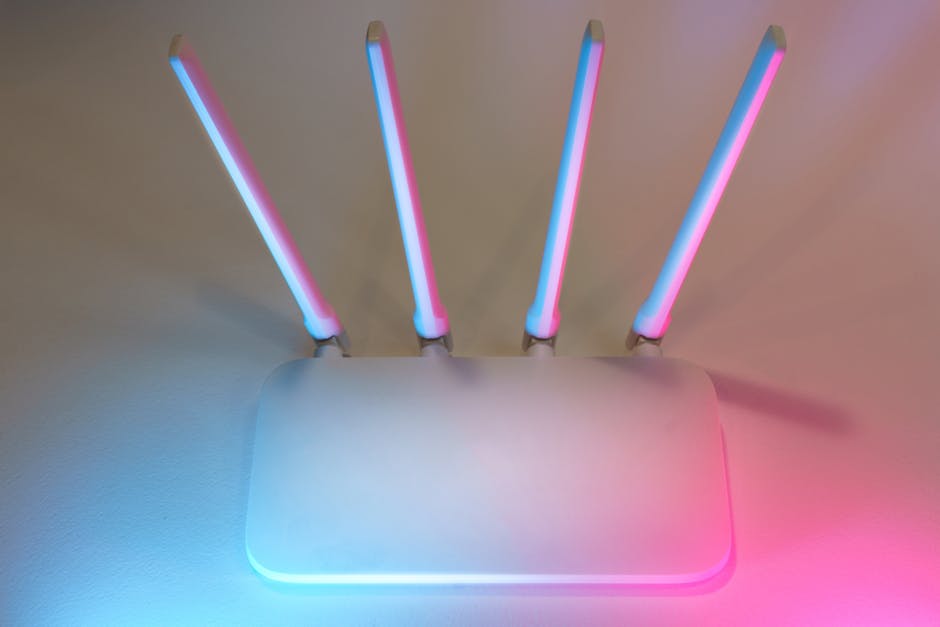
Unleash Your Network: DIY Wi-Fi Router Optimization for Peak Performance
Tired of buffering videos, slow downloads, and frustrating Wi-Fi dead zones? Your router, the unsung hero of your digital life, might be capable of far more than you realize. Instead of immediately upgrading or calling a technician, a wealth of performance gains lies within your existing hardware, accessible through smart DIY optimization. This guide dives deep into actionable strategies to transform your Wi-Fi experience, transforming a sluggish network into a high-speed, reliable powerhouse.
1. Strategic Router Placement: The Foundation of a Strong Signal
Before touching any settings, the physical location of your router is paramount. Think of it as the heart of your Wi-Fi network; its placement dictates how effectively its signal can reach every corner of your home.
- Centralize: Aim for a central location within your home. Avoid placing it in a basement, attic, or extreme corner. This minimizes the distance the signal needs to travel and reduces the number of obstructions.
- Elevate: Routers broadcast signals downwards and outwards. Placing your router on a high shelf or mounted on a wall can significantly improve coverage, especially for multi-story homes.
- Minimize Obstructions: Walls, especially those made of brick, concrete, or metal, act as signal impediments. Large appliances like refrigerators, microwaves, and even fish tanks can also interfere. Keep your router away from these.
- Avoid Electronics: Other electronic devices emitting radio waves, such as cordless phones, Bluetooth devices, and even some older CRT televisions, can cause interference. Try to keep your router at least a few feet away from these.
- Open Air: Don’t hide your router in a cabinet or behind furniture. A clear line of sight allows the signal to propagate more freely.
2. Firmware Updates: The Unsung Hero of Router Performance
Manufacturers regularly release firmware updates for their routers. These updates aren’t just about adding new features; they often contain crucial performance enhancements, bug fixes, and security patches.
- Access Your Router’s Interface: Open a web browser and type your router’s IP address (commonly 192.168.1.1 or 192.168.0.1) into the address bar. You’ll be prompted for your router’s username and password.
- Locate the Firmware Update Section: This is usually found under “Administration,” “System,” “Advanced Settings,” or a similar menu.
- Check for Updates: Most routers have an automatic update checker. If not, you may need to visit the manufacturer’s website, download the latest firmware for your specific model, and upload it manually.
- Backup Settings: Before updating, it’s wise to back up your current router configuration. This allows for a quick restoration if something goes wrong.
- Update Process: Follow the on-screen instructions carefully. Do not interrupt the update process by turning off the router or disconnecting from the network.
3. Channel Selection: Navigating the Wi-Fi Airwaves
Your Wi-Fi network operates on specific channels within the 2.4GHz and 5GHz frequency bands. If multiple networks in your vicinity are using the same channel, it can lead to congestion and slower speeds.
- Understand the Bands:
- 2.4GHz: Offers wider coverage but is more prone to interference and generally slower.
- 5GHz: Offers faster speeds and less interference but has a shorter range.
- Analyze Channel Usage: Many routers have built-in Wi-Fi analyzers that can show you which channels are most congested. Alternatively, you can download third-party Wi-Fi scanner apps on your smartphone or laptop.
- Optimal Channels:
- 2.4GHz: Channels 1, 6, and 11 are generally considered the least overlapping and are often the best choices.
- 5GHz: Offers more channels, so look for less utilized ones.
- Manual Channel Selection: Within your router’s settings, navigate to the wireless settings and manually select the optimal channel for each band. Experiment with different channels to find the best performance.
4. Bandwidth Management (QoS): Prioritizing Your Traffic
Quality of Service (QoS) allows you to prioritize certain types of network traffic over others. This is invaluable for ensuring smooth streaming, lag-free gaming, and uninterrupted video calls, even when other devices are using the network.
- Identify Your Needs: Determine which devices and applications are most critical for your network performance (e.g., gaming console, streaming box, work laptop).
- Access QoS Settings: This feature is typically found under “Advanced Settings,” “QoS,” or “Traffic Management.”
- Prioritize Devices/Applications: You can often assign priority levels (e.g., highest, high, medium, low) to specific devices based on their MAC addresses or to entire categories of applications.
- Bandwidth Allocation: Some QoS settings allow you to allocate a minimum or maximum bandwidth to specific devices or applications.
- Experimentation is Key: QoS settings can be complex. Start with simple prioritization and gradually adjust as needed. Overly aggressive QoS can sometimes hinder performance for less prioritized devices.
5. Wi-Fi Security: A Strong Defense Against Performance Throttling
While primarily for security, weak or outdated Wi-Fi security can indirectly impact performance. Uninvited guests hogging your bandwidth are a direct drain on your resources.
- WPA3 Encryption: If your router supports WPA3, enable it. It’s the latest and most secure encryption protocol.
- WPA2-AES: If WPA3 isn’t an option, WPA2-AES is the next best choice. Avoid WEP and WPA as they are outdated and easily compromised.
- Strong, Unique Password: Create a complex password that’s difficult to guess. Avoid personal information or common words.
- Disable WPS (Wi-Fi Protected Setup): While convenient, WPS has known security vulnerabilities. It’s best to disable it and manually connect devices.
- Guest Network: Utilize your router’s guest network feature for visitors. This isolates their devices from your main network, enhancing security and preventing them from impacting your primary devices.
6. SSID and Broadcast Settings: Fine-Tuning Your Network’s Visibility
Your SSID (network name) and broadcast settings can have subtle impacts on your network’s performance and security.
- Change Default SSID: Don’t use the default SSID provided by your ISP or router manufacturer. Change it to something unique. This adds a layer of obscurity and makes it less obvious what type of router you have.
- SSID Hiding (Use with Caution): While hiding your SSID can make your network less visible to casual scans, it doesn’t offer significant security benefits and can complicate device connections. It’s generally not recommended for most users.
- Disable Remote Management: Unless you have a specific need to access your router’s settings from outside your home network, disable remote management. This prevents unauthorized access to your router’s configuration.
7. Advanced Settings: Exploring the Router’s Potential
For the more adventurous, delving into advanced router settings can unlock further performance gains.
- Transmit Power Control: Some routers allow you to adjust the transmit power of the Wi-Fi signal. Increasing it might improve range but can also increase interference. Use this with caution and monitor performance.
- MU-MIMO (Multi-User, Multiple-Input, Multiple-Output): If your router supports MU-MIMO, ensure it’s enabled. This technology allows the router to communicate with multiple devices simultaneously, significantly improving efficiency in busy networks.
- Beamforming: This feature directs the Wi-Fi signal towards connected devices, improving signal strength and stability. Ensure it’s enabled if available.
- DHCP Server Settings: While usually best left at default, understanding DHCP can help troubleshoot IP address conflicts.
- DNS Server Settings: Consider switching to a faster, public DNS server like Google DNS (8.8.8.8 and 8.8.4.4) or Cloudflare DNS (1.1.1.1 and 1.0.0.1). This can sometimes improve browsing speeds.
8. Router Hardware Considerations: When to Consider an Upgrade or Add-ons
While this guide focuses on DIY optimization, sometimes your hardware is the bottleneck.
- Router Age: Older routers may not support newer Wi-Fi standards (Wi-Fi 5/ac, Wi-Fi 6/ax) and can be a limiting factor.
- Mesh Wi-Fi Systems: For larger homes or areas with persistent dead zones, a mesh Wi-Fi system offers a more robust and seamless solution than a single router.
- Wi-Fi Extenders/Boosters: While not as effective as mesh systems, these can help extend coverage to specific problem areas. Position them strategically between your router and the dead zone.
- Wired Connections: For stationary, high-bandwidth devices like gaming consoles, smart TVs, and desktop computers, a wired Ethernet connection will always provide superior speed and stability.
By systematically working through these DIY optimization techniques, you can significantly enhance your Wi-Fi router’s performance, enjoying faster speeds, a more stable connection, and a truly seamless online experience without spending a dime on new hardware.