
Setting Up Your New Wi-Fi Router: A Step-by-Step Guide
A reliable Wi-Fi connection is no longer a luxury; it’s a necessity. Whether you’re a remote worker, a streaming enthusiast, a gamer, or simply someone who wants to stay connected, a well-configured Wi-Fi router is the backbone of your digital life. This comprehensive guide will walk you through the entire process of setting up your new Wi-Fi router, ensuring a seamless and secure network for your home or office.
1. Unboxing and Physical Connections: The Foundation of Your Network
Before you dive into software configurations, it’s crucial to handle the physical setup correctly.
- Inspect the Contents: Carefully unbox your new router. Ensure you have the router itself, a power adapter, an Ethernet cable (often blue or yellow), and any accompanying quick-start guides or documentation. Verify that all components are present and undamaged.
- Locate Your Modem: Your Wi-Fi router needs to connect to your internet service provider’s (ISP) modem. This is typically a separate device that brings the internet into your home. It’s usually provided by your ISP.
- Power Off Devices: For a clean and safe installation, it’s best to power off both your modem and your computer (if you’re using a wired connection for setup).
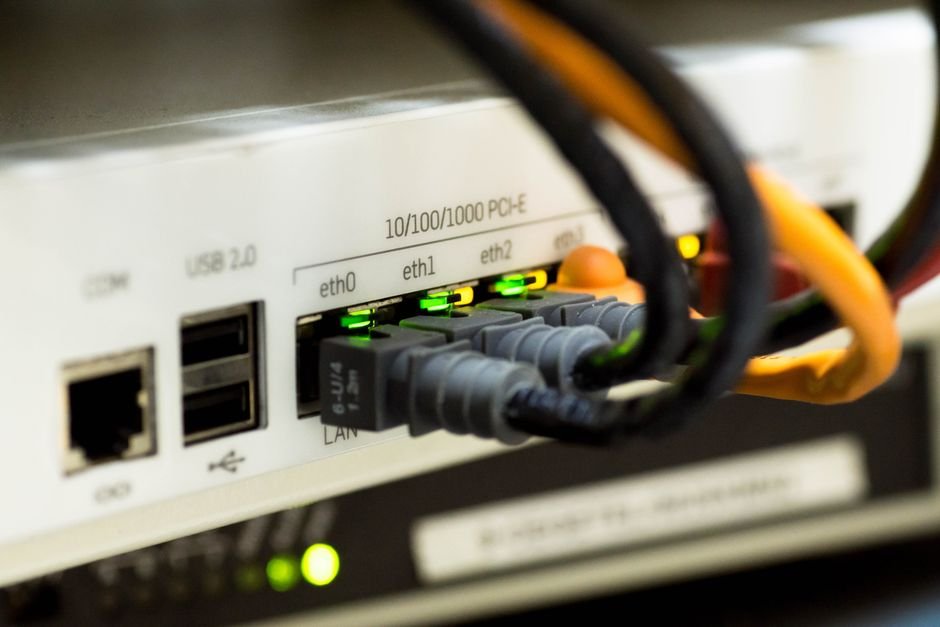
- Connect the Ethernet Cable: Take the included Ethernet cable. Plug one end into the “Internet,” “WAN,” or “Uplink” port on your new Wi-Fi router. This port is usually a different color than the other Ethernet ports on the router and is often labeled. Then, plug the other end of this Ethernet cable into the corresponding Ethernet port on your modem.
- Connect the Power Adapter: Plug the router’s power adapter into the router and then into a wall outlet.
- Power On Devices (in order):
- Turn on your modem first. Wait for all its indicator lights to stabilize, signifying it has established an internet connection. This can take a few minutes.
- Once the modem is fully operational, turn on your new Wi-Fi router. Wait for its power and internet/WAN lights to illuminate and stabilize.
2. Initial Access and Configuration: Entering the Router’s Control Panel
Now that your hardware is connected, it’s time to access the router’s administrative interface to begin configuration.
- Wired Connection (Recommended for Initial Setup): For the most stable and reliable initial setup, connect your computer directly to one of the LAN (Local Area Network) ports on your new router using another Ethernet cable. These ports are typically numbered and are distinct from the WAN port.
- Wireless Connection (Alternative): If a wired connection isn’t feasible, you can connect wirelessly. Your router likely has a default Wi-Fi network name (SSID) and password printed on a sticker on the router itself or in its quick-start guide. Connect to this network.
- Accessing the Router’s IP Address: Open a web browser (Chrome, Firefox, Edge, Safari, etc.) on your connected computer. In the address bar, type the router’s default IP address. Common default IP addresses include:
192.168.1.1192.168.0.1192.168.2.110.0.0.1
Consult your router’s manual or the sticker on the device if these don’t work.
- Login Credentials: You’ll be prompted to enter a username and password. Again, this information is usually found on the router’s sticker or in the manual. Common default credentials include:
- Username:
admin - Password:
adminorpassword - Crucially, you will change these later for security.
- Username:
- The Setup Wizard: Most modern routers will launch a quick setup wizard upon your first login. This wizard will guide you through the essential steps. Follow its prompts carefully.
3. Essential Configuration Steps: Securing and Personalizing Your Network
This is where you customize your network for optimal performance and security.
- Internet Connection Type: The wizard will likely ask you to identify your internet connection type.
- DHCP (Dynamic Host Configuration Protocol): This is the most common type for cable and fiber internet. Your router will automatically obtain an IP address from your ISP.
- PPPoE (Point-to-Point Protocol over Ethernet): Often used by DSL providers. You’ll need to enter the username and password provided by your ISP.
- Static IP: Less common for home users, this requires you to manually enter IP address details provided by your ISP.
If you’re unsure, check your ISP’s documentation or contact their support.
- Wireless Network Name (SSID): This is the name of your Wi-Fi network that will appear when devices scan for available networks. Choose a unique and descriptive name. Avoid using personal information.
- Example: “SmithFamilyWiFi” or “OfficeNetwork”
- Wireless Security Protocol: This is paramount for protecting your network from unauthorized access.
- WPA3 (Wi-Fi Protected Access 3): The latest and most secure standard. If your router and devices support it, use WPA3.
- WPA2 (Wi-Fi Protected Access 2): The widely adopted standard and a strong choice.
- Avoid WEP (Wired Equivalent Privacy): This is an outdated and easily crackable security protocol.
- Wireless Password (Pre-Shared Key – PSK): This is the password you’ll use to connect devices to your Wi-Fi network. Create a strong, complex password.
- Best Practices for Passwords:
- Use a combination of uppercase and lowercase letters.
- Include numbers.
- Incorporate special characters (e.g., !, @, #, $, %).
- Make it at least 12 characters long.
- Avoid easily guessable words, phrases, or personal information.
- Consider using a password manager to generate and store strong passwords.
- Best Practices for Passwords:
- Change Default Admin Login Credentials: This is a critical security step. Navigate to the router’s administration settings and change the default username and password you used to log in to the router’s interface. Use a strong, unique password for this as well, separate from your Wi-Fi password. This prevents anyone from easily accessing your router’s settings.
- Firmware Update: Once connected to the internet, check for firmware updates for your router. Firmware is the router’s operating system. Manufacturers regularly release updates to improve performance, add features, and patch security vulnerabilities. Install any available updates. This is often found in an “Administration,” “System,” or “Advanced” section.
4. Advanced Configuration (Optional but Recommended): Fine-Tuning Your Network
For users seeking more control or troubleshooting specific issues, these advanced settings can be beneficial.
- Dual-Band or Tri-Band Configuration: Most modern routers are dual-band (2.4 GHz and 5 GHz) or tri-band (2.4 GHz, 5 GHz, and another 5 GHz or 6 GHz band).
- 2.4 GHz: Offers a longer range and better penetration through walls but has slower speeds and is more susceptible to interference from other devices (microwaves, Bluetooth).
- 5 GHz: Provides faster speeds and less interference but has a shorter range.
- 6 GHz (Wi-Fi 6E): Offers even faster speeds and significantly less interference but has the shortest range and requires compatible devices.
You can choose to broadcast separate SSIDs for each band or use a single SSID with band steering, where the router automatically assigns devices to the optimal band.
- Guest Network: Create a separate Wi-Fi network for guests. This allows visitors to access the internet without giving them access to your main network and connected devices. You can set bandwidth limits or time restrictions for guest networks.
- Quality of Service (QoS): QoS allows you to prioritize certain types of traffic over others. For example, you can give higher priority to video streaming or online gaming to ensure a smoother experience, even when other devices are using the network heavily.
- Parental Controls: Many routers offer built-in parental controls that allow you to block specific websites, set time limits for internet access for certain devices, or filter content.
- Port Forwarding (for advanced users/gamers): If you run servers or play certain online games that require specific ports to be open, you might need to configure port forwarding. This directs internet traffic from specific ports on your router to specific devices on your local network. Use this cautiously, as it can create security risks if not configured correctly.
- DHCP Server Settings: You can usually configure the range of IP addresses that the router’s DHCP server assigns to devices on your network. This is rarely needed for basic setups.
- DNS Server Settings: You can choose to use your ISP’s DNS servers or opt for public DNS servers like Google DNS (
8.8.8.8,8.8.4.4) or Cloudflare DNS